Description
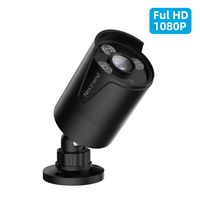
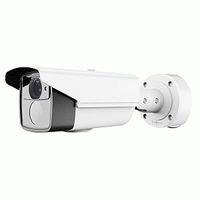
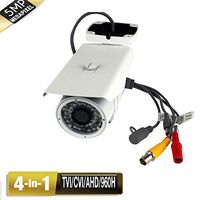
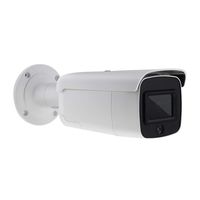
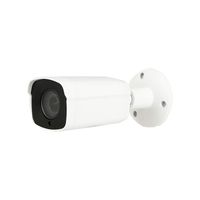
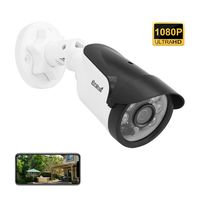
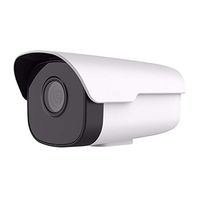
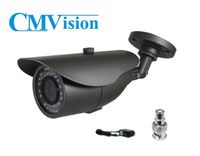
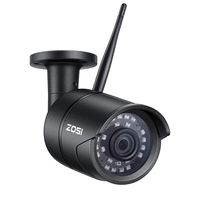
This 4-in-1 professional bullet security camera built-in 1/2.7" CMOS Image Sensor, with 2.0 Megapixel Resolution and an advanced circuit design, it adopts an advanced image processing technology. The camera resolution is as high as 1080p Full HD, which ensures clear and bright pictures.
This 1080p full HD camera has a built-in OSD menu that can change the 4 different video outputs HD-TVI, AHD, CVI, and CVBS(960H) and adjust the video settings.
Operation Mode.
Switch from AHD: Press Leftward for 5 Seconds
Switch from TVI: Press Rightward for 5 Seconds
Switch from CVBS: Press Upward for 5 Seconds
Switch from CVI: Press Downward for 5 Seconds
This 4-in1 camera is fully compatible for the following HD DVRS:
Hikvision, Dahua, GW, LTS, Q-see, Swann, Samsung, Night Owl, Best Vision, HD View,
HQ-CAM, Annke, Aposonic, I-DVR Pro, Vonnic, Digital Watchdog, Logisaf, Sannce,
Venetech, Speco, Alibi, KT&C, Cantek, ZOSI and many more.
Troubleshooting
Q: Video Loss appears where the image from my camera should be displaying on my DVR?
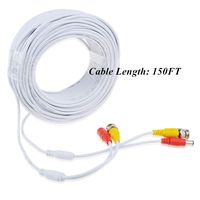
A: 1.Check the extension cable (power and video) is securely connected to the camera.
2.Check the video output from the camera is securely connected to a video input channel on the DVR.
3.Check the power from the camera is securely connected to a power supply.
4. The camera mode do not match your DVR.there is 2 ways to setup .
(1) Press OSD Joystick “DOWN” 5 seconds,if still no picture come, try to press “LEFT” “RIGHT””UP” for 5 second, till the signal matching your DVR.
(2) Make sure the signal of your DVR, Use OSD Joystick to change the mode of the camera according to your DVRs video Mode.
Zero-Risk Purchase,100% Satisfaction Guarantee
365 days 100% money-back guarantee. We will refund you immediately if you are not satisfied with our products
This 1080p full HD camera has a built-in OSD menu that can change the 4 different video outputs HD-TVI, AHD, CVI, and CVBS(960H) and adjust the video settings.
Operation Mode.
Switch from AHD: Press Leftward for 5 Seconds
Switch from TVI: Press Rightward for 5 Seconds
Switch from CVBS: Press Upward for 5 Seconds
Switch from CVI: Press Downward for 5 Seconds
This 4-in1 camera is fully compatible for the following HD DVRS:
Hikvision, Dahua, GW, LTS, Q-see, Swann, Samsung, Night Owl, Best Vision, HD View,
HQ-CAM, Annke, Aposonic, I-DVR Pro, Vonnic, Digital Watchdog, Logisaf, Sannce,
Venetech, Speco, Alibi, KT&C, Cantek, ZOSI and many more.
Troubleshooting
Q: Video Loss appears where the image from my camera should be displaying on my DVR?
A: 1.Check the extension cable (power and video) is securely connected to the camera.
2.Check the video output from the camera is securely connected to a video input channel on the DVR.
3.Check the power from the camera is securely connected to a power supply.
4. The camera mode do not match your DVR.there is 2 ways to setup .
(1) Press OSD Joystick “DOWN” 5 seconds,if still no picture come, try to press “LEFT” “RIGHT””UP” for 5 second, till the signal matching your DVR.
(2) Make sure the signal of your DVR, Use OSD Joystick to change the mode of the camera according to your DVRs video Mode.
Zero-Risk Purchase,100% Satisfaction Guarantee
365 days 100% money-back guarantee. We will refund you immediately if you are not satisfied with our products
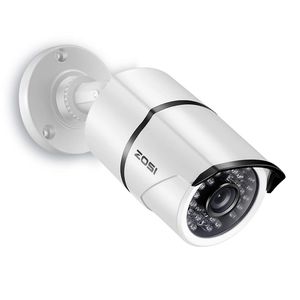
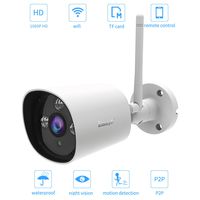
ZOSI 1080P 4-in-1 TVI/CVI/AHD/CVBS CCTV Security Camera 36 IR LEDs Outdoor Night Vision 100ft 3.6mm Bullet Camera Aluminum Metal Housing, Compatible for HD-TVI, AHD, CVI, and CVBS/960H analog DVR
Price is below average
Current Price
$19.99
Average
$22.68
Min Price
$14.99
Max Price
$29.99
Price dynamics
12%
Description
This 4-in-1 professional bullet security camera built-in 1/2.7" CMOS Image Sensor, with 2.0 Megapixel Resolution and an advanced circuit design, it adopts an advanced image processing technology. The camera resolution is as high as 1080p Full HD, which ensures clear and bright pictures.
This 1080p full HD camera has a built-in OSD menu that can change the 4 different video outputs HD-TVI, AHD, CVI, and CVBS(960H) and adjust the video settings.
Operation Mode.
Switch from AHD: Press Leftward for 5 Seconds
Switch from TVI: Press Rightward for 5 Seconds
Switch from CVBS: Press Upward for 5 Seconds
Switch from CVI: Press Downward for 5 Seconds
This 4-in1 camera is fully compatible for the following HD DVRS:
Hikvision, Dahua, GW, LTS, Q-see, Swann, Samsung, Night Owl, Best Vision, HD View,
HQ-CAM, Annke, Aposonic, I-DVR Pro, Vonnic, Digital Watchdog, Logisaf, Sannce,
Venetech, Speco, Alibi, KT&C, Cantek, ZOSI and many more.
Troubleshooting
Q: Video Loss appears where the image from my camera should be displaying on my DVR?
A: 1.Check the extension cable (power and video) is securely connected to the camera.
2.Check the video output from the camera is securely connected to a video input channel on the DVR.
3.Check the power from the camera is securely connected to a power supply.
4. The camera mode do not match your DVR.there is 2 ways to setup .
(1) Press OSD Joystick “DOWN” 5 seconds,if still no picture come, try to press “LEFT” “RIGHT””UP” for 5 second, till the signal matching your DVR.
(2) Make sure the signal of your DVR, Use OSD Joystick to change the mode of the camera according to your DVRs video Mode.
Zero-Risk Purchase,100% Satisfaction Guarantee
365 days 100% money-back guarantee. We will refund you immediately if you are not satisfied with our products
This 1080p full HD camera has a built-in OSD menu that can change the 4 different video outputs HD-TVI, AHD, CVI, and CVBS(960H) and adjust the video settings.
Operation Mode.
Switch from AHD: Press Leftward for 5 Seconds
Switch from TVI: Press Rightward for 5 Seconds
Switch from CVBS: Press Upward for 5 Seconds
Switch from CVI: Press Downward for 5 Seconds
This 4-in1 camera is fully compatible for the following HD DVRS:
Hikvision, Dahua, GW, LTS, Q-see, Swann, Samsung, Night Owl, Best Vision, HD View,
HQ-CAM, Annke, Aposonic, I-DVR Pro, Vonnic, Digital Watchdog, Logisaf, Sannce,
Venetech, Speco, Alibi, KT&C, Cantek, ZOSI and many more.
Troubleshooting
Q: Video Loss appears where the image from my camera should be displaying on my DVR?
A: 1.Check the extension cable (power and video) is securely connected to the camera.
2.Check the video output from the camera is securely connected to a video input channel on the DVR.
3.Check the power from the camera is securely connected to a power supply.
4. The camera mode do not match your DVR.there is 2 ways to setup .
(1) Press OSD Joystick “DOWN” 5 seconds,if still no picture come, try to press “LEFT” “RIGHT””UP” for 5 second, till the signal matching your DVR.
(2) Make sure the signal of your DVR, Use OSD Joystick to change the mode of the camera according to your DVRs video Mode.
Zero-Risk Purchase,100% Satisfaction Guarantee
365 days 100% money-back guarantee. We will refund you immediately if you are not satisfied with our products
Price will be lower
in next 2 weeks
in next 2 weeks
According to the data, price will be lower in next two weeks, so not waste your money and track better price!
Product review & video
so what I went for in the end is this hikvision DVR and this DVL allows you to do up to 4k resolution but I decided to go for HD rather than 4k the cameras I went for with these vivid HD what we call sony starlight camera and basically how they work is that they operate in really low light and still keep the footage like daytime rather than going into infrared that's the camera I've got which comes in the template the instructions comes with some screws and wall plugs which I won't be using I'll be using my own and then there's a little allen key so you need to get into the camera I guess that's probably because some of them have got SD cards on so then you've got the four screws at the back I've gone for grey you undo this there's this piece and then the camera which you can move around this denotes the bottom of the camera view and this will move around so that it's not in the way of


Similar products