Description
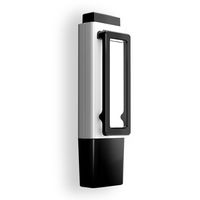
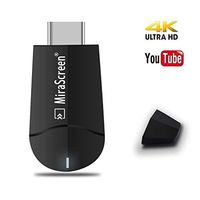
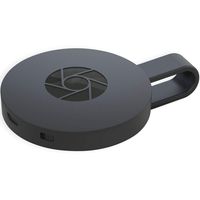
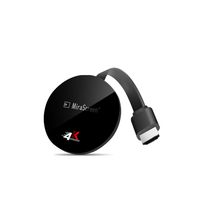
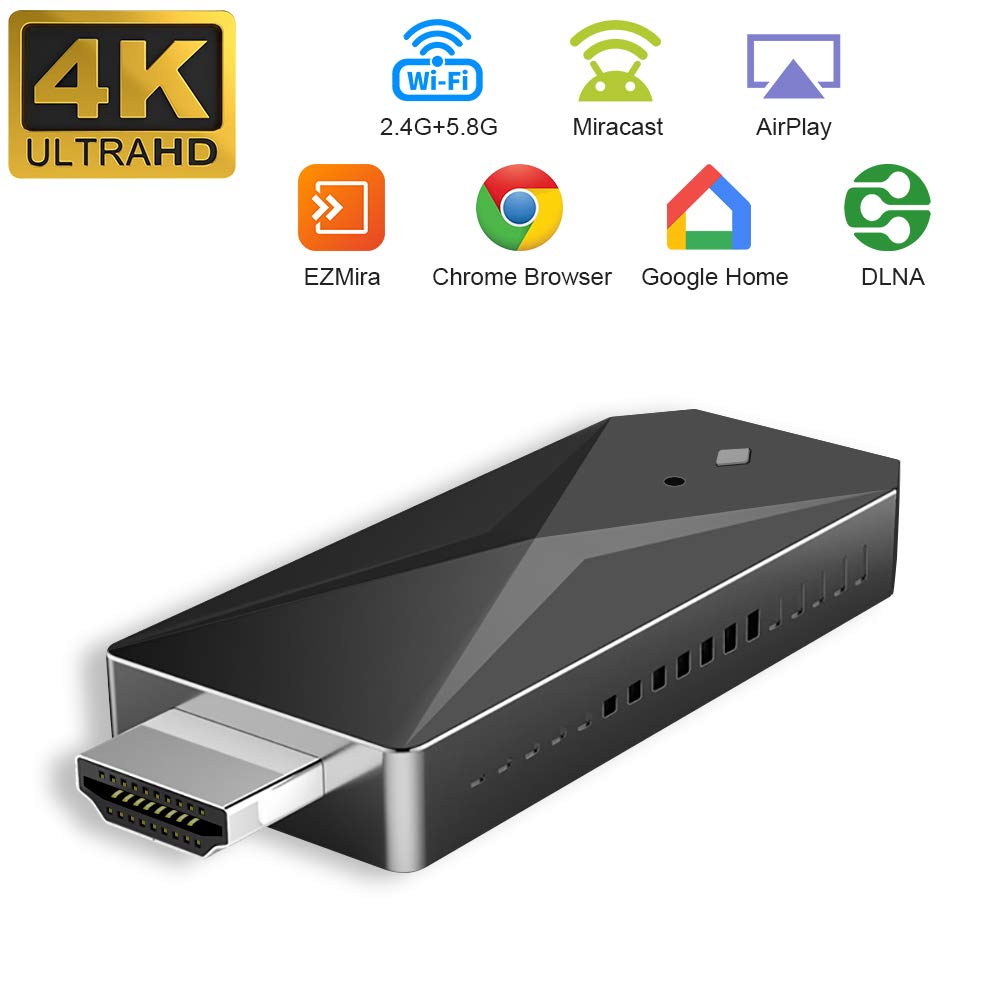
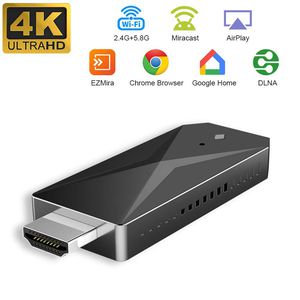
Wireless screen dongle
Specifications:
Ram: DDR 1 Gbit
CPU: AM827X
Power: 5V 2A
Output: HDMI
Supports Miracast Dongle with Mac OS / Windows PC and iOS / Android Smartphone Tablet
For iOS devices:
Connect the iOS device to the WiFi (SSID: XXX PSK : XXX). When you use it for the first time, configure the dongle connected to your home WiFi router. Open the Safari browser> Visit 192.168.203.1> Choose WiFi settings> Search for available home network> Select Network> Enter password> Connect. Go to Control Center> Airplay Mirroring> Choose Dongle, the TV will share your screen immediately.
For Android devices:
Open the Phone Settings and look for the wireless display / Device connection function and choose the dongle, no password is required. There are different names for Miracast on different Android devices, such as WIiFi Display / SmartView / Muti-Screen Display / WLAN Display / AllShare Cast, etc.
For Windows PC:
Press [WINDOW] + [P] to activate the Project function and add the dongle to the device list.
Package included:
WiFi Display Dongle x1
USB cable x1
User Manual x1
NOTE:
It is not compatible with the application that requires video license (HDCP), such as Netflix / iTunes / HBO Go / Hulu Plus / Honda Motor / ESPN and other video applications. You can change the video from the Safari websites to the mirror or view the local video downloaded by another video application.
Specifications:
Ram: DDR 1 Gbit
CPU: AM827X
Power: 5V 2A
Output: HDMI
Supports Miracast Dongle with Mac OS / Windows PC and iOS / Android Smartphone Tablet
For iOS devices:
Connect the iOS device to the WiFi (SSID: XXX PSK : XXX). When you use it for the first time, configure the dongle connected to your home WiFi router. Open the Safari browser> Visit 192.168.203.1> Choose WiFi settings> Search for available home network> Select Network> Enter password> Connect. Go to Control Center> Airplay Mirroring> Choose Dongle, the TV will share your screen immediately.
For Android devices:
Open the Phone Settings and look for the wireless display / Device connection function and choose the dongle, no password is required. There are different names for Miracast on different Android devices, such as WIiFi Display / SmartView / Muti-Screen Display / WLAN Display / AllShare Cast, etc.
For Windows PC:
Press [WINDOW] + [P] to activate the Project function and add the dongle to the device list.
Package included:
WiFi Display Dongle x1
USB cable x1
User Manual x1
NOTE:
It is not compatible with the application that requires video license (HDCP), such as Netflix / iTunes / HBO Go / Hulu Plus / Honda Motor / ESPN and other video applications. You can change the video from the Safari websites to the mirror or view the local video downloaded by another video application.
YEHUA WiFi Display Dongle 4K HDMI Wireless Display Receptor 5G / 2.4G Streaming Screen Mirroring Dongle TV Stick Support Airplay DLNA Miracast Adapter for iOS/Android/Windows/Mac
Current Price
$27.99
Average
$26.99
Min Price
$25.99
Max Price
$27.99
Price dynamics
4%
Description
Wireless screen dongle
Specifications:
Ram: DDR 1 Gbit
CPU: AM827X
Power: 5V 2A
Output: HDMI
Supports Miracast Dongle with Mac OS / Windows PC and iOS / Android Smartphone Tablet
For iOS devices:
Connect the iOS device to the WiFi (SSID: XXX PSK : XXX). When you use it for the first time, configure the dongle connected to your home WiFi router. Open the Safari browser> Visit 192.168.203.1> Choose WiFi settings> Search for available home network> Select Network> Enter password> Connect. Go to Control Center> Airplay Mirroring> Choose Dongle, the TV will share your screen immediately.
For Android devices:
Open the Phone Settings and look for the wireless display / Device connection function and choose the dongle, no password is required. There are different names for Miracast on different Android devices, such as WIiFi Display / SmartView / Muti-Screen Display / WLAN Display / AllShare Cast, etc.
For Windows PC:
Press [WINDOW] + [P] to activate the Project function and add the dongle to the device list.
Package included:
WiFi Display Dongle x1
USB cable x1
User Manual x1
NOTE:
It is not compatible with the application that requires video license (HDCP), such as Netflix / iTunes / HBO Go / Hulu Plus / Honda Motor / ESPN and other video applications. You can change the video from the Safari websites to the mirror or view the local video downloaded by another video application.
Specifications:
Ram: DDR 1 Gbit
CPU: AM827X
Power: 5V 2A
Output: HDMI
Supports Miracast Dongle with Mac OS / Windows PC and iOS / Android Smartphone Tablet
For iOS devices:
Connect the iOS device to the WiFi (SSID: XXX PSK : XXX). When you use it for the first time, configure the dongle connected to your home WiFi router. Open the Safari browser> Visit 192.168.203.1> Choose WiFi settings> Search for available home network> Select Network> Enter password> Connect. Go to Control Center> Airplay Mirroring> Choose Dongle, the TV will share your screen immediately.
For Android devices:
Open the Phone Settings and look for the wireless display / Device connection function and choose the dongle, no password is required. There are different names for Miracast on different Android devices, such as WIiFi Display / SmartView / Muti-Screen Display / WLAN Display / AllShare Cast, etc.
For Windows PC:
Press [WINDOW] + [P] to activate the Project function and add the dongle to the device list.
Package included:
WiFi Display Dongle x1
USB cable x1
User Manual x1
NOTE:
It is not compatible with the application that requires video license (HDCP), such as Netflix / iTunes / HBO Go / Hulu Plus / Honda Motor / ESPN and other video applications. You can change the video from the Safari websites to the mirror or view the local video downloaded by another video application.
Price will be lower
in next 2 weeks
in next 2 weeks
According to the data, price will be lower in next two weeks, so not waste your money and track better price!
Product review & video
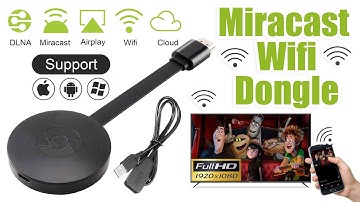
[Music] hello guys uh we are back with one of our new product and today we are going to check this ez chromecast it's a mirror cast device you can easily mirror with your phone to your tv wireless so let's see what we get inside first of all user manual we have main device it's uh actually my phone over here here you can see there is a power port and a reset button and here we can get one wireless receiver power adapter micro usb and usb port you can plug back to your tv or you can use uh adapter 5 volt adapter so it will be easy to get constant 5 for 5.0 volt power you can use this kind of adapter over here just plug it this way it's easy and connect this device to your easier cast and this one goes back to your tv and you can mirror from your phone directly to your tv okay guys so here we have a hdmi cable from back to our tv okay so what we're going to do we just connect it this devi

Similar products