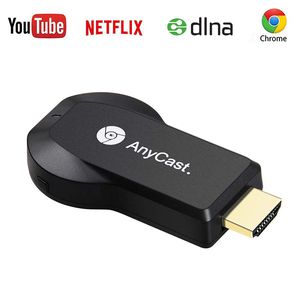
Description
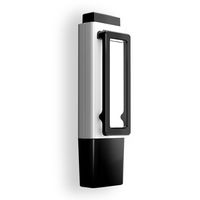
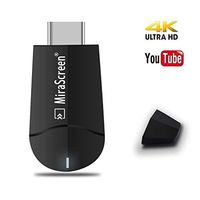
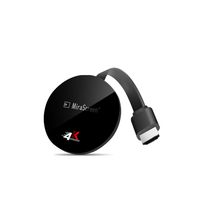
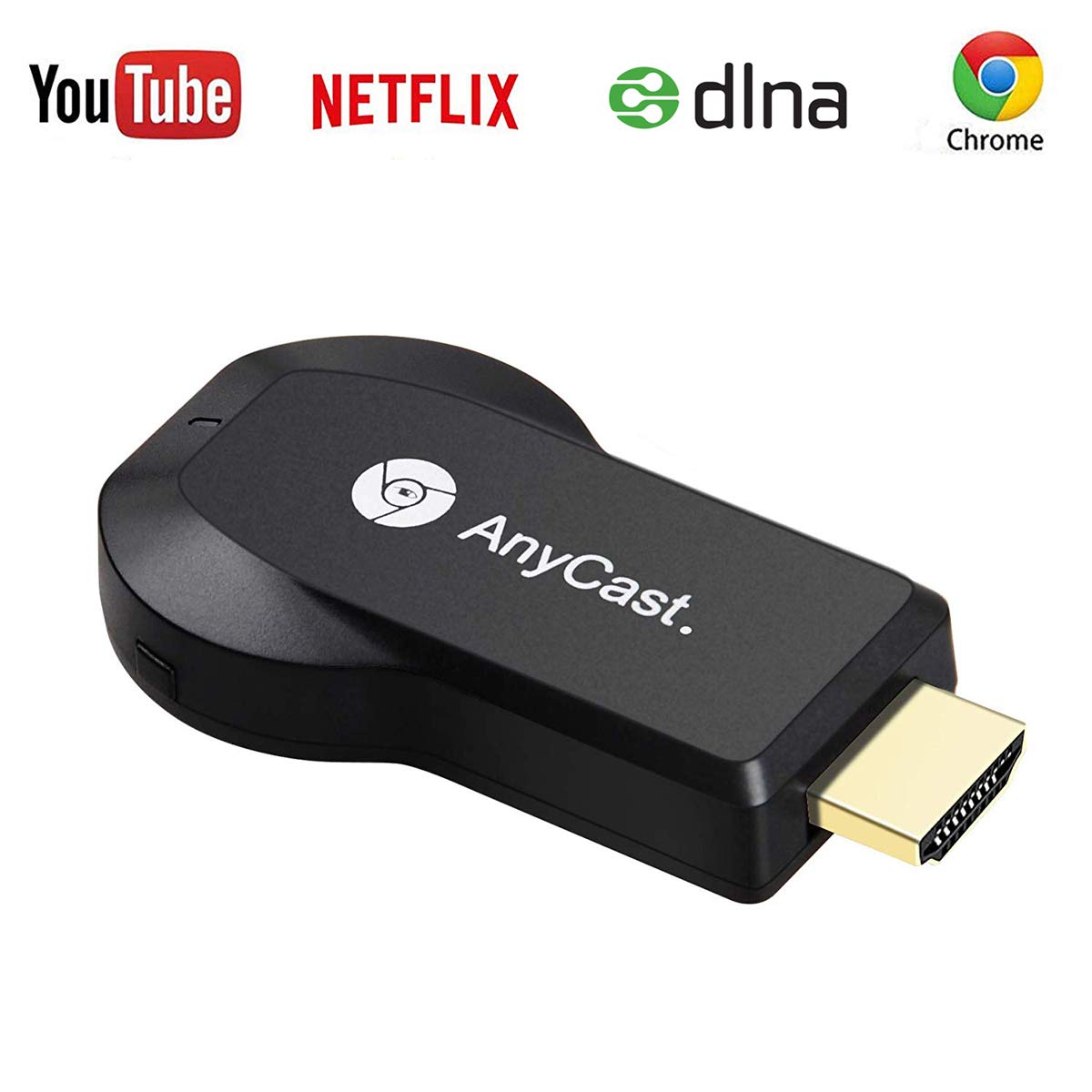
The wifi display dongle supports DLNA/Airplay Mirror/Miracast/Ezcast Function for iOS/Android/Samsung/LG/ Nokia/iPhone/iPad Air/Mini/Pro devices,
which is perfect for watching movies, conference use and gaming to pursuit different audio-visual feast. Compared with a traditional receiver,
the item has better connectivity and strong anti-jamming that give smoother data transfer.
Notes:
1. Please Read the user manual or Contact with our service team first if you don't know how to use. It is very important.
2. Keep Power Source (5V2A) Connect When Using
3. Please check your phone if it is compatible.
Connection for the iOS device
Step 1: Get SSID and PSK/Password on Anycast page;
Step 2: Connect AnyCast in WiFi Setting on iPhone;
Step 3: Go to a browser and input 192.168.203.1 to come to the setting menu(You can connect your home wifi here by clicking "Internet" and Choosing your home Wifi to connect);
Step 4: Pull up the Control Center on iPhone and turn on Airplay, and select AnyCast dongle to start mirroring.
Connection for Android device
Step 1: Enable WIFI on your mobile device, and find the "wireless display" in the "setting" menu, touch and your will see the AnyCast' SSID;
Step 2: Touch AnyCast SSID and start the connected mobile device with the Anycast dongle. And then your mobile device is mirrored to the big screen;
Step 3: Your device can connect to the WIFI router to keep internet surfing.
[PACKAGE INCLUDED]
1 x WiFi display dongle
1x WiFi Antenna
1 x User Manual
which is perfect for watching movies, conference use and gaming to pursuit different audio-visual feast. Compared with a traditional receiver,
the item has better connectivity and strong anti-jamming that give smoother data transfer.
Notes:
1. Please Read the user manual or Contact with our service team first if you don't know how to use. It is very important.
2. Keep Power Source (5V2A) Connect When Using
3. Please check your phone if it is compatible.
Connection for the iOS device
Step 1: Get SSID and PSK/Password on Anycast page;
Step 2: Connect AnyCast in WiFi Setting on iPhone;
Step 3: Go to a browser and input 192.168.203.1 to come to the setting menu(You can connect your home wifi here by clicking "Internet" and Choosing your home Wifi to connect);
Step 4: Pull up the Control Center on iPhone and turn on Airplay, and select AnyCast dongle to start mirroring.
Connection for Android device
Step 1: Enable WIFI on your mobile device, and find the "wireless display" in the "setting" menu, touch and your will see the AnyCast' SSID;
Step 2: Touch AnyCast SSID and start the connected mobile device with the Anycast dongle. And then your mobile device is mirrored to the big screen;
Step 3: Your device can connect to the WIFI router to keep internet surfing.
[PACKAGE INCLUDED]
1 x WiFi display dongle
1x WiFi Antenna
1 x User Manual
1080P Anycast WiFi Wireless Display Dongle 1080P Wireless HDMI Screen Mirror Dongle WiFi Display TV Dongle Receiver Easy Sharing Wireless Streaming TV Stick for iOS Android Windows System
Current Price
$18.99
Average
$16.99
Min Price
$14.99
Max Price
$18.99
Price dynamics
11%
Description
The wifi display dongle supports DLNA/Airplay Mirror/Miracast/Ezcast Function for iOS/Android/Samsung/LG/ Nokia/iPhone/iPad Air/Mini/Pro devices,
which is perfect for watching movies, conference use and gaming to pursuit different audio-visual feast. Compared with a traditional receiver,
the item has better connectivity and strong anti-jamming that give smoother data transfer.
Notes:
1. Please Read the user manual or Contact with our service team first if you don't know how to use. It is very important.
2. Keep Power Source (5V2A) Connect When Using
3. Please check your phone if it is compatible.
Connection for the iOS device
Step 1: Get SSID and PSK/Password on Anycast page;
Step 2: Connect AnyCast in WiFi Setting on iPhone;
Step 3: Go to a browser and input 192.168.203.1 to come to the setting menu(You can connect your home wifi here by clicking "Internet" and Choosing your home Wifi to connect);
Step 4: Pull up the Control Center on iPhone and turn on Airplay, and select AnyCast dongle to start mirroring.
Connection for Android device
Step 1: Enable WIFI on your mobile device, and find the "wireless display" in the "setting" menu, touch and your will see the AnyCast' SSID;
Step 2: Touch AnyCast SSID and start the connected mobile device with the Anycast dongle. And then your mobile device is mirrored to the big screen;
Step 3: Your device can connect to the WIFI router to keep internet surfing.
[PACKAGE INCLUDED]
1 x WiFi display dongle
1x WiFi Antenna
1 x User Manual
which is perfect for watching movies, conference use and gaming to pursuit different audio-visual feast. Compared with a traditional receiver,
the item has better connectivity and strong anti-jamming that give smoother data transfer.
Notes:
1. Please Read the user manual or Contact with our service team first if you don't know how to use. It is very important.
2. Keep Power Source (5V2A) Connect When Using
3. Please check your phone if it is compatible.
Connection for the iOS device
Step 1: Get SSID and PSK/Password on Anycast page;
Step 2: Connect AnyCast in WiFi Setting on iPhone;
Step 3: Go to a browser and input 192.168.203.1 to come to the setting menu(You can connect your home wifi here by clicking "Internet" and Choosing your home Wifi to connect);
Step 4: Pull up the Control Center on iPhone and turn on Airplay, and select AnyCast dongle to start mirroring.
Connection for Android device
Step 1: Enable WIFI on your mobile device, and find the "wireless display" in the "setting" menu, touch and your will see the AnyCast' SSID;
Step 2: Touch AnyCast SSID and start the connected mobile device with the Anycast dongle. And then your mobile device is mirrored to the big screen;
Step 3: Your device can connect to the WIFI router to keep internet surfing.
[PACKAGE INCLUDED]
1 x WiFi display dongle
1x WiFi Antenna
1 x User Manual
Price will be lower
in next 2 weeks
in next 2 weeks
According to the data, price will be lower in next two weeks, so not waste your money and track better price!
Product review & video
[Music] pshaw I am ICC and today I have something different this is an HDMI wireless adapter this is good if you want to capture Android game footage or even iPhone game footage this was sent to me and I will do a tutorial right now so the first thing we want to do with our anycast is take the supplied cable plug that in and then head over to the source that we want to use it at next we come over to our hdmi port and we plug in the anycast next we take the USB I'm gonna plug it into my TV that way it's powered every time I turn the TV on but you don't have to use the USB on your TV any powered USB you could use your phone charger if you want but I'm just gonna keep it nice and simple and do that next you want to put the antenna somewhere where it's at least accessible not blocked then let's turn on the TV okay now that the TV's powered up you can see at the top there is an SSID and a pa


Similar products