Description
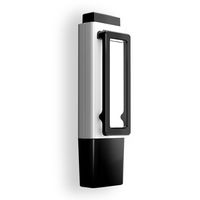
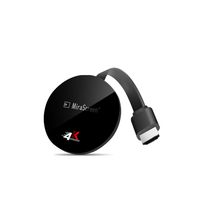
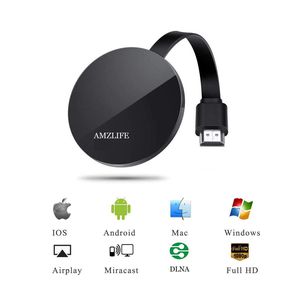
With this product, you can easily share high-resolution media files with friends and family. The stick is perfect for office and school presentations (Powerpoint, Excel, Word, PDF and images from the smartphone, tablet to HD TV or beamer).
Main features:
1. Supports 3 different transmission paths (Miracast, DLNA, Airplay) Airplay for iOS 7.0 and later Miracast for Android 5.0 and later
2. Mirror your smartphone / tablet screen (photo, video, music, movies, webcast, Word, Excel, Powerpoint, PDF, WebTV, Internet) to a large HDTV (up to 1080p)
Steps for Usage:
✔Plug it in the TV HDMI interface and connect the power supply with USB.
✔ The remote control changes the TV display mode (HDMI mode). Which HDMI interface do you plugged into, please choose that HDMI.
✔Open the WIFI of the phone, search and connect to the dongle SSID Wecast-XXXX (the account number and password will be displayed at the top of the TV screen).
✔ Open the phone browser and enter 192.168.49.1, to select the family available WIFI, enter the password, and Then the top right corner of the TV display will show the connection to the home wifi.
✔Close the webpage, open the WIFI of the phone, and connect to the same family WIFI
Two ways can achieve mirroring (Cell Phone)
① first way: Click on the phone mirror directly then search the dongle ID. such as 'Screen Mirroring' of Apple phone, 'Smart View' of Samsung phone. (Android cell phone users, please confirm whether the cell phone system has its own mirror function)
② second way: Open the video app on the phone directly ( No need to turn on the cell phone system mirroring function ), click on the mirror button that comes with the video app then search the dongle ID ( This way of opening,You can check the phone message while watching the video )
Package contents:
wireless display dongle *1
USB cable*1
User manual*1
Main features:
1. Supports 3 different transmission paths (Miracast, DLNA, Airplay) Airplay for iOS 7.0 and later Miracast for Android 5.0 and later
2. Mirror your smartphone / tablet screen (photo, video, music, movies, webcast, Word, Excel, Powerpoint, PDF, WebTV, Internet) to a large HDTV (up to 1080p)
Steps for Usage:
✔Plug it in the TV HDMI interface and connect the power supply with USB.
✔ The remote control changes the TV display mode (HDMI mode). Which HDMI interface do you plugged into, please choose that HDMI.
✔Open the WIFI of the phone, search and connect to the dongle SSID Wecast-XXXX (the account number and password will be displayed at the top of the TV screen).
✔ Open the phone browser and enter 192.168.49.1, to select the family available WIFI, enter the password, and Then the top right corner of the TV display will show the connection to the home wifi.
✔Close the webpage, open the WIFI of the phone, and connect to the same family WIFI
Two ways can achieve mirroring (Cell Phone)
① first way: Click on the phone mirror directly then search the dongle ID. such as 'Screen Mirroring' of Apple phone, 'Smart View' of Samsung phone. (Android cell phone users, please confirm whether the cell phone system has its own mirror function)
② second way: Open the video app on the phone directly ( No need to turn on the cell phone system mirroring function ), click on the mirror button that comes with the video app then search the dongle ID ( This way of opening,You can check the phone message while watching the video )
Package contents:
wireless display dongle *1
USB cable*1
User manual*1
AMZLIFE Wireless Display Dongle WiFi Portable Display Receiver 1080P Mini Receiver Sharing HD Video HDMI Miracast Dongle Compatible with iOS iPhone iPad/Mac/Android Smartphones/Windows/TV/Laptop
Current Price
$29.99
Average
$26.63
Min Price
$0.5
Max Price
$39.99
Price dynamics
11%
Description
With this product, you can easily share high-resolution media files with friends and family. The stick is perfect for office and school presentations (Powerpoint, Excel, Word, PDF and images from the smartphone, tablet to HD TV or beamer).
Main features:
1. Supports 3 different transmission paths (Miracast, DLNA, Airplay) Airplay for iOS 7.0 and later Miracast for Android 5.0 and later
2. Mirror your smartphone / tablet screen (photo, video, music, movies, webcast, Word, Excel, Powerpoint, PDF, WebTV, Internet) to a large HDTV (up to 1080p)
Steps for Usage:
✔Plug it in the TV HDMI interface and connect the power supply with USB.
✔ The remote control changes the TV display mode (HDMI mode). Which HDMI interface do you plugged into, please choose that HDMI.
✔Open the WIFI of the phone, search and connect to the dongle SSID Wecast-XXXX (the account number and password will be displayed at the top of the TV screen).
✔ Open the phone browser and enter 192.168.49.1, to select the family available WIFI, enter the password, and Then the top right corner of the TV display will show the connection to the home wifi.
✔Close the webpage, open the WIFI of the phone, and connect to the same family WIFI
Two ways can achieve mirroring (Cell Phone)
① first way: Click on the phone mirror directly then search the dongle ID. such as 'Screen Mirroring' of Apple phone, 'Smart View' of Samsung phone. (Android cell phone users, please confirm whether the cell phone system has its own mirror function)
② second way: Open the video app on the phone directly ( No need to turn on the cell phone system mirroring function ), click on the mirror button that comes with the video app then search the dongle ID ( This way of opening,You can check the phone message while watching the video )
Package contents:
wireless display dongle *1
USB cable*1
User manual*1
Main features:
1. Supports 3 different transmission paths (Miracast, DLNA, Airplay) Airplay for iOS 7.0 and later Miracast for Android 5.0 and later
2. Mirror your smartphone / tablet screen (photo, video, music, movies, webcast, Word, Excel, Powerpoint, PDF, WebTV, Internet) to a large HDTV (up to 1080p)
Steps for Usage:
✔Plug it in the TV HDMI interface and connect the power supply with USB.
✔ The remote control changes the TV display mode (HDMI mode). Which HDMI interface do you plugged into, please choose that HDMI.
✔Open the WIFI of the phone, search and connect to the dongle SSID Wecast-XXXX (the account number and password will be displayed at the top of the TV screen).
✔ Open the phone browser and enter 192.168.49.1, to select the family available WIFI, enter the password, and Then the top right corner of the TV display will show the connection to the home wifi.
✔Close the webpage, open the WIFI of the phone, and connect to the same family WIFI
Two ways can achieve mirroring (Cell Phone)
① first way: Click on the phone mirror directly then search the dongle ID. such as 'Screen Mirroring' of Apple phone, 'Smart View' of Samsung phone. (Android cell phone users, please confirm whether the cell phone system has its own mirror function)
② second way: Open the video app on the phone directly ( No need to turn on the cell phone system mirroring function ), click on the mirror button that comes with the video app then search the dongle ID ( This way of opening,You can check the phone message while watching the video )
Package contents:
wireless display dongle *1
USB cable*1
User manual*1
Price will be lower
in next 2 weeks
in next 2 weeks
According to the data, price will be lower in next two weeks, so not waste your money and track better price!
Similar products