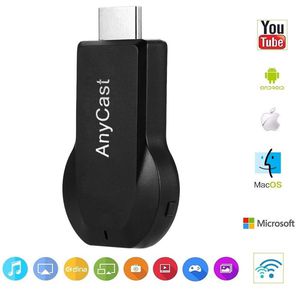
Description
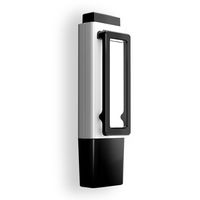
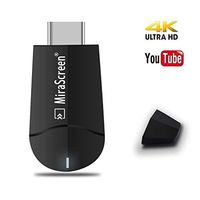
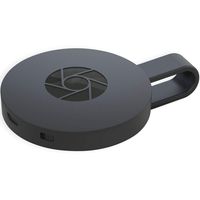
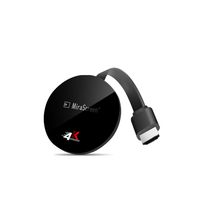
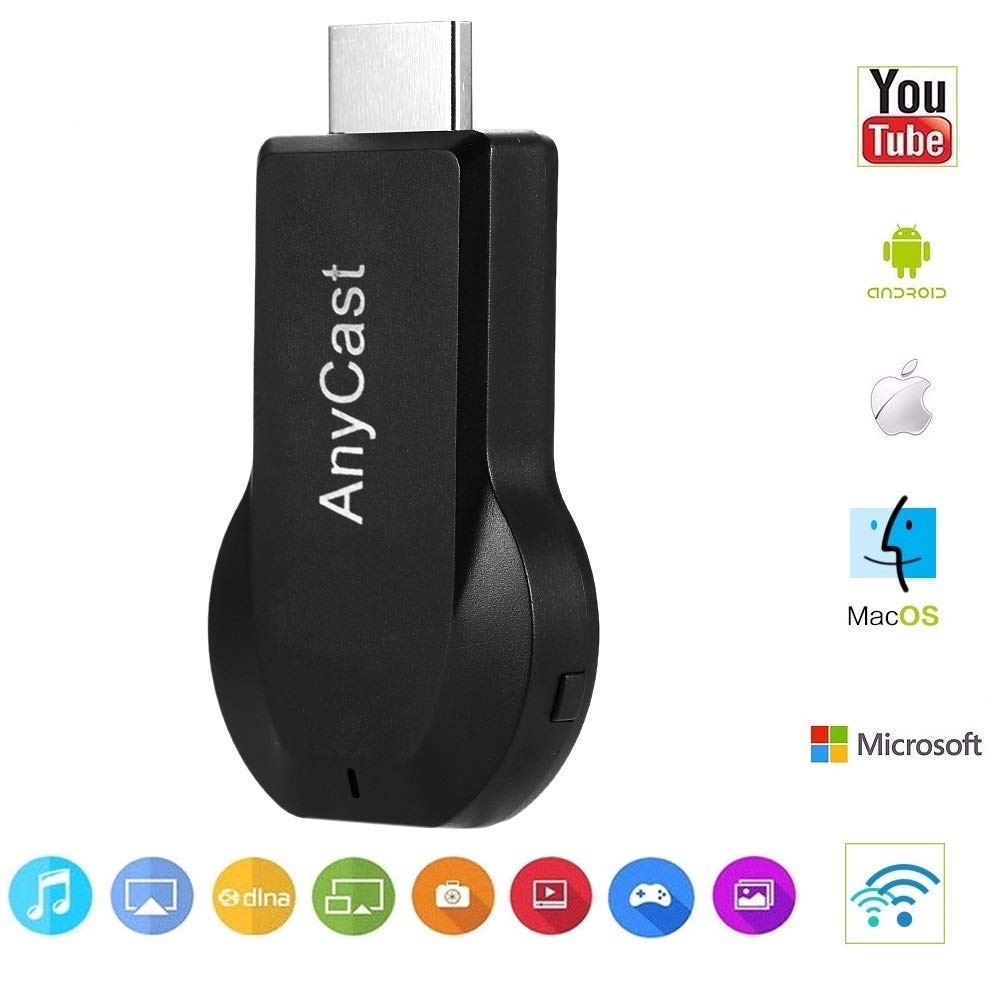
Wireless Display Adapter - Phone to HDTV HDMI AV Adapter
First of all, please read the following precautions carefully to avoid misuse:
1. Put the HDMI head into HDMI port on TV, USB plug to above 5v1a power supply plug
2. Switch your TV into the selected HDMI channel, will appear the Anycast Page on TV
3. You can pair with this dongle and do screen mirroring now. 4.Support iOS 9.0+ and Android 4.4+ devices.
Q: How do you connect the Anycast dongle with iPhone or Macbook?
A: Pair this dongle in the WiFi list on your iPhone or Macbook and then access the IP address 192.168.49.1 to connect to your Internet, then you go to Airplay to connect Anycast to do cast the whole screen to your TV. If you only need to cast videos, please not click on Airpaly, just play videos and click on streaming icon directly to stream.
Q: How do you connect Anycast with Android device?
A: Connect this dongle via Miracast to do screen mirroring directly. Please Note: Miracast is named different on difference Android device, such as Smartview, screen mirroring, wireless display, plug to, etc.
Q: Have no idea about Miracast?
A: We have an EZMira app to help locate Miracast. Download EZMira App and you can connect to this dongle via EZMira App directly.
Due to copyright protection measures, you may not use screen mirroring with some paid contents including Netflix, Prime (video only), hulu, please refer to the terms and conditions of those apps.
Q: I dont have WiFi internet at home,does it need WiFi to work?
A: Yes, this dongle can mirror the screen without WiFi. If you need to surf internet, you can use your phone cellular.
Both cellular and WiFi network works, so if you have WiFi network later, you can connect this dongle with WiFi network via acessing IP address.
Contact the seller if you need to know more about this dongle, thanks.
First of all, please read the following precautions carefully to avoid misuse:
1. Put the HDMI head into HDMI port on TV, USB plug to above 5v1a power supply plug
2. Switch your TV into the selected HDMI channel, will appear the Anycast Page on TV
3. You can pair with this dongle and do screen mirroring now. 4.Support iOS 9.0+ and Android 4.4+ devices.
Q: How do you connect the Anycast dongle with iPhone or Macbook?
A: Pair this dongle in the WiFi list on your iPhone or Macbook and then access the IP address 192.168.49.1 to connect to your Internet, then you go to Airplay to connect Anycast to do cast the whole screen to your TV. If you only need to cast videos, please not click on Airpaly, just play videos and click on streaming icon directly to stream.
Q: How do you connect Anycast with Android device?
A: Connect this dongle via Miracast to do screen mirroring directly. Please Note: Miracast is named different on difference Android device, such as Smartview, screen mirroring, wireless display, plug to, etc.
Q: Have no idea about Miracast?
A: We have an EZMira app to help locate Miracast. Download EZMira App and you can connect to this dongle via EZMira App directly.
Due to copyright protection measures, you may not use screen mirroring with some paid contents including Netflix, Prime (video only), hulu, please refer to the terms and conditions of those apps.
Q: I dont have WiFi internet at home,does it need WiFi to work?
A: Yes, this dongle can mirror the screen without WiFi. If you need to surf internet, you can use your phone cellular.
Both cellular and WiFi network works, so if you have WiFi network later, you can connect this dongle with WiFi network via acessing IP address.
Contact the seller if you need to know more about this dongle, thanks.
Anycast Plus HDMI Wireless Display Receiver, SmartSee Airplay MiraCast Adapter DLNA Streaming Stick Cast iOS Mac Android Phone Screen to HD TV Thanksgiving Christmas Day Gift
Price is below average
Current Price
$17.99
Average
$18.66
Min Price
$16.99
Max Price
$19.99
Price dynamics
4%
Description
Wireless Display Adapter - Phone to HDTV HDMI AV Adapter
First of all, please read the following precautions carefully to avoid misuse:
1. Put the HDMI head into HDMI port on TV, USB plug to above 5v1a power supply plug
2. Switch your TV into the selected HDMI channel, will appear the Anycast Page on TV
3. You can pair with this dongle and do screen mirroring now. 4.Support iOS 9.0+ and Android 4.4+ devices.
Q: How do you connect the Anycast dongle with iPhone or Macbook?
A: Pair this dongle in the WiFi list on your iPhone or Macbook and then access the IP address 192.168.49.1 to connect to your Internet, then you go to Airplay to connect Anycast to do cast the whole screen to your TV. If you only need to cast videos, please not click on Airpaly, just play videos and click on streaming icon directly to stream.
Q: How do you connect Anycast with Android device?
A: Connect this dongle via Miracast to do screen mirroring directly. Please Note: Miracast is named different on difference Android device, such as Smartview, screen mirroring, wireless display, plug to, etc.
Q: Have no idea about Miracast?
A: We have an EZMira app to help locate Miracast. Download EZMira App and you can connect to this dongle via EZMira App directly.
Due to copyright protection measures, you may not use screen mirroring with some paid contents including Netflix, Prime (video only), hulu, please refer to the terms and conditions of those apps.
Q: I dont have WiFi internet at home,does it need WiFi to work?
A: Yes, this dongle can mirror the screen without WiFi. If you need to surf internet, you can use your phone cellular.
Both cellular and WiFi network works, so if you have WiFi network later, you can connect this dongle with WiFi network via acessing IP address.
Contact the seller if you need to know more about this dongle, thanks.
First of all, please read the following precautions carefully to avoid misuse:
1. Put the HDMI head into HDMI port on TV, USB plug to above 5v1a power supply plug
2. Switch your TV into the selected HDMI channel, will appear the Anycast Page on TV
3. You can pair with this dongle and do screen mirroring now. 4.Support iOS 9.0+ and Android 4.4+ devices.
Q: How do you connect the Anycast dongle with iPhone or Macbook?
A: Pair this dongle in the WiFi list on your iPhone or Macbook and then access the IP address 192.168.49.1 to connect to your Internet, then you go to Airplay to connect Anycast to do cast the whole screen to your TV. If you only need to cast videos, please not click on Airpaly, just play videos and click on streaming icon directly to stream.
Q: How do you connect Anycast with Android device?
A: Connect this dongle via Miracast to do screen mirroring directly. Please Note: Miracast is named different on difference Android device, such as Smartview, screen mirroring, wireless display, plug to, etc.
Q: Have no idea about Miracast?
A: We have an EZMira app to help locate Miracast. Download EZMira App and you can connect to this dongle via EZMira App directly.
Due to copyright protection measures, you may not use screen mirroring with some paid contents including Netflix, Prime (video only), hulu, please refer to the terms and conditions of those apps.
Q: I dont have WiFi internet at home,does it need WiFi to work?
A: Yes, this dongle can mirror the screen without WiFi. If you need to surf internet, you can use your phone cellular.
Both cellular and WiFi network works, so if you have WiFi network later, you can connect this dongle with WiFi network via acessing IP address.
Contact the seller if you need to know more about this dongle, thanks.
Price will be lower
in next 2 weeks
in next 2 weeks
According to the data, price will be lower in next two weeks, so not waste your money and track better price!
Product review & video
[Music] pshaw I am ICC and today I have something different this is an HDMI wireless adapter this is good if you want to capture Android game footage or even iPhone game footage this was sent to me and I will do a tutorial right now so the first thing we want to do with our anycast is take the supplied cable plug that in and then head over to the source that we want to use it at next we come over to our hdmi port and we plug in the anycast next we take the USB I'm gonna plug it into my TV that way it's powered every time I turn the TV on but you don't have to use the USB on your TV any powered USB you could use your phone charger if you want but I'm just gonna keep it nice and simple and do that next you want to put the antenna somewhere where it's at least accessible not blocked then let's turn on the TV okay now that the TV's powered up you can see at the top there is an SSID and a pa


Similar products