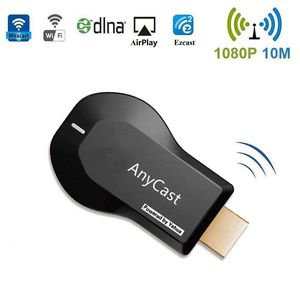
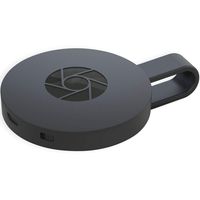
Anycast WiFi Display Dongle Wireless Mini Display Receiver 1080P HDMI Converter AV Adapter Cable for Connect Samsung Galaxy S6/S7/S7 Edge Tablet to HD TV
Price is below average
Current Price
$14.99
Average
$16.38
Min Price
$12.99
Max Price
$19.99
Price dynamics
8%
Price will be lower
in next 2 weeks
in next 2 weeks
According to the data, price will be lower in next two weeks, so not waste your money and track better price!
Product review & video
[Music] pshaw I am ICC and today I have something different this is an HDMI wireless adapter this is good if you want to capture Android game footage or even iPhone game footage this was sent to me and I will do a tutorial right now so the first thing we want to do with our anycast is take the supplied cable plug that in and then head over to the source that we want to use it at next we come over to our hdmi port and we plug in the anycast next we take the USB I'm gonna plug it into my TV that way it's powered every time I turn the TV on but you don't have to use the USB on your TV any powered USB you could use your phone charger if you want but I'm just gonna keep it nice and simple and do that next you want to put the antenna somewhere where it's at least accessible not blocked then let's turn on the TV okay now that the TV's powered up you can see at the top there is an SSID and a pa




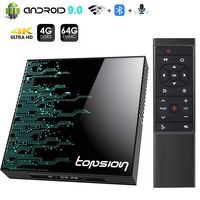
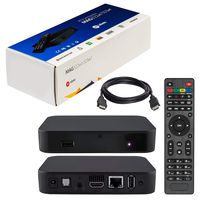
![[Free Wireless Mini Keyboard] DIGOU MX Pro Android TV Box,Android 7.1 TV Box 2GB/16GB Amlogic S905W Quad core 64 Bits Smart 4K TV Box with WiFi](https://use4coins.com/thumbs/unsafe/fit-in/200x200/https://images-na.ssl-images-amazon.com/images/I/71VdSctHwsL.jpg)
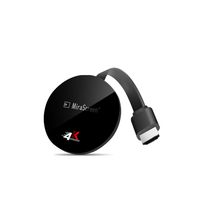

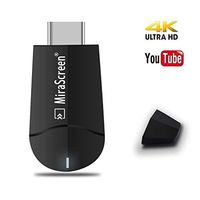
![[Upgraded] MiraScreen 2.4G/5G WiFi Display Dongle Wireless HDMI Receiver Adapter TV Stick Dual Core Dual Decoder Dual Band Support 4K/1080P Miracast Airplay DLNA No Modes Switching](https://use4coins.com/thumbs/unsafe/fit-in/200x200/https://images-na.ssl-images-amazon.com/images/I/61lJJOPLxyL.jpg)