Description
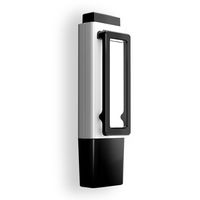
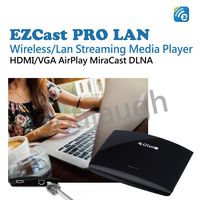
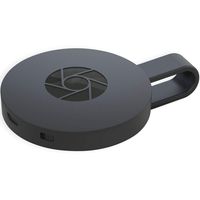
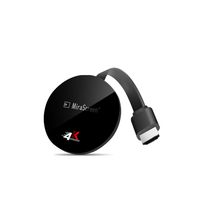
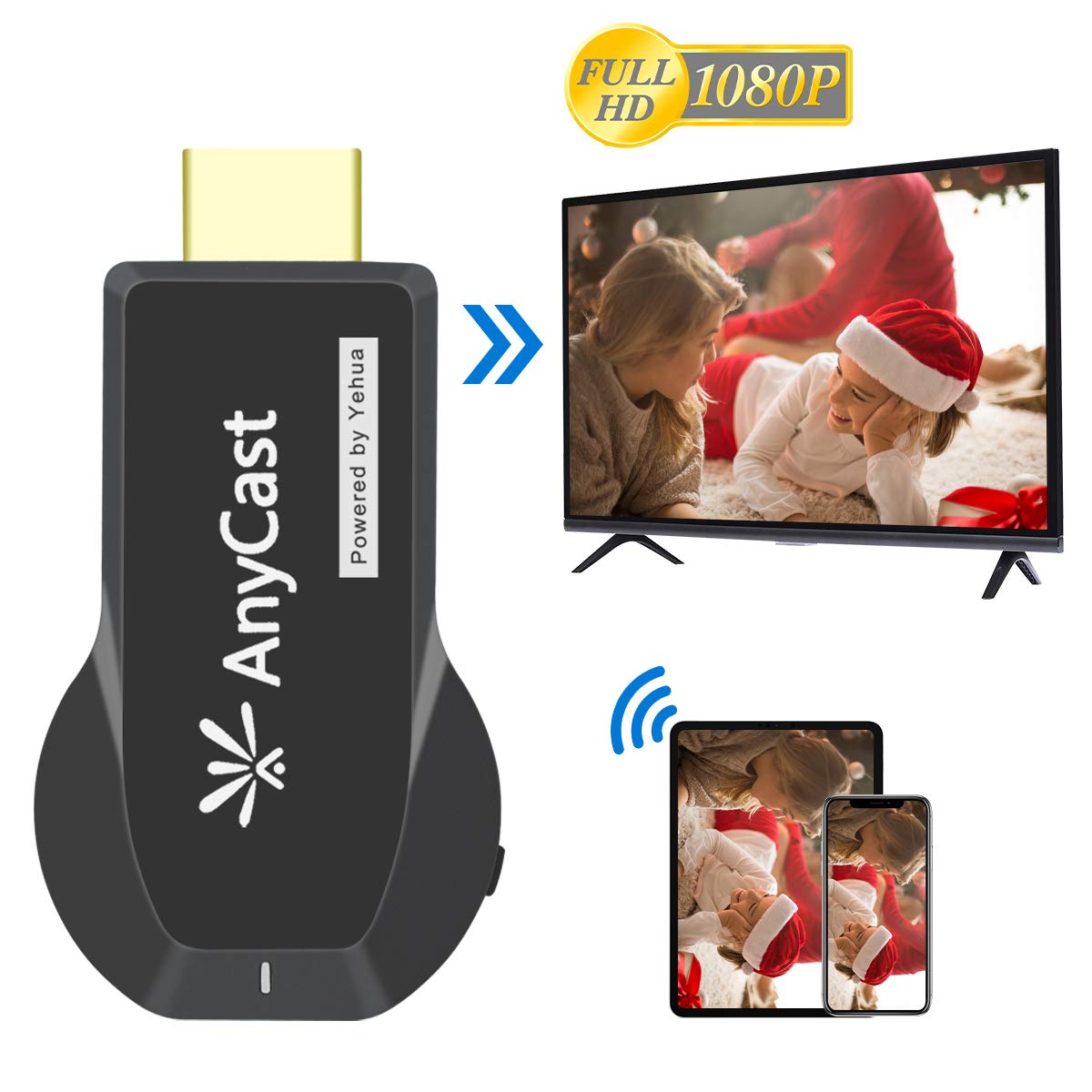
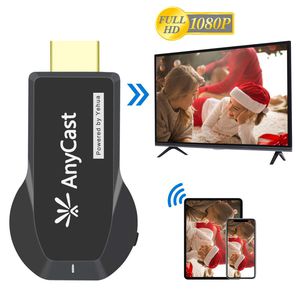
Wireless Screen Mirroring Adapter Wifi Display Dongle for Education&Business Support Miracast DLNA Airplay for iphone Android and Windows Anycast for TV
How To Use:
Wireless Wifi Display Adapter Installation:
1. Plug the Anycast HDMI dongle to HDMI port on your TV/Projector/Monitor
2. Power the dongle via plugging the USB cable to a power adapter(5V 1A/2A)
3. The Anycast Dongle main page will be displayed on your TV/Projector/Monitor.
For iOS Users, please follow the steps below:
Step 1. Connect Anycast to your iOS device: Go to phone "Setting" - "WiFi" - connect the EZcast dongle network (Get SSID and PSK(password)on screen)
Step 2. Access the Setting Menu of EZcast: Access the IP address 196.168.203.1 via a browser, you could connect EZcast with your home WiFi via "Internet"
Step 3.Open Airplay Mirroring to share the screen: Pull up the Control Center on your iOS device and open Airplay Mirroring to connect to EZcast Adapter to start mirroring
For Android Users, please follow the steps below:
Step 1: Find the Miracast function on your Android device (such as screen mirroring/Miracast/smart view) and turn on
Step 2: Establish Miracast connection between Android device and Anycast Adapter.
Package include:
1 X WiFi Display Dongle
1 X Micro USB Cable
1 X User Manual
How To Use:
Wireless Wifi Display Adapter Installation:
1. Plug the Anycast HDMI dongle to HDMI port on your TV/Projector/Monitor
2. Power the dongle via plugging the USB cable to a power adapter(5V 1A/2A)
3. The Anycast Dongle main page will be displayed on your TV/Projector/Monitor.
For iOS Users, please follow the steps below:
Step 1. Connect Anycast to your iOS device: Go to phone "Setting" - "WiFi" - connect the EZcast dongle network (Get SSID and PSK(password)on screen)
Step 2. Access the Setting Menu of EZcast: Access the IP address 196.168.203.1 via a browser, you could connect EZcast with your home WiFi via "Internet"
Step 3.Open Airplay Mirroring to share the screen: Pull up the Control Center on your iOS device and open Airplay Mirroring to connect to EZcast Adapter to start mirroring
For Android Users, please follow the steps below:
Step 1: Find the Miracast function on your Android device (such as screen mirroring/Miracast/smart view) and turn on
Step 2: Establish Miracast connection between Android device and Anycast Adapter.
Package include:
1 X WiFi Display Dongle
1 X Micro USB Cable
1 X User Manual
Anycast Wireless Display Dongle Streaming Media Player from Phone to Big Screen HDMI WiFi Adapter for TV Projector Compatible with iPhone Android Windows 8.1 10 Device
Current Price
$18.69
Average
$18.52
Min Price
$14.29
Max Price
$21.99
Price dynamics
1%
Description
Wireless Screen Mirroring Adapter Wifi Display Dongle for Education&Business Support Miracast DLNA Airplay for iphone Android and Windows Anycast for TV
How To Use:
Wireless Wifi Display Adapter Installation:
1. Plug the Anycast HDMI dongle to HDMI port on your TV/Projector/Monitor
2. Power the dongle via plugging the USB cable to a power adapter(5V 1A/2A)
3. The Anycast Dongle main page will be displayed on your TV/Projector/Monitor.
For iOS Users, please follow the steps below:
Step 1. Connect Anycast to your iOS device: Go to phone "Setting" - "WiFi" - connect the EZcast dongle network (Get SSID and PSK(password)on screen)
Step 2. Access the Setting Menu of EZcast: Access the IP address 196.168.203.1 via a browser, you could connect EZcast with your home WiFi via "Internet"
Step 3.Open Airplay Mirroring to share the screen: Pull up the Control Center on your iOS device and open Airplay Mirroring to connect to EZcast Adapter to start mirroring
For Android Users, please follow the steps below:
Step 1: Find the Miracast function on your Android device (such as screen mirroring/Miracast/smart view) and turn on
Step 2: Establish Miracast connection between Android device and Anycast Adapter.
Package include:
1 X WiFi Display Dongle
1 X Micro USB Cable
1 X User Manual
How To Use:
Wireless Wifi Display Adapter Installation:
1. Plug the Anycast HDMI dongle to HDMI port on your TV/Projector/Monitor
2. Power the dongle via plugging the USB cable to a power adapter(5V 1A/2A)
3. The Anycast Dongle main page will be displayed on your TV/Projector/Monitor.
For iOS Users, please follow the steps below:
Step 1. Connect Anycast to your iOS device: Go to phone "Setting" - "WiFi" - connect the EZcast dongle network (Get SSID and PSK(password)on screen)
Step 2. Access the Setting Menu of EZcast: Access the IP address 196.168.203.1 via a browser, you could connect EZcast with your home WiFi via "Internet"
Step 3.Open Airplay Mirroring to share the screen: Pull up the Control Center on your iOS device and open Airplay Mirroring to connect to EZcast Adapter to start mirroring
For Android Users, please follow the steps below:
Step 1: Find the Miracast function on your Android device (such as screen mirroring/Miracast/smart view) and turn on
Step 2: Establish Miracast connection between Android device and Anycast Adapter.
Package include:
1 X WiFi Display Dongle
1 X Micro USB Cable
1 X User Manual
Price will be lower
in next 2 weeks
in next 2 weeks
According to the data, price will be lower in next two weeks, so not waste your money and track better price!
Product review & video
[Music] pshaw I am ICC and today I have something different this is an HDMI wireless adapter this is good if you want to capture Android game footage or even iPhone game footage this was sent to me and I will do a tutorial right now so the first thing we want to do with our anycast is take the supplied cable plug that in and then head over to the source that we want to use it at next we come over to our hdmi port and we plug in the anycast next we take the USB I'm gonna plug it into my TV that way it's powered every time I turn the TV on but you don't have to use the USB on your TV any powered USB you could use your phone charger if you want but I'm just gonna keep it nice and simple and do that next you want to put the antenna somewhere where it's at least accessible not blocked then let's turn on the TV okay now that the TV's powered up you can see at the top there is an SSID and a pa


Similar products