Description
Operating instructions:
1. Starting up for video
Long press the switch button. The camera starts up when the red light is on. The system starts operation, and the green light is on and the blue light flashes after the system operates for about 20s. The camera enters the AP mode and starts video recording. (The camera defaults to automatically start the video function after the startup.) Press the video button once (for above one second) while recording, store the video files when the clue light is normally on. At the moment, the camera is in videoing standby state. Please press the video button once if the video recording is needed. It is suggested that the USB wire is connected with the adaptor to power the camera while working. The camera can uninterruptedly work for 24 hours. The video files can automatically and circularly cover the previous files in sequence after the internal memory is full, therefore, the camera can continue the video work.
2. AP/STA mode switching
After starting up, it needs to switch the mode. After pressing the mode switching button once, and loosing the button when the blue, red and green lights of the camera flash at the same time, start the mode switching, and restart the camera. It needs about 20s to restart the system of the camera.
3. WPS code matching
When the camera needs to enter the STA mode, but the WIFI password of the router is not obtained, the WPS code matching function can be used. After starting up, long press the mode button for about 5s, the green light of the indicator lamp flashes all the time. After pressing the WPS button of the router, the camera and the router start code matching. Restart the camera and enter the STA mode after the code matching is succeeded.
1. Starting up for video
Long press the switch button. The camera starts up when the red light is on. The system starts operation, and the green light is on and the blue light flashes after the system operates for about 20s. The camera enters the AP mode and starts video recording. (The camera defaults to automatically start the video function after the startup.) Press the video button once (for above one second) while recording, store the video files when the clue light is normally on. At the moment, the camera is in videoing standby state. Please press the video button once if the video recording is needed. It is suggested that the USB wire is connected with the adaptor to power the camera while working. The camera can uninterruptedly work for 24 hours. The video files can automatically and circularly cover the previous files in sequence after the internal memory is full, therefore, the camera can continue the video work.
2. AP/STA mode switching
After starting up, it needs to switch the mode. After pressing the mode switching button once, and loosing the button when the blue, red and green lights of the camera flash at the same time, start the mode switching, and restart the camera. It needs about 20s to restart the system of the camera.
3. WPS code matching
When the camera needs to enter the STA mode, but the WIFI password of the router is not obtained, the WPS code matching function can be used. After starting up, long press the mode button for about 5s, the green light of the indicator lamp flashes all the time. After pressing the WPS button of the router, the camera and the router start code matching. Restart the camera and enter the STA mode after the code matching is succeeded.
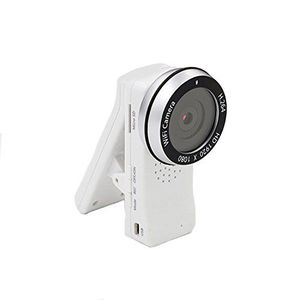
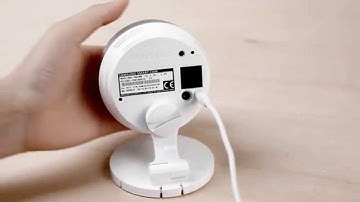
CamRomSmartCam HD Pro 1080p Full-HD Wi-Fi Camera SP2005Z
Price is below average
Current Price
$19.9
Average
$31.85
Min Price
$19.9
Max Price
$42
Price dynamics
38%
Description
Operating instructions:
1. Starting up for video
Long press the switch button. The camera starts up when the red light is on. The system starts operation, and the green light is on and the blue light flashes after the system operates for about 20s. The camera enters the AP mode and starts video recording. (The camera defaults to automatically start the video function after the startup.) Press the video button once (for above one second) while recording, store the video files when the clue light is normally on. At the moment, the camera is in videoing standby state. Please press the video button once if the video recording is needed. It is suggested that the USB wire is connected with the adaptor to power the camera while working. The camera can uninterruptedly work for 24 hours. The video files can automatically and circularly cover the previous files in sequence after the internal memory is full, therefore, the camera can continue the video work.
2. AP/STA mode switching
After starting up, it needs to switch the mode. After pressing the mode switching button once, and loosing the button when the blue, red and green lights of the camera flash at the same time, start the mode switching, and restart the camera. It needs about 20s to restart the system of the camera.
3. WPS code matching
When the camera needs to enter the STA mode, but the WIFI password of the router is not obtained, the WPS code matching function can be used. After starting up, long press the mode button for about 5s, the green light of the indicator lamp flashes all the time. After pressing the WPS button of the router, the camera and the router start code matching. Restart the camera and enter the STA mode after the code matching is succeeded.
1. Starting up for video
Long press the switch button. The camera starts up when the red light is on. The system starts operation, and the green light is on and the blue light flashes after the system operates for about 20s. The camera enters the AP mode and starts video recording. (The camera defaults to automatically start the video function after the startup.) Press the video button once (for above one second) while recording, store the video files when the clue light is normally on. At the moment, the camera is in videoing standby state. Please press the video button once if the video recording is needed. It is suggested that the USB wire is connected with the adaptor to power the camera while working. The camera can uninterruptedly work for 24 hours. The video files can automatically and circularly cover the previous files in sequence after the internal memory is full, therefore, the camera can continue the video work.
2. AP/STA mode switching
After starting up, it needs to switch the mode. After pressing the mode switching button once, and loosing the button when the blue, red and green lights of the camera flash at the same time, start the mode switching, and restart the camera. It needs about 20s to restart the system of the camera.
3. WPS code matching
When the camera needs to enter the STA mode, but the WIFI password of the router is not obtained, the WPS code matching function can be used. After starting up, long press the mode button for about 5s, the green light of the indicator lamp flashes all the time. After pressing the WPS button of the router, the camera and the router start code matching. Restart the camera and enter the STA mode after the code matching is succeeded.
Price will be lower
in next 2 weeks
in next 2 weeks
According to the data, price will be lower in next two weeks, so not waste your money and track better price!
Product review & video
to install your smart cam using a PC be sure the computer is connected to the internet open the web browser type in Samsung smart cam calm and proceed to the smart cam site the site supports Chrome Firefox and Internet Explorer version eight or higher it does not support Internet Explorer 64-bit click on starting smart cam to sign up for an account and set up the camera a pop-up window will appear click on the download plug-in button to install the smart cam web viewer this will allow you to access the camera feed when the installation is completed the web browser will automatically close and restart click on starting smart cam again and continue to the signup page enter a username password your name and email address user ID and password each of which must be 8 to 14 characters long and the password must contain both numbers and letters the email address will give you the ability to re


Similar products