Description
🌸IF YOU HAVE ANY PROBLEMS(like refund,return etc), PLEASE SEND EMAIL your order number and question TO our email.we reply you within 24 hours,We will provide 100% after-sales service.
Note:
1. Micro SD card NOT included in the package.
2. The Panoramic Wifi IP Camera Bulb ONLY compatible with 2.4GHz network, not support 5GHz.
3. Please install the device correctly and make sure whether to disconnect the power supply before installation.
Specification:
Socket: E27 (screwed type)
Light Power: 3W
Resolution: 1920*1080P
How to connect to WIFI for AP Mode (hot spot mode)?
Step 1: APP Download
Search from Google Play/Apple Store to download the APP 'V380' , then choose 'local' to login.
Step 2: Bulb connect with wiring
Turn off the power and connect 110V-240V AC to the 2 wiring port and fixed with screw.
Carefully screw the bulb camera to the base and make sure connect successfully.
(Or you can install the bulb camera to any regular screwed E27 socket)
Step 3:Camera bind with Phone
A. Bulb Connect with electronic power.
B. Camera voice prompt: system is starting - system start-up completed.
C. Voice prompt to click reset button for almost 5-7 seconds till you hear Restore the default setting (AP Hotspot mode).
D. Enter Mobile settings-WIFI-Connect to named MV+ID device hotspot.
E. Back to APP, option in the top right corner of the" + "
- Add networked device - LAN Search - Add device (wait for 10-15 seconds till it connected).
(Then you can see the video on the phone APP.)
How to connect to WIFI for Station Mode(Router mode)?
Step 1: Make sure house router open and wifi available.
Step 2: APP--Device list - Setting - Net working settings - Select Station Mode - input Wifi password - Wifi connecting.
Note:
1. Micro SD card NOT included in the package.
2. The Panoramic Wifi IP Camera Bulb ONLY compatible with 2.4GHz network, not support 5GHz.
3. Please install the device correctly and make sure whether to disconnect the power supply before installation.
Specification:
Socket: E27 (screwed type)
Light Power: 3W
Resolution: 1920*1080P
How to connect to WIFI for AP Mode (hot spot mode)?
Step 1: APP Download
Search from Google Play/Apple Store to download the APP 'V380' , then choose 'local' to login.
Step 2: Bulb connect with wiring
Turn off the power and connect 110V-240V AC to the 2 wiring port and fixed with screw.
Carefully screw the bulb camera to the base and make sure connect successfully.
(Or you can install the bulb camera to any regular screwed E27 socket)
Step 3:Camera bind with Phone
A. Bulb Connect with electronic power.
B. Camera voice prompt: system is starting - system start-up completed.
C. Voice prompt to click reset button for almost 5-7 seconds till you hear Restore the default setting (AP Hotspot mode).
D. Enter Mobile settings-WIFI-Connect to named MV+ID device hotspot.
E. Back to APP, option in the top right corner of the" + "
- Add networked device - LAN Search - Add device (wait for 10-15 seconds till it connected).
(Then you can see the video on the phone APP.)
How to connect to WIFI for Station Mode(Router mode)?
Step 1: Make sure house router open and wifi available.
Step 2: APP--Device list - Setting - Net working settings - Select Station Mode - input Wifi password - Wifi connecting.
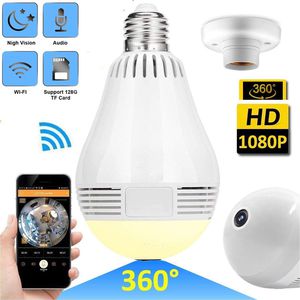
WiFi IP Camera LED Bulb Camera Wireless Hidden Camera 360 Degree Panoramic 1080P HD Fisheye for IOS Android APP Remote Home Security System for Indoor Outdoor House Baby Room Pet Office School
Price is below average
Current Price
$32.96
Average
$36.5
Min Price
$29.96
Max Price
$48.99
Price dynamics
10%
Description
🌸IF YOU HAVE ANY PROBLEMS(like refund,return etc), PLEASE SEND EMAIL your order number and question TO our email.we reply you within 24 hours,We will provide 100% after-sales service.
Note:
1. Micro SD card NOT included in the package.
2. The Panoramic Wifi IP Camera Bulb ONLY compatible with 2.4GHz network, not support 5GHz.
3. Please install the device correctly and make sure whether to disconnect the power supply before installation.
Specification:
Socket: E27 (screwed type)
Light Power: 3W
Resolution: 1920*1080P
How to connect to WIFI for AP Mode (hot spot mode)?
Step 1: APP Download
Search from Google Play/Apple Store to download the APP 'V380' , then choose 'local' to login.
Step 2: Bulb connect with wiring
Turn off the power and connect 110V-240V AC to the 2 wiring port and fixed with screw.
Carefully screw the bulb camera to the base and make sure connect successfully.
(Or you can install the bulb camera to any regular screwed E27 socket)
Step 3:Camera bind with Phone
A. Bulb Connect with electronic power.
B. Camera voice prompt: system is starting - system start-up completed.
C. Voice prompt to click reset button for almost 5-7 seconds till you hear Restore the default setting (AP Hotspot mode).
D. Enter Mobile settings-WIFI-Connect to named MV+ID device hotspot.
E. Back to APP, option in the top right corner of the" + "
- Add networked device - LAN Search - Add device (wait for 10-15 seconds till it connected).
(Then you can see the video on the phone APP.)
How to connect to WIFI for Station Mode(Router mode)?
Step 1: Make sure house router open and wifi available.
Step 2: APP--Device list - Setting - Net working settings - Select Station Mode - input Wifi password - Wifi connecting.
Note:
1. Micro SD card NOT included in the package.
2. The Panoramic Wifi IP Camera Bulb ONLY compatible with 2.4GHz network, not support 5GHz.
3. Please install the device correctly and make sure whether to disconnect the power supply before installation.
Specification:
Socket: E27 (screwed type)
Light Power: 3W
Resolution: 1920*1080P
How to connect to WIFI for AP Mode (hot spot mode)?
Step 1: APP Download
Search from Google Play/Apple Store to download the APP 'V380' , then choose 'local' to login.
Step 2: Bulb connect with wiring
Turn off the power and connect 110V-240V AC to the 2 wiring port and fixed with screw.
Carefully screw the bulb camera to the base and make sure connect successfully.
(Or you can install the bulb camera to any regular screwed E27 socket)
Step 3:Camera bind with Phone
A. Bulb Connect with electronic power.
B. Camera voice prompt: system is starting - system start-up completed.
C. Voice prompt to click reset button for almost 5-7 seconds till you hear Restore the default setting (AP Hotspot mode).
D. Enter Mobile settings-WIFI-Connect to named MV+ID device hotspot.
E. Back to APP, option in the top right corner of the" + "
- Add networked device - LAN Search - Add device (wait for 10-15 seconds till it connected).
(Then you can see the video on the phone APP.)
How to connect to WIFI for Station Mode(Router mode)?
Step 1: Make sure house router open and wifi available.
Step 2: APP--Device list - Setting - Net working settings - Select Station Mode - input Wifi password - Wifi connecting.
Price will be lower
in next 2 weeks
in next 2 weeks
According to the data, price will be lower in next two weeks, so not waste your money and track better price!
Product review & video
[Music] hi there today I'm unboxing of Wi-Fi light bulb which has a security camera built-in so this light bulb retails at around 90 pounds and I saw it on offer for 35 pounds so I thought I'd give it a go so let me quickly show you around the actual packaging you get some details on there nicely packaged so it's got push notifications on there there's a video formats Wi-Fi protocol local storage maximum support is 128 gig has a inbuilt microphone and speaker and night vision as well okay let's have a look okay that's it nothing more than that show let's open it up nice plain packaging on there nothing too fancy open it up and see what we get so a quick installation user manual with a QR code must be for the software so the resolution from what I read on this is 960 P gives you like a 360 degree sort of fishbowl sort of angle so if you place it in your light fitting at the top of the ro


Similar products