Description
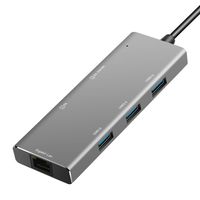
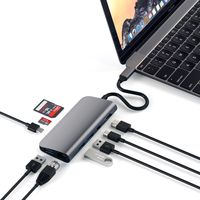
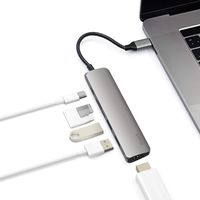
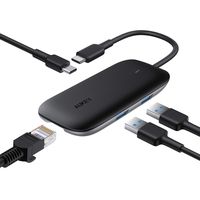
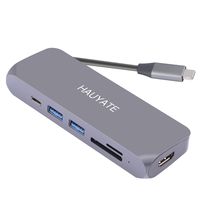
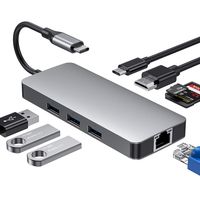
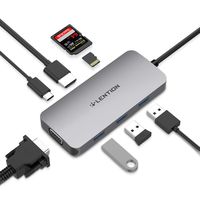
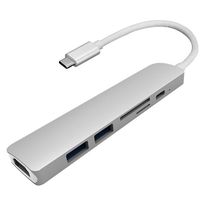
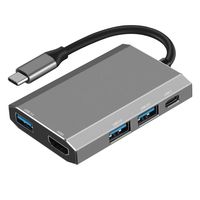
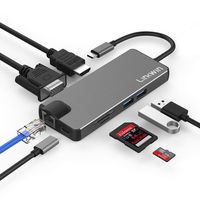
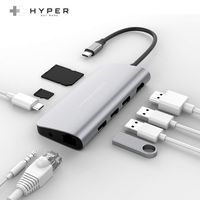
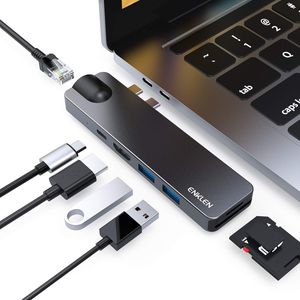
ENKLEN 7 in 1 Aluminum USB C Hub with USB to 4K HDMI, Thunderbolt 3, RJ45 Ethernet, USB C data port,2 USB 3.0, SD/Micro SD Card Reader
Interface
HDMI Port: Support HDMI 4K/30Hz video output, support HDCP1.4/2.2
USB-C Female Port:
1. Thunderbolt 3.0 mode: support 40Gb, 5K@60hz video output, PD 3.0 charging
2. USB-C 3.1 mode: support PD power (Max 87W), Data (5Gbps)
2* USB 3.0 Port: Connect USB devices( Mouse, keyboard, U Disk and more), USB3.1 Gen.; Speed: up to 5Gbps, Power: 5V@900mA Max
SD Slot: Support SD/SDHC3.0, up to 104MB/s
Micro SD Slot: Support TF/ MicroSDHC 3.0, up to 104MB/s
RJ45 LAN Port: Support GIGA 1000M/100M/10M adaptive high speed wired network
HDMI instructions
Connect this product to the computer's Type-C socket, and then connect the HD display and this product with HDMI audio and video cable. The system will automatically recognize the display and display the computer screen content synchronously. The display mode has mirror display and extended display mode. Please set it in the "Display" setting of Mac OS.
Connect USB devices
*Connect this product to the computer's Type-C socket, and then connect the mouse or keyboard to the USB3.0 interface of this product, you can use an external mouse or keyboard to operate.
*Connect this product to the Type-C socket of the computer, and then insert the mobile hard disk or solid state hard disk. At this time, the computer will pop up the drive letter of the mobile hard disk or solid state hard disk. Click to enter, you can copy, move, delete, etc. the files inside. operating.
*Connect this product to the Type-C socket of the computer, and then insert the USB flash drive or SD card. At this time, the computer will pop up the drive letter of the USB flash drive or SD card, click to enter, you can copy, move, delete, etc. the files inside. operating.
Interface
1. Thunderbolt 3.0 mode: support 40Gb, 5K@60hz video output, PD 3.0 charging
2. USB-C 3.1 mode: support PD power (Max 87W), Data (5Gbps)
HDMI instructions
Connect this product to the computer's Type-C socket, and then connect the HD display and this product with HDMI audio and video cable. The system will automatically recognize the display and display the computer screen content synchronously. The display mode has mirror display and extended display mode. Please set it in the "Display" setting of Mac OS.
Connect USB devices
*Connect this product to the computer's Type-C socket, and then connect the mouse or keyboard to the USB3.0 interface of this product, you can use an external mouse or keyboard to operate.
*Connect this product to the Type-C socket of the computer, and then insert the mobile hard disk or solid state hard disk. At this time, the computer will pop up the drive letter of the mobile hard disk or solid state hard disk. Click to enter, you can copy, move, delete, etc. the files inside. operating.
*Connect this product to the Type-C socket of the computer, and then insert the USB flash drive or SD card. At this time, the computer will pop up the drive letter of the USB flash drive or SD card, click to enter, you can copy, move, delete, etc. the files inside. operating.
ENKLEN USB C Hub MacBook Adapter 7-in-2 Type C Dongle with 4K HDMI, Thunderbolt 3 PD Charging, 2 USB 3.1, RJ45 Ethernet & Micro/SD Card Reader for MacBook Pro 2019/2018-2016, MacBook Air 2019/2018
Price is below average
Current Price
$44.99
Average
$45.99
Min Price
$39.99
Max Price
$52.99
Price dynamics
2%
Description
ENKLEN 7 in 1 Aluminum USB C Hub with USB to 4K HDMI, Thunderbolt 3, RJ45 Ethernet, USB C data port,2 USB 3.0, SD/Micro SD Card Reader
Interface
HDMI Port: Support HDMI 4K/30Hz video output, support HDCP1.4/2.2
USB-C Female Port:
1. Thunderbolt 3.0 mode: support 40Gb, 5K@60hz video output, PD 3.0 charging
2. USB-C 3.1 mode: support PD power (Max 87W), Data (5Gbps)
2* USB 3.0 Port: Connect USB devices( Mouse, keyboard, U Disk and more), USB3.1 Gen.; Speed: up to 5Gbps, Power: 5V@900mA Max
SD Slot: Support SD/SDHC3.0, up to 104MB/s
Micro SD Slot: Support TF/ MicroSDHC 3.0, up to 104MB/s
RJ45 LAN Port: Support GIGA 1000M/100M/10M adaptive high speed wired network
HDMI instructions
Connect this product to the computer's Type-C socket, and then connect the HD display and this product with HDMI audio and video cable. The system will automatically recognize the display and display the computer screen content synchronously. The display mode has mirror display and extended display mode. Please set it in the "Display" setting of Mac OS.
Connect USB devices
*Connect this product to the computer's Type-C socket, and then connect the mouse or keyboard to the USB3.0 interface of this product, you can use an external mouse or keyboard to operate.
*Connect this product to the Type-C socket of the computer, and then insert the mobile hard disk or solid state hard disk. At this time, the computer will pop up the drive letter of the mobile hard disk or solid state hard disk. Click to enter, you can copy, move, delete, etc. the files inside. operating.
*Connect this product to the Type-C socket of the computer, and then insert the USB flash drive or SD card. At this time, the computer will pop up the drive letter of the USB flash drive or SD card, click to enter, you can copy, move, delete, etc. the files inside. operating.
Interface
1. Thunderbolt 3.0 mode: support 40Gb, 5K@60hz video output, PD 3.0 charging
2. USB-C 3.1 mode: support PD power (Max 87W), Data (5Gbps)
HDMI instructions
Connect this product to the computer's Type-C socket, and then connect the HD display and this product with HDMI audio and video cable. The system will automatically recognize the display and display the computer screen content synchronously. The display mode has mirror display and extended display mode. Please set it in the "Display" setting of Mac OS.
Connect USB devices
*Connect this product to the computer's Type-C socket, and then connect the mouse or keyboard to the USB3.0 interface of this product, you can use an external mouse or keyboard to operate.
*Connect this product to the Type-C socket of the computer, and then insert the mobile hard disk or solid state hard disk. At this time, the computer will pop up the drive letter of the mobile hard disk or solid state hard disk. Click to enter, you can copy, move, delete, etc. the files inside. operating.
*Connect this product to the Type-C socket of the computer, and then insert the USB flash drive or SD card. At this time, the computer will pop up the drive letter of the USB flash drive or SD card, click to enter, you can copy, move, delete, etc. the files inside. operating.
Price will be lower
in next 2 weeks
in next 2 weeks
According to the data, price will be lower in next two weeks, so not waste your money and track better price!
Product review & video
hey there what's up I hope you're staying safe in this video I'm gonna be showing you how you can get your MacBook Pro or MacBook Air to read HDMI ports SD cards micro SD cards and regular USB cables let's go as you are very well aware of especially if you own a MacBook Air or MacBook Pro one of the newer ones from the previous years I believe from like 2016 or 2017 till today all Mac books come with only USB type-c slot so as you can see here these are the new USB C slots that all of the Mac books come with so they don't come with regular USB ports anymore you know making it difficult to be able to connect the cables to connect your iPhone to charge or simply connect other devices that you want to either transfer data into or out to and also they don't come with HDMI ports in case you want to connect it to maybe your TV or a bigger display but in this video I'm gonna be showing you how


Similar products