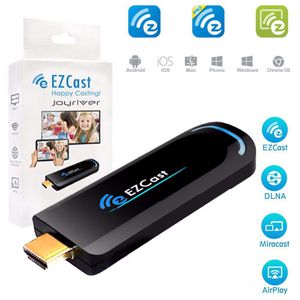
Description
Please follow below steps to install media streaming player:
1. Plug the WiFi cable into wireless hdmi adapter, and plug tv dongle into your TV (Monitor or Projector) through DHMI Port
2. Connect cast dongle with an external 5V/1A adapter
3. Switch to the correct HDMI source, then you should see the EZCast setup screen, the SSID and Password. Note: Get SSID and PSK (password) on screen
For iOS (iPhone/iPad) Device
Airplay Mirroring
1. Establish WiFi connection for your iOS device and anycast hdmi dongle.
2. Swipe up on your iOS screen to turn on control menu
3. Click on "AirPlay - Mirroring", and then select EZCast. Your iOS device will start mirroring its screen to wifi display receiver
EZCast App
1. Establish WiFi connect for your iOS device and EZCast Dongle.
2. Please download "EZCast" from App Store. Launch EZCast App, and then click the "Search" button
3. Select EZCast on device list
4. After establish connection, you may start to use all features of EZCast App, including EZChannel, Photo, and Music etc.
For Android Device
1. 2. Establish WiFi connect for your Android device and EZCast Dongle.
3. Please download "EZCast" from Google Play. Launch EZCast App, and then click the "Search" button
4. Select EZCast on the list
5. After establish connection, you may start to use all features, including EZChannel, and Photo etc. Click the "Menu".
6. You may use either "Mirror On/Off" and "EZMirror" to mirror your Android screen to EZCast.
For more setup tips(Connecting steps videos), please contact us through Amazon message. Note
Please feel free to contact Support if there's any question / problem while using the item and we'll do our best to help you
1. Plug the WiFi cable into wireless hdmi adapter, and plug tv dongle into your TV (Monitor or Projector) through DHMI Port
2. Connect cast dongle with an external 5V/1A adapter
3. Switch to the correct HDMI source, then you should see the EZCast setup screen, the SSID and Password. Note: Get SSID and PSK (password) on screen
For iOS (iPhone/iPad) Device
Airplay Mirroring
1. Establish WiFi connection for your iOS device and anycast hdmi dongle.
2. Swipe up on your iOS screen to turn on control menu
3. Click on "AirPlay - Mirroring", and then select EZCast. Your iOS device will start mirroring its screen to wifi display receiver
EZCast App
1. Establish WiFi connect for your iOS device and EZCast Dongle.
2. Please download "EZCast" from App Store. Launch EZCast App, and then click the "Search" button
3. Select EZCast on device list
4. After establish connection, you may start to use all features of EZCast App, including EZChannel, Photo, and Music etc.
For Android Device
1. 2. Establish WiFi connect for your Android device and EZCast Dongle.
3. Please download "EZCast" from Google Play. Launch EZCast App, and then click the "Search" button
4. Select EZCast on the list
5. After establish connection, you may start to use all features, including EZChannel, and Photo etc. Click the "Menu".
6. You may use either "Mirror On/Off" and "EZMirror" to mirror your Android screen to EZCast.
For more setup tips(Connecting steps videos), please contact us through Amazon message. Note
Please feel free to contact Support if there's any question / problem while using the item and we'll do our best to help you
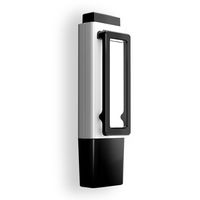
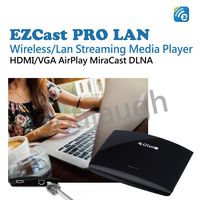
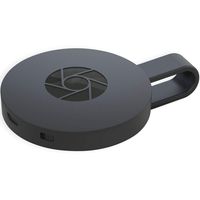
EZCast 2.4G WiFi Display Adapter 1080P HDMI Media Streaming TV Stick Support EZCast App, Airplay, DLNA, MiraCast, EZMirror, and YouTube
Current Price
$26.99
Average
$23.41
Min Price
$19.29
Max Price
$26.99
Price dynamics
13%
Description
Please follow below steps to install media streaming player:
1. Plug the WiFi cable into wireless hdmi adapter, and plug tv dongle into your TV (Monitor or Projector) through DHMI Port
2. Connect cast dongle with an external 5V/1A adapter
3. Switch to the correct HDMI source, then you should see the EZCast setup screen, the SSID and Password. Note: Get SSID and PSK (password) on screen
For iOS (iPhone/iPad) Device
Airplay Mirroring
1. Establish WiFi connection for your iOS device and anycast hdmi dongle.
2. Swipe up on your iOS screen to turn on control menu
3. Click on "AirPlay - Mirroring", and then select EZCast. Your iOS device will start mirroring its screen to wifi display receiver
EZCast App
1. Establish WiFi connect for your iOS device and EZCast Dongle.
2. Please download "EZCast" from App Store. Launch EZCast App, and then click the "Search" button
3. Select EZCast on device list
4. After establish connection, you may start to use all features of EZCast App, including EZChannel, Photo, and Music etc.
For Android Device
1. 2. Establish WiFi connect for your Android device and EZCast Dongle.
3. Please download "EZCast" from Google Play. Launch EZCast App, and then click the "Search" button
4. Select EZCast on the list
5. After establish connection, you may start to use all features, including EZChannel, and Photo etc. Click the "Menu".
6. You may use either "Mirror On/Off" and "EZMirror" to mirror your Android screen to EZCast.
For more setup tips(Connecting steps videos), please contact us through Amazon message. Note
Please feel free to contact Support if there's any question / problem while using the item and we'll do our best to help you
1. Plug the WiFi cable into wireless hdmi adapter, and plug tv dongle into your TV (Monitor or Projector) through DHMI Port
2. Connect cast dongle with an external 5V/1A adapter
3. Switch to the correct HDMI source, then you should see the EZCast setup screen, the SSID and Password. Note: Get SSID and PSK (password) on screen
For iOS (iPhone/iPad) Device
Airplay Mirroring
1. Establish WiFi connection for your iOS device and anycast hdmi dongle.
2. Swipe up on your iOS screen to turn on control menu
3. Click on "AirPlay - Mirroring", and then select EZCast. Your iOS device will start mirroring its screen to wifi display receiver
EZCast App
1. Establish WiFi connect for your iOS device and EZCast Dongle.
2. Please download "EZCast" from App Store. Launch EZCast App, and then click the "Search" button
3. Select EZCast on device list
4. After establish connection, you may start to use all features of EZCast App, including EZChannel, Photo, and Music etc.
For Android Device
1. 2. Establish WiFi connect for your Android device and EZCast Dongle.
3. Please download "EZCast" from Google Play. Launch EZCast App, and then click the "Search" button
4. Select EZCast on the list
5. After establish connection, you may start to use all features, including EZChannel, and Photo etc. Click the "Menu".
6. You may use either "Mirror On/Off" and "EZMirror" to mirror your Android screen to EZCast.
For more setup tips(Connecting steps videos), please contact us through Amazon message. Note
Please feel free to contact Support if there's any question / problem while using the item and we'll do our best to help you
Price will be lower
in next 2 weeks
in next 2 weeks
According to the data, price will be lower in next two weeks, so not waste your money and track better price!
Product review & video
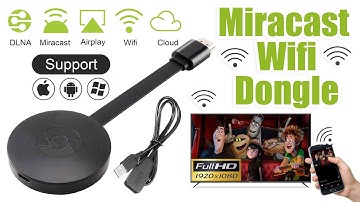
[Music] hello guys uh we are back with one of our new product and today we are going to check this ez chromecast it's a mirror cast device you can easily mirror with your phone to your tv wireless so let's see what we get inside first of all user manual we have main device it's uh actually my phone over here here you can see there is a power port and a reset button and here we can get one wireless receiver power adapter micro usb and usb port you can plug back to your tv or you can use uh adapter 5 volt adapter so it will be easy to get constant 5 for 5.0 volt power you can use this kind of adapter over here just plug it this way it's easy and connect this device to your easier cast and this one goes back to your tv and you can mirror from your phone directly to your tv okay guys so here we have a hdmi cable from back to our tv okay so what we're going to do we just connect it this devi

Similar products