Description
💝💝💝 💝💝💝
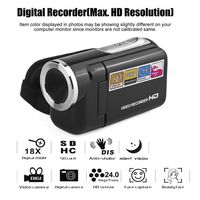
v🎥🎥The camera use of detailed instructions:
🎥1.Insert the fully charged battery and memory card into the camera, then press the"POWER" button to turn on the camera .
🎥2.How to format the memory card: Please press the "MENU" button, then press the "Right" button to go to the right menu. (press the "DOWN" button) Go down all the way on the menu, there is a. "Format" option, press the "OK" button to choose "Yes".
🎥3.How to return or delete the photos: Please press the "MODE" button. When you want to switch modes, press the "photo playback" button and "OK" button. When you want to delete the photos or videos, press the "Playback" button, then press the "MENU" button to delete.
🎥4.Video mode: Please press the "MODE" button go into the "record video mode", then press the "red dot record button" to start to record videos. When you want to pause the recording videos, press the "Right" button to pause it, press the "Right" button again to continue to record. Finally, press the "red dot record button" again to end the recording videos.
🎥5.Take photo mode: Please press the "MODE" button go into the "take photo mode", then press the "PHOTO" button.
🎥6.How to browse photos and videos: Please press the "Playback" button go into "Playback Mode". Press the "OK" button to playback videos.Please press the "MENU" button,then press the "Right" button to adjust the videos sound volume.
🎥7.How to turn on the night vision light in front of the camera:Please turn on the camera, then press the "OK" button, the light will light up.
Tips:
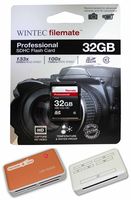
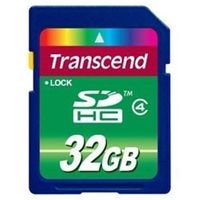
1.SD card not included in the package,you need to purchase it separately.
2.Please format the memory card through this camcorder for the first time use.
.
If you have any problem for the video camera , please kindly contact our custo
v🎥🎥The camera use of detailed instructions:
🎥1.Insert the fully charged battery and memory card into the camera, then press the"POWER" button to turn on the camera .
🎥2.How to format the memory card: Please press the "MENU" button, then press the "Right" button to go to the right menu. (press the "DOWN" button) Go down all the way on the menu, there is a. "Format" option, press the "OK" button to choose "Yes".
🎥3.How to return or delete the photos: Please press the "MODE" button. When you want to switch modes, press the "photo playback" button and "OK" button. When you want to delete the photos or videos, press the "Playback" button, then press the "MENU" button to delete.
🎥4.Video mode: Please press the "MODE" button go into the "record video mode", then press the "red dot record button" to start to record videos. When you want to pause the recording videos, press the "Right" button to pause it, press the "Right" button again to continue to record. Finally, press the "red dot record button" again to end the recording videos.
🎥5.Take photo mode: Please press the "MODE" button go into the "take photo mode", then press the "PHOTO" button.
🎥6.How to browse photos and videos: Please press the "Playback" button go into "Playback Mode". Press the "OK" button to playback videos.Please press the "MENU" button,then press the "Right" button to adjust the videos sound volume.
🎥7.How to turn on the night vision light in front of the camera:Please turn on the camera, then press the "OK" button, the light will light up.
Tips:
1.SD card not included in the package,you need to purchase it separately.
2.Please format the memory card through this camcorder for the first time use.
.
If you have any problem for the video camera , please kindly contact our custo
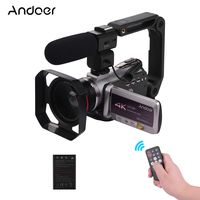
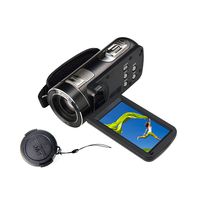
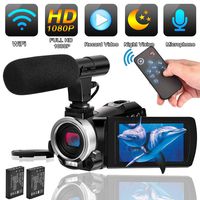
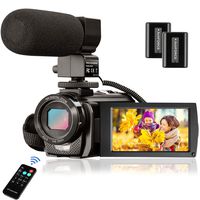
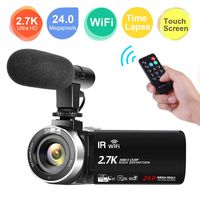
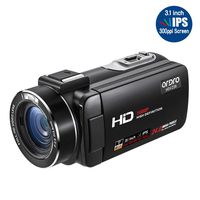
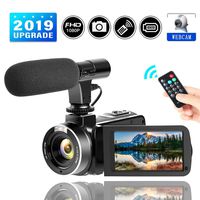
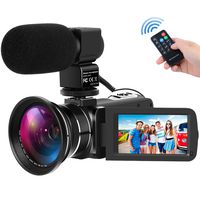
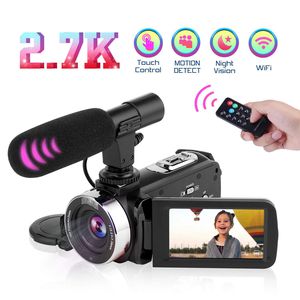
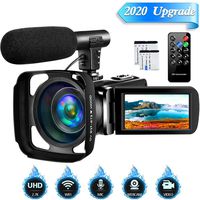
Digital Video Camera 2.7K 30FPS UHD Camcorder with 16X Digital Zoom, 3.0 inch Touch Screen IR Night Vision Portable Vlogging Camera with Remote Control, Microphone as a Gift, for Recording Life
Current Price
$129.99
Average
$119.99
Min Price
$99.99
Max Price
$129.99
Price dynamics
8%
Description
💝💝💝 💝💝💝
v🎥🎥The camera use of detailed instructions:
🎥1.Insert the fully charged battery and memory card into the camera, then press the"POWER" button to turn on the camera .
🎥2.How to format the memory card: Please press the "MENU" button, then press the "Right" button to go to the right menu. (press the "DOWN" button) Go down all the way on the menu, there is a. "Format" option, press the "OK" button to choose "Yes".
🎥3.How to return or delete the photos: Please press the "MODE" button. When you want to switch modes, press the "photo playback" button and "OK" button. When you want to delete the photos or videos, press the "Playback" button, then press the "MENU" button to delete.
🎥4.Video mode: Please press the "MODE" button go into the "record video mode", then press the "red dot record button" to start to record videos. When you want to pause the recording videos, press the "Right" button to pause it, press the "Right" button again to continue to record. Finally, press the "red dot record button" again to end the recording videos.
🎥5.Take photo mode: Please press the "MODE" button go into the "take photo mode", then press the "PHOTO" button.
🎥6.How to browse photos and videos: Please press the "Playback" button go into "Playback Mode". Press the "OK" button to playback videos.Please press the "MENU" button,then press the "Right" button to adjust the videos sound volume.
🎥7.How to turn on the night vision light in front of the camera:Please turn on the camera, then press the "OK" button, the light will light up.
Tips:
1.SD card not included in the package,you need to purchase it separately.
2.Please format the memory card through this camcorder for the first time use.
.
If you have any problem for the video camera , please kindly contact our custo
v🎥🎥The camera use of detailed instructions:
🎥1.Insert the fully charged battery and memory card into the camera, then press the"POWER" button to turn on the camera .
🎥2.How to format the memory card: Please press the "MENU" button, then press the "Right" button to go to the right menu. (press the "DOWN" button) Go down all the way on the menu, there is a. "Format" option, press the "OK" button to choose "Yes".
🎥3.How to return or delete the photos: Please press the "MODE" button. When you want to switch modes, press the "photo playback" button and "OK" button. When you want to delete the photos or videos, press the "Playback" button, then press the "MENU" button to delete.
🎥4.Video mode: Please press the "MODE" button go into the "record video mode", then press the "red dot record button" to start to record videos. When you want to pause the recording videos, press the "Right" button to pause it, press the "Right" button again to continue to record. Finally, press the "red dot record button" again to end the recording videos.
🎥5.Take photo mode: Please press the "MODE" button go into the "take photo mode", then press the "PHOTO" button.
🎥6.How to browse photos and videos: Please press the "Playback" button go into "Playback Mode". Press the "OK" button to playback videos.Please press the "MENU" button,then press the "Right" button to adjust the videos sound volume.
🎥7.How to turn on the night vision light in front of the camera:Please turn on the camera, then press the "OK" button, the light will light up.
Tips:
1.SD card not included in the package,you need to purchase it separately.
2.Please format the memory card through this camcorder for the first time use.
.
If you have any problem for the video camera , please kindly contact our custo
Price will be lower
in next 2 weeks
in next 2 weeks
According to the data, price will be lower in next two weeks, so not waste your money and track better price!
Product review & video
all right so i'm going to be doing an unboxing of this camera um let's go ahead and open her up and then a really sharp knife here it's pretty awesome it's a uh it's a gerber not promoting it or anything just saying all right so let's take a deeper look into this camera keep that near me in case i need it again so here it is it's a ultra it's a 4k ultra hd video camera and it says here is 4k camcorder and for the bottom just kind of have a uh breakable down box pretty easy but uh here's the older charlie's little box as you can see pretty just kind of blah for uh you know there's a lot more um it's a lot more stuff on this box than there normally is on products and sometimes it's just completely just has like two words on the entire box so at least we have a little more than a couple words on the entire box so but let's go ahead and open her up what do we got here our cam is equipped wi


Similar products