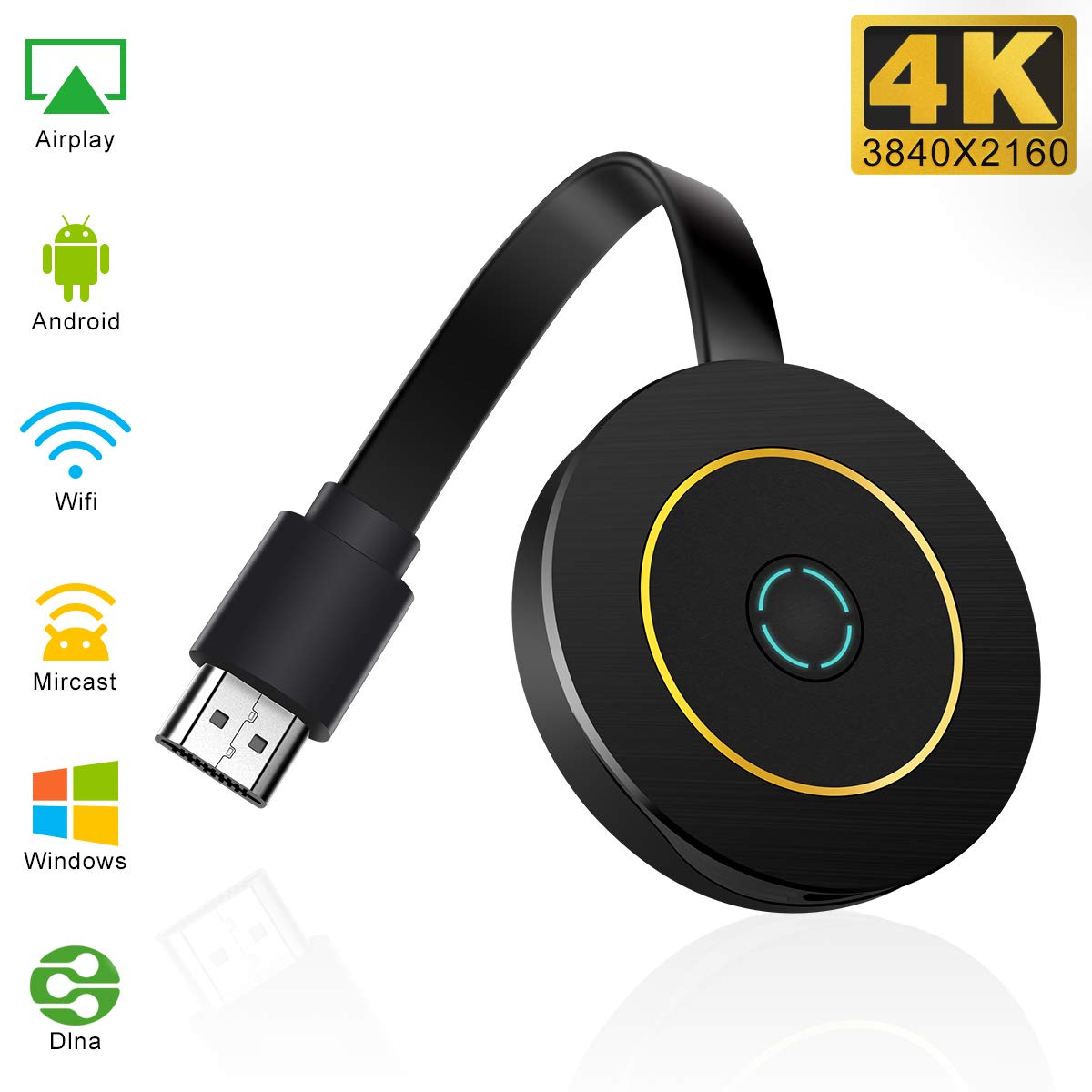
Note:(must be enabled for Miracast, first check it).Not compatible with Netflix, Hulu and other encrypted and paid videos, the Google house is only compatible with Android devices.And not for all Android smartphone.
For iphone(IOS) connect detail:
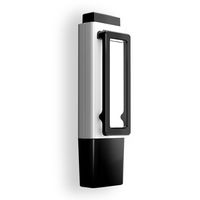
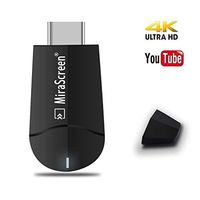
step 1:The port of HDMI connect TV/screen,USB port connect independent power(we are not provide),connect it ,you can find a start picture on your TV/screen.
step 2:you could find SSID(signal name),PSK (password) ,and IP address in start picture. Open your phone wifi control ,find SSID and connect by PSK(password).
step 3:your phone still connect with SSID(signal),write IP address in browser(If Safri running slow, please change to other browser), you will into setting pages.Search your home-wifi and connect it.Your TV will show WIFI name on the upper right corner ,if you have completed .
Step 4:Pull up the Control Center on iPhone and go to Airplay mirroring, and select Miracast dongle to start to mirror.
Please Note:
Every SSID(signal name) maybe will not same,please follow the TV screen display, our display photo just a sample! (VERY IMPORTANT)
Push projection is more flexible than mirror mode. iOS supports DLNA, And DLNA only works with Youtube.
Included packaging:
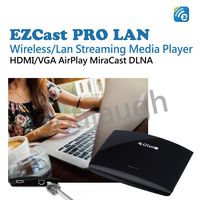
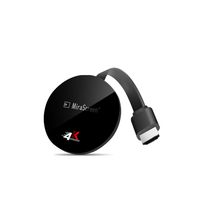
1 x WiFi screen adapter
1 x WiFi cable
1 x user manual


![[Free Wireless Mini Keyboard] DIGOU MX Pro Android TV Box,Android 7.1 TV Box 2GB/16GB Amlogic S905W Quad core 64 Bits Smart 4K TV Box with WiFi](https://use4coins.com/thumbs/unsafe/fit-in/200x200/https://images-na.ssl-images-amazon.com/images/I/71VdSctHwsL.jpg)

![[Upgraded] MiraScreen 2.4G/5G WiFi Display Dongle Wireless HDMI Receiver Adapter TV Stick Dual Core Dual Decoder Dual Band Support 4K/1080P Miracast Airplay DLNA No Modes Switching](https://use4coins.com/thumbs/unsafe/fit-in/200x200/https://images-na.ssl-images-amazon.com/images/I/61lJJOPLxyL.jpg)