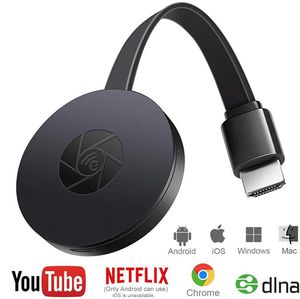
Description
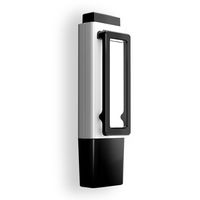
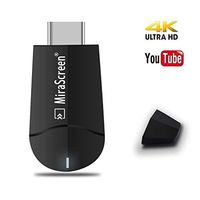
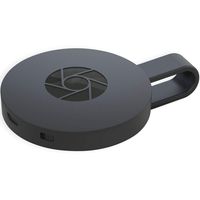
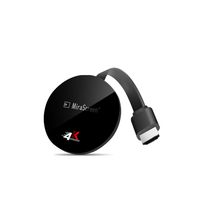
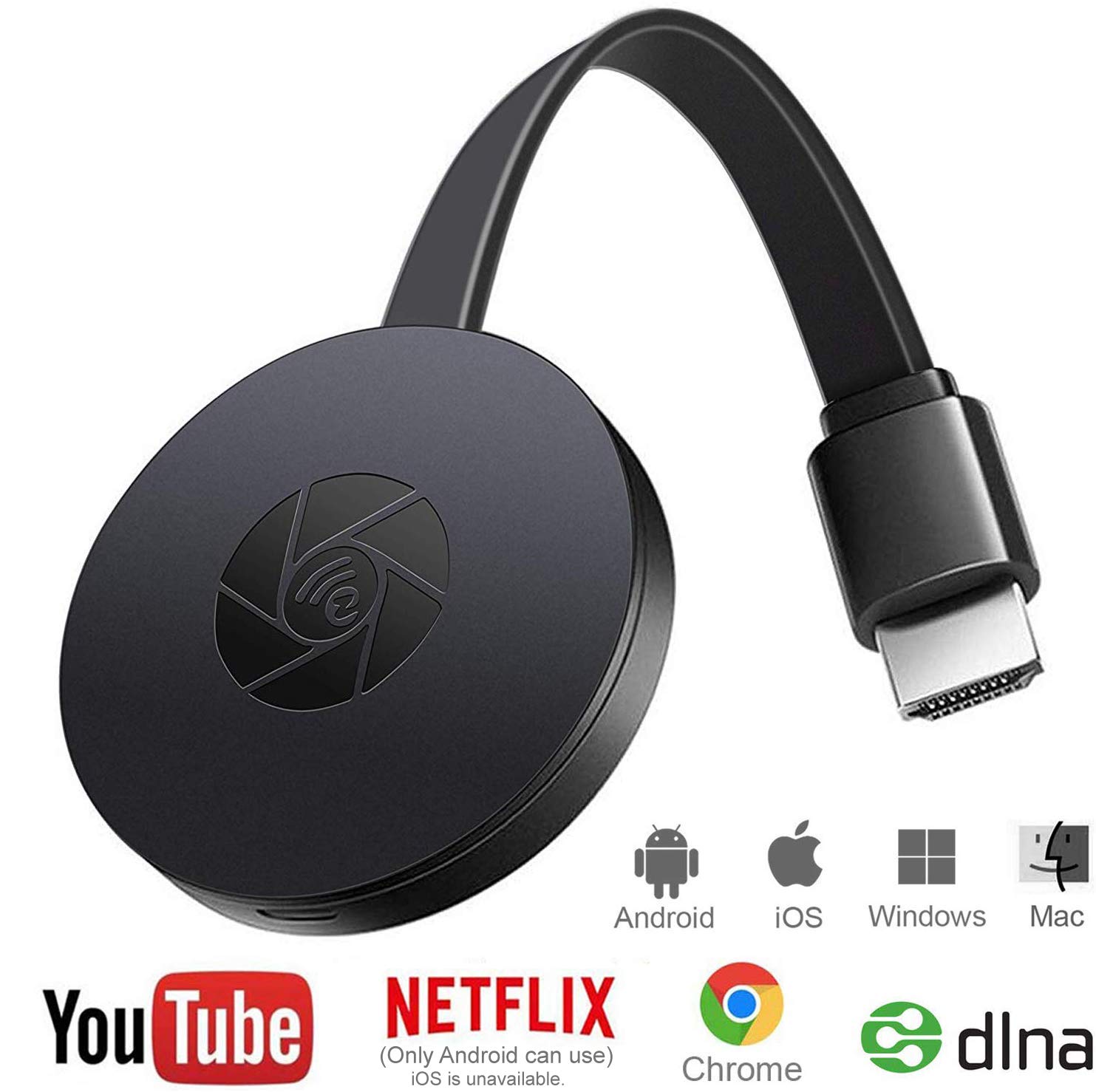
Wifi Display Dongle/ Wireless Display Dongle Receiver:
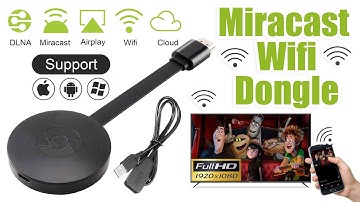
1.Supports Miracast(Android, Windows), DLNA and Airplay(iOS). (Android above 4.4 and up to IOS 11)
2.Wi-Fi: 802.11b / g / n 2.4GHz Wireless WiFi 150Mbps. (with External WiFi Antenna to provide 10M WiFi Signal Coverage)
3.Wide Used in your daily life.(Office Meeting, School Teaching, Home Theater, Game Playing).Big Screen: eye protection.
4.Easy Sharing, Streams what you are doing on your phone to a bigger screen, full screen mirroring.
Notice:
Please check them before you buy
1. Does your TV support the HDMI port?
2. Does your iPhone / iPad support iOS 8+ and Android supports version 4.4+?
Notes: Please keep 5V/2A power adapter stable. Please check if connected all port well. Please check your TV HDMI port.
Connect to WiFi Router
Step 1. Waiting for MiraScreen main screen after power on.
Step 2. Connect your phone with MiraScreen via WIFI,launch browser (http://192.168.203.1) on your phone to setup internet for MiraScreen(Choose your home router signal).
Step 3. Enter password(The password of you home WIFI).
Step 4. Connect to your home WiFi router.
MiraCast Mirroring for Android
Step 1. Waiting for MiraScreen main screen after power on.
Step 2. Find the Miracast function on your Android device (such as screen mirroring/Miracast/smart view).
Step 3. Select MiraScreen as target and wait for connection.
Step 4. Your Android screen will be shown on your TV.
AirPlay Mirroring for iOS
Step 1. Waiting for MiraScreen main screen after power on.
Step 2. Connect your iPhone with MiraScreen via WIFI(Get SSID and password on screen).
Step 3. Turn on Airplay and select MiraScreen's SSID.
Step 4. You IOS screen will be shown on your TV.
MiraCast Mirroring for Windows8.1 and Windows10 see product manu pls.
Note: For Windows 7, you need to download ezcast software.
1.Supports Miracast(Android, Windows), DLNA and Airplay(iOS). (Android above 4.4 and up to IOS 11)
2.Wi-Fi: 802.11b / g / n 2.4GHz Wireless WiFi 150Mbps. (with External WiFi Antenna to provide 10M WiFi Signal Coverage)
3.Wide Used in your daily life.(Office Meeting, School Teaching, Home Theater, Game Playing).Big Screen: eye protection.
4.Easy Sharing, Streams what you are doing on your phone to a bigger screen, full screen mirroring.
Notice:
Please check them before you buy
1. Does your TV support the HDMI port?
2. Does your iPhone / iPad support iOS 8+ and Android supports version 4.4+?
Notes: Please keep 5V/2A power adapter stable. Please check if connected all port well. Please check your TV HDMI port.
Connect to WiFi Router
Step 1. Waiting for MiraScreen main screen after power on.
Step 2. Connect your phone with MiraScreen via WIFI,launch browser (http://192.168.203.1) on your phone to setup internet for MiraScreen(Choose your home router signal).
Step 3. Enter password(The password of you home WIFI).
Step 4. Connect to your home WiFi router.
MiraCast Mirroring for Android
Step 1. Waiting for MiraScreen main screen after power on.
Step 2. Find the Miracast function on your Android device (such as screen mirroring/Miracast/smart view).
Step 3. Select MiraScreen as target and wait for connection.
Step 4. Your Android screen will be shown on your TV.
AirPlay Mirroring for iOS
Step 1. Waiting for MiraScreen main screen after power on.
Step 2. Connect your iPhone with MiraScreen via WIFI(Get SSID and password on screen).
Step 3. Turn on Airplay and select MiraScreen's SSID.
Step 4. You IOS screen will be shown on your TV.
MiraCast Mirroring for Windows8.1 and Windows10 see product manu pls.
Note: For Windows 7, you need to download ezcast software.
HDMI WiFi Display Dongle Wireless HDMI Adapter 1080P Streaming Media Player Airplay Dongle HDMI 1080P TV Receiver Adapter Mirroring Screen from Phone to Big Screen Support Miracast DLNA TV Stick
Current Price
$20.99
Average
$19.59
Min Price
$17.99
Max Price
$20.99
Price dynamics
7%
Description
Wifi Display Dongle/ Wireless Display Dongle Receiver:
1.Supports Miracast(Android, Windows), DLNA and Airplay(iOS). (Android above 4.4 and up to IOS 11)
2.Wi-Fi: 802.11b / g / n 2.4GHz Wireless WiFi 150Mbps. (with External WiFi Antenna to provide 10M WiFi Signal Coverage)
3.Wide Used in your daily life.(Office Meeting, School Teaching, Home Theater, Game Playing).Big Screen: eye protection.
4.Easy Sharing, Streams what you are doing on your phone to a bigger screen, full screen mirroring.
Notice:
Please check them before you buy
1. Does your TV support the HDMI port?
2. Does your iPhone / iPad support iOS 8+ and Android supports version 4.4+?
Notes: Please keep 5V/2A power adapter stable. Please check if connected all port well. Please check your TV HDMI port.
Connect to WiFi Router
Step 1. Waiting for MiraScreen main screen after power on.
Step 2. Connect your phone with MiraScreen via WIFI,launch browser (http://192.168.203.1) on your phone to setup internet for MiraScreen(Choose your home router signal).
Step 3. Enter password(The password of you home WIFI).
Step 4. Connect to your home WiFi router.
MiraCast Mirroring for Android
Step 1. Waiting for MiraScreen main screen after power on.
Step 2. Find the Miracast function on your Android device (such as screen mirroring/Miracast/smart view).
Step 3. Select MiraScreen as target and wait for connection.
Step 4. Your Android screen will be shown on your TV.
AirPlay Mirroring for iOS
Step 1. Waiting for MiraScreen main screen after power on.
Step 2. Connect your iPhone with MiraScreen via WIFI(Get SSID and password on screen).
Step 3. Turn on Airplay and select MiraScreen's SSID.
Step 4. You IOS screen will be shown on your TV.
MiraCast Mirroring for Windows8.1 and Windows10 see product manu pls.
Note: For Windows 7, you need to download ezcast software.
1.Supports Miracast(Android, Windows), DLNA and Airplay(iOS). (Android above 4.4 and up to IOS 11)
2.Wi-Fi: 802.11b / g / n 2.4GHz Wireless WiFi 150Mbps. (with External WiFi Antenna to provide 10M WiFi Signal Coverage)
3.Wide Used in your daily life.(Office Meeting, School Teaching, Home Theater, Game Playing).Big Screen: eye protection.
4.Easy Sharing, Streams what you are doing on your phone to a bigger screen, full screen mirroring.
Notice:
Please check them before you buy
1. Does your TV support the HDMI port?
2. Does your iPhone / iPad support iOS 8+ and Android supports version 4.4+?
Notes: Please keep 5V/2A power adapter stable. Please check if connected all port well. Please check your TV HDMI port.
Connect to WiFi Router
Step 1. Waiting for MiraScreen main screen after power on.
Step 2. Connect your phone with MiraScreen via WIFI,launch browser (http://192.168.203.1) on your phone to setup internet for MiraScreen(Choose your home router signal).
Step 3. Enter password(The password of you home WIFI).
Step 4. Connect to your home WiFi router.
MiraCast Mirroring for Android
Step 1. Waiting for MiraScreen main screen after power on.
Step 2. Find the Miracast function on your Android device (such as screen mirroring/Miracast/smart view).
Step 3. Select MiraScreen as target and wait for connection.
Step 4. Your Android screen will be shown on your TV.
AirPlay Mirroring for iOS
Step 1. Waiting for MiraScreen main screen after power on.
Step 2. Connect your iPhone with MiraScreen via WIFI(Get SSID and password on screen).
Step 3. Turn on Airplay and select MiraScreen's SSID.
Step 4. You IOS screen will be shown on your TV.
MiraCast Mirroring for Windows8.1 and Windows10 see product manu pls.
Note: For Windows 7, you need to download ezcast software.
Price will be lower
in next 2 weeks
in next 2 weeks
According to the data, price will be lower in next two weeks, so not waste your money and track better price!
Product review & video
[Music] hello guys uh we are back with one of our new product and today we are going to check this ez chromecast it's a mirror cast device you can easily mirror with your phone to your tv wireless so let's see what we get inside first of all user manual we have main device it's uh actually my phone over here here you can see there is a power port and a reset button and here we can get one wireless receiver power adapter micro usb and usb port you can plug back to your tv or you can use uh adapter 5 volt adapter so it will be easy to get constant 5 for 5.0 volt power you can use this kind of adapter over here just plug it this way it's easy and connect this device to your easier cast and this one goes back to your tv and you can mirror from your phone directly to your tv okay guys so here we have a hdmi cable from back to our tv okay so what we're going to do we just connect it this devi

Similar products