Description
Power Supply: Need 12V1A power Adapter(Included).
Add this camera to Ip-pro
1) Press the reset button on the camera for 7s to reset the camera
2) Connect your phone to the WiFi signal. (Note:Be sure to connect to your 2.4 GHz WiFi)( This camera does not support 5GHz WiFi)
3) On your phone's IP Pro App, click on the + button > select "Standalone camera" > "YES" (Before that, you need to turn on your phone's GPS service.) > The number that appears after clicking is the cloud ID of the camera > enter the user name and password of the WiFi signal your phone is currently connected to
Add this camera to Hiseeu Expandable 8 Channel Camera System
Refer the video to match code the camera and the NVR: https://youtu.be/DcjnmvL3VJs When you receive the new camera , there is no match between the NVR box and the new camera. You need to pair them.
You can refer to our video on Youtube.
https://youtu.be/kmNnFgjLiPI
1) You need to connect the camera and the NVR box with the Ethernet cable.
2)Right-clik the mouse video manage→Refresh→Match code
3) Use the same way to pair more camera.
If there are any problem when using, please email me: johnny@hiseeu.com
Add this camera to Ip-pro
1) Press the reset button on the camera for 7s to reset the camera
2) Connect your phone to the WiFi signal. (Note:Be sure to connect to your 2.4 GHz WiFi)( This camera does not support 5GHz WiFi)
3) On your phone's IP Pro App, click on the + button > select "Standalone camera" > "YES" (Before that, you need to turn on your phone's GPS service.) > The number that appears after clicking is the cloud ID of the camera > enter the user name and password of the WiFi signal your phone is currently connected to
Add this camera to Hiseeu Expandable 8 Channel Camera System
Refer the video to match code the camera and the NVR: https://youtu.be/DcjnmvL3VJs When you receive the new camera , there is no match between the NVR box and the new camera. You need to pair them.
You can refer to our video on Youtube.
https://youtu.be/kmNnFgjLiPI
1) You need to connect the camera and the NVR box with the Ethernet cable.
2)Right-clik the mouse video manage→Refresh→Match code
3) Use the same way to pair more camera.
If there are any problem when using, please email me: johnny@hiseeu.com
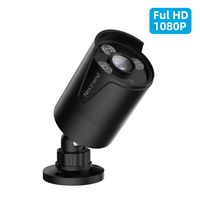
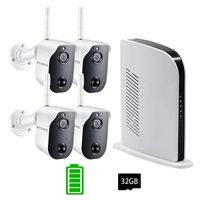
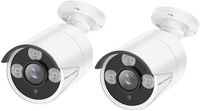
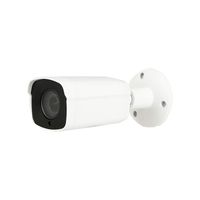
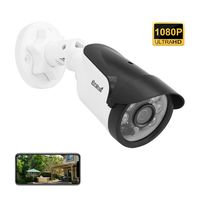
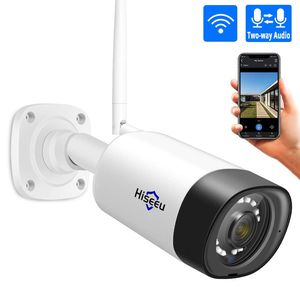
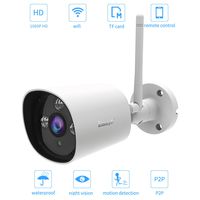
Hiseeu 1080P Security Camera, Outdoor Two-Way Audio Surveillance Cameras Bullet IP Camera Waterproof,Motion Detection Day& Night Vision with Power Adapter Compatible with Hiseeu Wireless Camera System
Current Price
$55
Average
$41.22
Min Price
$35
Max Price
$55
Price dynamics
25%
Description
Power Supply: Need 12V1A power Adapter(Included).
Add this camera to Ip-pro
1) Press the reset button on the camera for 7s to reset the camera
2) Connect your phone to the WiFi signal. (Note:Be sure to connect to your 2.4 GHz WiFi)( This camera does not support 5GHz WiFi)
3) On your phone's IP Pro App, click on the + button > select "Standalone camera" > "YES" (Before that, you need to turn on your phone's GPS service.) > The number that appears after clicking is the cloud ID of the camera > enter the user name and password of the WiFi signal your phone is currently connected to
Add this camera to Hiseeu Expandable 8 Channel Camera System
Refer the video to match code the camera and the NVR: https://youtu.be/DcjnmvL3VJs When you receive the new camera , there is no match between the NVR box and the new camera. You need to pair them.
You can refer to our video on Youtube.
https://youtu.be/kmNnFgjLiPI
1) You need to connect the camera and the NVR box with the Ethernet cable.
2)Right-clik the mouse video manage→Refresh→Match code
3) Use the same way to pair more camera.
If there are any problem when using, please email me: johnny@hiseeu.com
Add this camera to Ip-pro
1) Press the reset button on the camera for 7s to reset the camera
2) Connect your phone to the WiFi signal. (Note:Be sure to connect to your 2.4 GHz WiFi)( This camera does not support 5GHz WiFi)
3) On your phone's IP Pro App, click on the + button > select "Standalone camera" > "YES" (Before that, you need to turn on your phone's GPS service.) > The number that appears after clicking is the cloud ID of the camera > enter the user name and password of the WiFi signal your phone is currently connected to
Add this camera to Hiseeu Expandable 8 Channel Camera System
Refer the video to match code the camera and the NVR: https://youtu.be/DcjnmvL3VJs When you receive the new camera , there is no match between the NVR box and the new camera. You need to pair them.
You can refer to our video on Youtube.
https://youtu.be/kmNnFgjLiPI
1) You need to connect the camera and the NVR box with the Ethernet cable.
2)Right-clik the mouse video manage→Refresh→Match code
3) Use the same way to pair more camera.
If there are any problem when using, please email me: johnny@hiseeu.com
Price will be lower
in next 2 weeks
in next 2 weeks
According to the data, price will be lower in next two weeks, so not waste your money and track better price!
Similar products