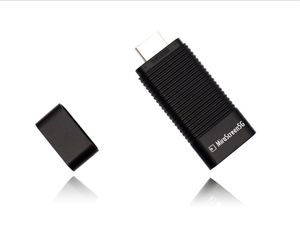
Description
✔ Can I stream copyright protected media (Amazon Prime Video, Netflix, Hulu, Spectrum TV, HBO, etc.) using this wireless HDMI dongle?
While you cannot stream copyright protected video from your phone or tablet, you can still stream these media from a laptop or computer with our wireless HDMI dongle.
✔ What do I need to get started?
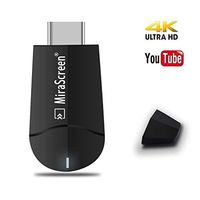
Setting up your iDOBBi wireless HDMI dongle requires a Wi-Fi internet connection, power, and a TV with an available HDMI input. Once you have all of those ingredients, just connect your dongle to your TV and plug in the power. Now you just need to connect the dongle to your home Wi-Fi network, and you can start streaming your favorite movies and TV shows .
✔ How do I connect the dongle to the Wi-Fi network in my house?
1. First, switch the input source of your TV to HDMI, and you can find the dongle's network name (Mirascreen-xxxxxxxx) and password displayed your TV screen.
2. Now go to the Wi-Fi settings on your phone or laptop and connect to the dongle's network, which you found earlier (Mirascreen-xxxxxxxx), from the list of networks.
3. Once your phone is connected to the dongle's network, open a web browser on your phone and enter the IP address http://192.168.203.1 in the address bar of your web browser.
4.The dongle's setting page would show up on the browser, and you can update the dongle's Wi-Fi setting to match your home's Wi-Fi network to connect.
5. That's it, you can now start streaming your favorite movies and TV shows!
While you cannot stream copyright protected video from your phone or tablet, you can still stream these media from a laptop or computer with our wireless HDMI dongle.
✔ What do I need to get started?
Setting up your iDOBBi wireless HDMI dongle requires a Wi-Fi internet connection, power, and a TV with an available HDMI input. Once you have all of those ingredients, just connect your dongle to your TV and plug in the power. Now you just need to connect the dongle to your home Wi-Fi network, and you can start streaming your favorite movies and TV shows .
✔ How do I connect the dongle to the Wi-Fi network in my house?
1. First, switch the input source of your TV to HDMI, and you can find the dongle's network name (Mirascreen-xxxxxxxx) and password displayed your TV screen.
2. Now go to the Wi-Fi settings on your phone or laptop and connect to the dongle's network, which you found earlier (Mirascreen-xxxxxxxx), from the list of networks.
3. Once your phone is connected to the dongle's network, open a web browser on your phone and enter the IP address http://192.168.203.1 in the address bar of your web browser.
4.The dongle's setting page would show up on the browser, and you can update the dongle's Wi-Fi setting to match your home's Wi-Fi network to connect.
5. That's it, you can now start streaming your favorite movies and TV shows!
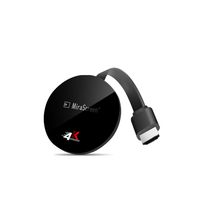
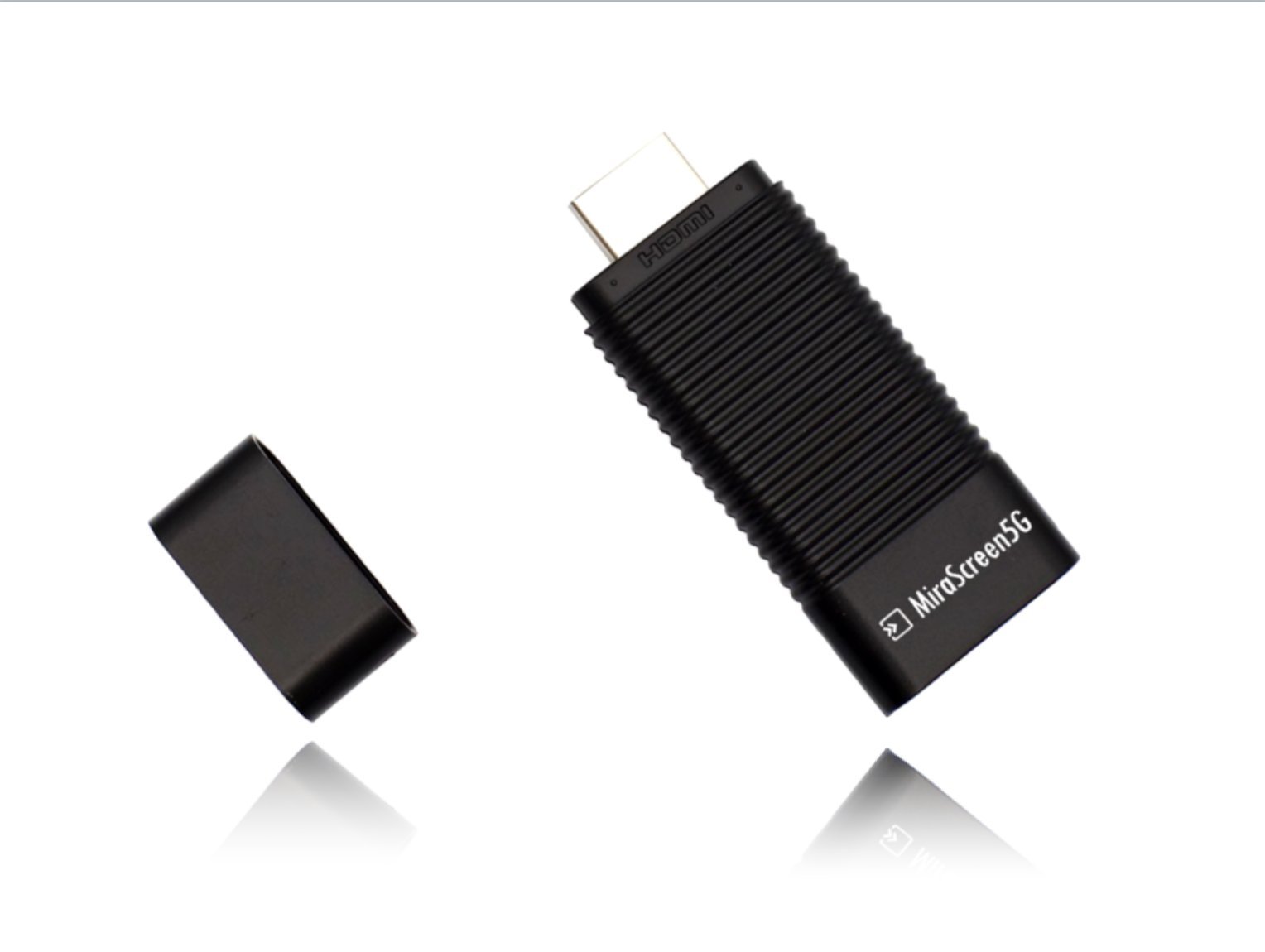
iDOBBi Wireless HDMI Extender Dongle - 1080p@60Hz - Airplay/Miracast/DLNA Streaming Media Adapter - High Speed 5G/2.4G Dual-Band WiFi - Work for iPhone/iPad/Android Smartphone/MacBook/Windows 8.1+
Price is below average
Current Price
$16.99
Average
$20.32
Min Price
$16.99
Max Price
$25.99
Price dynamics
16%
Description
✔ Can I stream copyright protected media (Amazon Prime Video, Netflix, Hulu, Spectrum TV, HBO, etc.) using this wireless HDMI dongle?
While you cannot stream copyright protected video from your phone or tablet, you can still stream these media from a laptop or computer with our wireless HDMI dongle.
✔ What do I need to get started?
Setting up your iDOBBi wireless HDMI dongle requires a Wi-Fi internet connection, power, and a TV with an available HDMI input. Once you have all of those ingredients, just connect your dongle to your TV and plug in the power. Now you just need to connect the dongle to your home Wi-Fi network, and you can start streaming your favorite movies and TV shows .
✔ How do I connect the dongle to the Wi-Fi network in my house?
1. First, switch the input source of your TV to HDMI, and you can find the dongle's network name (Mirascreen-xxxxxxxx) and password displayed your TV screen.
2. Now go to the Wi-Fi settings on your phone or laptop and connect to the dongle's network, which you found earlier (Mirascreen-xxxxxxxx), from the list of networks.
3. Once your phone is connected to the dongle's network, open a web browser on your phone and enter the IP address http://192.168.203.1 in the address bar of your web browser.
4.The dongle's setting page would show up on the browser, and you can update the dongle's Wi-Fi setting to match your home's Wi-Fi network to connect.
5. That's it, you can now start streaming your favorite movies and TV shows!
While you cannot stream copyright protected video from your phone or tablet, you can still stream these media from a laptop or computer with our wireless HDMI dongle.
✔ What do I need to get started?
Setting up your iDOBBi wireless HDMI dongle requires a Wi-Fi internet connection, power, and a TV with an available HDMI input. Once you have all of those ingredients, just connect your dongle to your TV and plug in the power. Now you just need to connect the dongle to your home Wi-Fi network, and you can start streaming your favorite movies and TV shows .
✔ How do I connect the dongle to the Wi-Fi network in my house?
1. First, switch the input source of your TV to HDMI, and you can find the dongle's network name (Mirascreen-xxxxxxxx) and password displayed your TV screen.
2. Now go to the Wi-Fi settings on your phone or laptop and connect to the dongle's network, which you found earlier (Mirascreen-xxxxxxxx), from the list of networks.
3. Once your phone is connected to the dongle's network, open a web browser on your phone and enter the IP address http://192.168.203.1 in the address bar of your web browser.
4.The dongle's setting page would show up on the browser, and you can update the dongle's Wi-Fi setting to match your home's Wi-Fi network to connect.
5. That's it, you can now start streaming your favorite movies and TV shows!
Price will be lower
in next 2 weeks
in next 2 weeks
According to the data, price will be lower in next two weeks, so not waste your money and track better price!
Similar products