Description
Dear Customer,
Qouya every package has undergone rigorous function testing and outer inspection before sent to you. And our all cameras have 30 days return/replacement and one year Warranty(Repair Policy) and whole-life customer service from the date of purchase. Just buy, don't hesitate.
Please feel free write to us when you have any problems.
Email: junqing.t@yahoo.com
How to use?
APP Name: MUCam
➤You can either scan the QR code or download it from APP Store or Google Play
Step 1.
➤ After installing the app, please do not open the APP in a hurry.
➤ Ensure your phone have opened WiFi function.
➤ Find a network named: "CMXXXXXXXXXXX" (this is camera's hotspot!) in the WIFI list on your iPhone or Android.
➤ You need to wait until the camera wifi shows up in your WIFI list. No password needed, just click and connect. Pls wait the wifi logo show on top of cellphone.
➤ Then open the APP. You will see your camera successfully added. It shows online in the app. And you already can see live videos via mobile devices. (If you can't find camera's hotspot, pls reset it)
Step 2.
➤ Please must remember: do the following only after you finish step 1.
➤ Open the APP, you will see an setting symbol to the right side of the camera.
➤ Click and enter. Then choose "Device Setting",Click and enter. Then choose "WIFI Config".
➤ Now you will see a WIFI list in the APP.Choose your home router to connect by entering the correct password. Only support 2.4 G wifi, not 5G.
➤ Please double confirm if you input a correct password (Very important). If the password is wrong. You won't be able to connect to your own WIFI and need to reset your camera and Repeat Step 1 and then Step 2.
Qouya every package has undergone rigorous function testing and outer inspection before sent to you. And our all cameras have 30 days return/replacement and one year Warranty(Repair Policy) and whole-life customer service from the date of purchase. Just buy, don't hesitate.
Please feel free write to us when you have any problems.
Email: junqing.t@yahoo.com
How to use?
APP Name: MUCam
➤You can either scan the QR code or download it from APP Store or Google Play
Step 1.
➤ After installing the app, please do not open the APP in a hurry.
➤ Ensure your phone have opened WiFi function.
➤ Find a network named: "CMXXXXXXXXXXX" (this is camera's hotspot!) in the WIFI list on your iPhone or Android.
➤ You need to wait until the camera wifi shows up in your WIFI list. No password needed, just click and connect. Pls wait the wifi logo show on top of cellphone.
➤ Then open the APP. You will see your camera successfully added. It shows online in the app. And you already can see live videos via mobile devices. (If you can't find camera's hotspot, pls reset it)
Step 2.
➤ Please must remember: do the following only after you finish step 1.
➤ Open the APP, you will see an setting symbol to the right side of the camera.
➤ Click and enter. Then choose "Device Setting",Click and enter. Then choose "WIFI Config".
➤ Now you will see a WIFI list in the APP.Choose your home router to connect by entering the correct password. Only support 2.4 G wifi, not 5G.
➤ Please double confirm if you input a correct password (Very important). If the password is wrong. You won't be able to connect to your own WIFI and need to reset your camera and Repeat Step 1 and then Step 2.
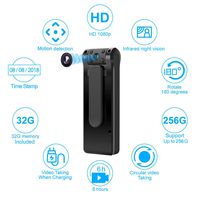
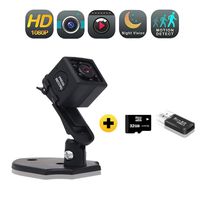
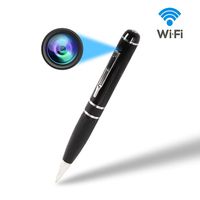
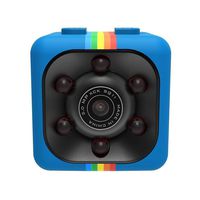
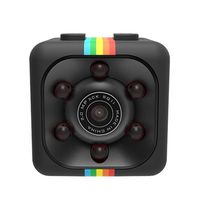
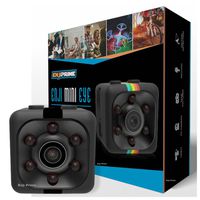
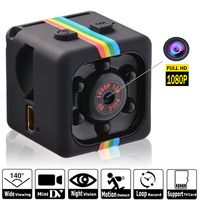
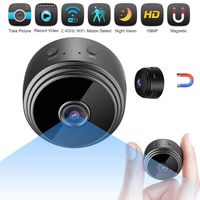
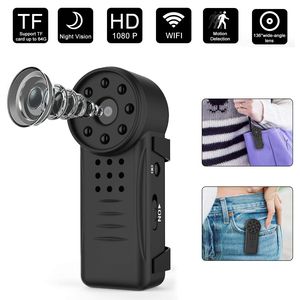
Mini Hidden Camera Spy Camera Wireless Hidden Camera True Hardware 1080P Mini Body Camera With 8 Night Vision Lights Portable Video Camera with Clip for Outdoor Indoor Nanny Cam, Phone/PC Remote View
Current Price
$53.99
Average
$50.17
Min Price
$43.99
Max Price
$54.99
Price dynamics
7%
Description
Dear Customer,
Qouya every package has undergone rigorous function testing and outer inspection before sent to you. And our all cameras have 30 days return/replacement and one year Warranty(Repair Policy) and whole-life customer service from the date of purchase. Just buy, don't hesitate.
Please feel free write to us when you have any problems.
Email: junqing.t@yahoo.com
How to use?
APP Name: MUCam
➤You can either scan the QR code or download it from APP Store or Google Play
Step 1.
➤ After installing the app, please do not open the APP in a hurry.
➤ Ensure your phone have opened WiFi function.
➤ Find a network named: "CMXXXXXXXXXXX" (this is camera's hotspot!) in the WIFI list on your iPhone or Android.
➤ You need to wait until the camera wifi shows up in your WIFI list. No password needed, just click and connect. Pls wait the wifi logo show on top of cellphone.
➤ Then open the APP. You will see your camera successfully added. It shows online in the app. And you already can see live videos via mobile devices. (If you can't find camera's hotspot, pls reset it)
Step 2.
➤ Please must remember: do the following only after you finish step 1.
➤ Open the APP, you will see an setting symbol to the right side of the camera.
➤ Click and enter. Then choose "Device Setting",Click and enter. Then choose "WIFI Config".
➤ Now you will see a WIFI list in the APP.Choose your home router to connect by entering the correct password. Only support 2.4 G wifi, not 5G.
➤ Please double confirm if you input a correct password (Very important). If the password is wrong. You won't be able to connect to your own WIFI and need to reset your camera and Repeat Step 1 and then Step 2.
Qouya every package has undergone rigorous function testing and outer inspection before sent to you. And our all cameras have 30 days return/replacement and one year Warranty(Repair Policy) and whole-life customer service from the date of purchase. Just buy, don't hesitate.
Please feel free write to us when you have any problems.
Email: junqing.t@yahoo.com
How to use?
APP Name: MUCam
➤You can either scan the QR code or download it from APP Store or Google Play
Step 1.
➤ After installing the app, please do not open the APP in a hurry.
➤ Ensure your phone have opened WiFi function.
➤ Find a network named: "CMXXXXXXXXXXX" (this is camera's hotspot!) in the WIFI list on your iPhone or Android.
➤ You need to wait until the camera wifi shows up in your WIFI list. No password needed, just click and connect. Pls wait the wifi logo show on top of cellphone.
➤ Then open the APP. You will see your camera successfully added. It shows online in the app. And you already can see live videos via mobile devices. (If you can't find camera's hotspot, pls reset it)
Step 2.
➤ Please must remember: do the following only after you finish step 1.
➤ Open the APP, you will see an setting symbol to the right side of the camera.
➤ Click and enter. Then choose "Device Setting",Click and enter. Then choose "WIFI Config".
➤ Now you will see a WIFI list in the APP.Choose your home router to connect by entering the correct password. Only support 2.4 G wifi, not 5G.
➤ Please double confirm if you input a correct password (Very important). If the password is wrong. You won't be able to connect to your own WIFI and need to reset your camera and Repeat Step 1 and then Step 2.
Price will be lower
in next 2 weeks
in next 2 weeks
According to the data, price will be lower in next two weeks, so not waste your money and track better price!
Product review & video
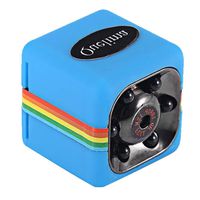
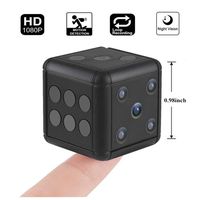
hey guys welcome back to another video today we're gonna be looking at a very tiny camera so they call this a sports camera but it is more like a spy camera so let's check this thing out so it comes in this pack here that looks pretty simple so here is some of the features it can do it is a 1080p so supposed to be pretty good quality here are some of the information about it and here are the specifications alright guys so let's open it up and see what it looks like it definitely looks promising all right so we have instruction user manual and here it is guys this thing is tiny okay so it's definitely smaller than I thought it was gonna be it's a very small cube look at my thumb and the camera so yeah that's pretty young person a little let us see okay so we get some kind of clips here I guess these are mounts okay so that I camera mounts on here so you can clip it onto something and the


Similar products