Description
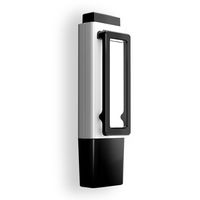
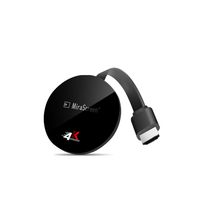
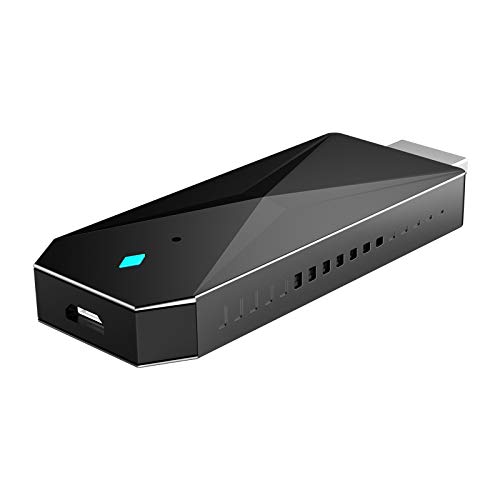
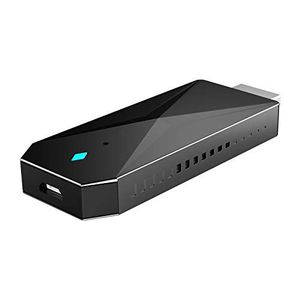
Wireless Display Dongle Specification
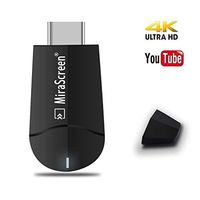
Brand: MiraScreen
Model: D3
Ram: DDR 1 Gbit
CPU: AM8272
Power: 5V 2A
Output: HDMI
Size: 67x28x9mm
Weight: 35g
WiFi HDMI Display Donlge 2.4G&5G Network
If your Dongle supports dual WiFi band, please follow below steps to use 5GHz WiFi Band
If MiraScreen is not connected to wireless home router, then you may switch between 2.4GHz and 5GHz by pressing the button on MiraScreen dongle
An "5G" icon will show up once MiraScreen has been switched to 5GHz wireless band
If MiraScreen is connected to wireless home router, then MiraScreen will operate at the same wireless band as the router
MiraScreen's WiFi SSID and Password are shown on the TV screen. You may connect your mobile phone or laptop to the MiraScreen 's WiFi SSID, and then setup MiraScreen accordingly
Wireless Display Adapter Setup for Android
1. Wait for MiraScreen main screen after power on
2. Turn on your Android menu, and then enable Miracast
3. Select MiraScreen as target and wait for connection
4. Your Android screen will be shown on your TV, reconnect if necessary
Wireless HDMI Dongle Setup for Google Home (Android)
Please connect MiraScreen to home WiFi router* in advance
Download Google Home App from Google Play
Launch the Google Home App, login with Google account. Then you may mirror Android to MiraScreen using Google Home as below
Note: MiraScreen dongle need to be connected to Internet for using Google Home App
Note: Please be aware Android should have Google Play Service in order to install Google Home
Note: Make sure your mobile phone and MiraScreen device connected with the same home WiFi router
WiFi Display Adapter Setup for iOS
1. Wait for MiraScreen main screen after power on
2. Connect your iPhone with MiraScreen via WiFi. Launch browseron your iPhonethen access the IP address (http://192.168.203.1), setup Internet for
Brand: MiraScreen
Model: D3
Ram: DDR 1 Gbit
CPU: AM8272
Power: 5V 2A
Output: HDMI
Size: 67x28x9mm
Weight: 35g
WiFi HDMI Display Donlge 2.4G&5G Network
If your Dongle supports dual WiFi band, please follow below steps to use 5GHz WiFi Band
If MiraScreen is not connected to wireless home router, then you may switch between 2.4GHz and 5GHz by pressing the button on MiraScreen dongle
An "5G" icon will show up once MiraScreen has been switched to 5GHz wireless band
If MiraScreen is connected to wireless home router, then MiraScreen will operate at the same wireless band as the router
MiraScreen's WiFi SSID and Password are shown on the TV screen. You may connect your mobile phone or laptop to the MiraScreen 's WiFi SSID, and then setup MiraScreen accordingly
Wireless Display Adapter Setup for Android
1. Wait for MiraScreen main screen after power on
2. Turn on your Android menu, and then enable Miracast
3. Select MiraScreen as target and wait for connection
4. Your Android screen will be shown on your TV, reconnect if necessary
Wireless HDMI Dongle Setup for Google Home (Android)
Please connect MiraScreen to home WiFi router* in advance
Download Google Home App from Google Play
Launch the Google Home App, login with Google account. Then you may mirror Android to MiraScreen using Google Home as below
Note: MiraScreen dongle need to be connected to Internet for using Google Home App
Note: Please be aware Android should have Google Play Service in order to install Google Home
Note: Make sure your mobile phone and MiraScreen device connected with the same home WiFi router
WiFi Display Adapter Setup for iOS
1. Wait for MiraScreen main screen after power on
2. Connect your iPhone with MiraScreen via WiFi. Launch browseron your iPhonethen access the IP address (http://192.168.203.1), setup Internet for
Miracast WiFi Display Dongle for TV, MiraScreen D3 2.4G&5G 4K Wireless HDMI WiFi Dongle to Mirror Your Mac OS iOS Android Windows Screen to TV Projector Monitor
Current Price
$34.99
Average
$32.39
Min Price
$25.99
Max Price
$35.99
Price dynamics
7%
Description
Wireless Display Dongle Specification
Brand: MiraScreen
Model: D3
Ram: DDR 1 Gbit
CPU: AM8272
Power: 5V 2A
Output: HDMI
Size: 67x28x9mm
Weight: 35g
WiFi HDMI Display Donlge 2.4G&5G Network
If your Dongle supports dual WiFi band, please follow below steps to use 5GHz WiFi Band
If MiraScreen is not connected to wireless home router, then you may switch between 2.4GHz and 5GHz by pressing the button on MiraScreen dongle
An "5G" icon will show up once MiraScreen has been switched to 5GHz wireless band
If MiraScreen is connected to wireless home router, then MiraScreen will operate at the same wireless band as the router
MiraScreen's WiFi SSID and Password are shown on the TV screen. You may connect your mobile phone or laptop to the MiraScreen 's WiFi SSID, and then setup MiraScreen accordingly
Wireless Display Adapter Setup for Android
1. Wait for MiraScreen main screen after power on
2. Turn on your Android menu, and then enable Miracast
3. Select MiraScreen as target and wait for connection
4. Your Android screen will be shown on your TV, reconnect if necessary
Wireless HDMI Dongle Setup for Google Home (Android)
Please connect MiraScreen to home WiFi router* in advance
Download Google Home App from Google Play
Launch the Google Home App, login with Google account. Then you may mirror Android to MiraScreen using Google Home as below
Note: MiraScreen dongle need to be connected to Internet for using Google Home App
Note: Please be aware Android should have Google Play Service in order to install Google Home
Note: Make sure your mobile phone and MiraScreen device connected with the same home WiFi router
WiFi Display Adapter Setup for iOS
1. Wait for MiraScreen main screen after power on
2. Connect your iPhone with MiraScreen via WiFi. Launch browseron your iPhonethen access the IP address (http://192.168.203.1), setup Internet for
Brand: MiraScreen
Model: D3
Ram: DDR 1 Gbit
CPU: AM8272
Power: 5V 2A
Output: HDMI
Size: 67x28x9mm
Weight: 35g
WiFi HDMI Display Donlge 2.4G&5G Network
If your Dongle supports dual WiFi band, please follow below steps to use 5GHz WiFi Band
If MiraScreen is not connected to wireless home router, then you may switch between 2.4GHz and 5GHz by pressing the button on MiraScreen dongle
An "5G" icon will show up once MiraScreen has been switched to 5GHz wireless band
If MiraScreen is connected to wireless home router, then MiraScreen will operate at the same wireless band as the router
MiraScreen's WiFi SSID and Password are shown on the TV screen. You may connect your mobile phone or laptop to the MiraScreen 's WiFi SSID, and then setup MiraScreen accordingly
Wireless Display Adapter Setup for Android
1. Wait for MiraScreen main screen after power on
2. Turn on your Android menu, and then enable Miracast
3. Select MiraScreen as target and wait for connection
4. Your Android screen will be shown on your TV, reconnect if necessary
Wireless HDMI Dongle Setup for Google Home (Android)
Please connect MiraScreen to home WiFi router* in advance
Download Google Home App from Google Play
Launch the Google Home App, login with Google account. Then you may mirror Android to MiraScreen using Google Home as below
Note: MiraScreen dongle need to be connected to Internet for using Google Home App
Note: Please be aware Android should have Google Play Service in order to install Google Home
Note: Make sure your mobile phone and MiraScreen device connected with the same home WiFi router
WiFi Display Adapter Setup for iOS
1. Wait for MiraScreen main screen after power on
2. Connect your iPhone with MiraScreen via WiFi. Launch browseron your iPhonethen access the IP address (http://192.168.203.1), setup Internet for
Price will be lower
in next 2 weeks
in next 2 weeks
According to the data, price will be lower in next two weeks, so not waste your money and track better price!
Similar products