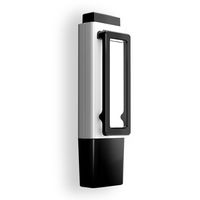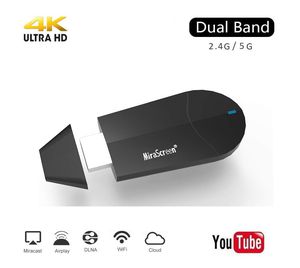
Description
Specification:
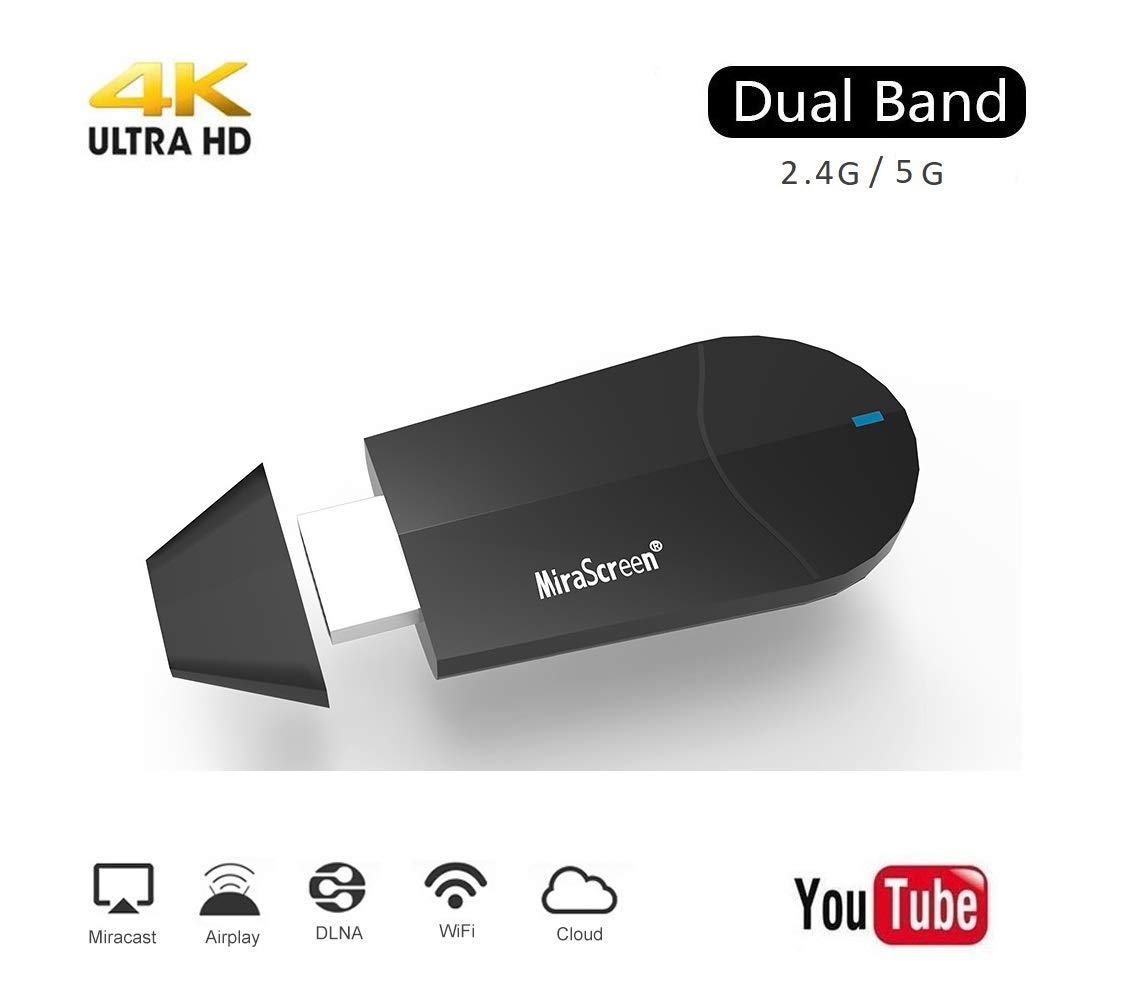
CPU: Dual core AM8272 1.6Ghz
WiFi: 2.4G/5G dual band 802.11b/g/n/ac
DDR3: 128MB
Support multi wifi display: DLNA, Airplay Miracast, no need to swtich
System requirement: iOS 9+, Android 4.4+, Mac OS and Windows(must be miracast enabled).
Access the Setting Menu of this dongle via the IP address: 192.168.203.1, you can connect this item to Internet in this Setting Menu, you can also change resolution/modes/password etc.
EZAir feature: Supports to select Mirroring Only mode and Mirroring&streaming mode, this dongle comes in Mirroring Only mode by default.
Support Resolution: 3840*2160_30P, 1920*1080_60P, 1280*720_60P
Language: 21 languages, English, German, French, Spanish, Italian, Portuguese, Dutch, Turkish, etc
Recognize your IP address and match your local language automatically.
Support OTA: Upgrade to newest version autmatically while connecting to Internet
Connection for iOS(iPhone/iPad) Users:
1. Connect this item(SSID show on display) in WiFi list on your iOS device
2. Access IP address 192.168.203.1 to open Setting Menu, connect to Internet, you will see your wifi name on display when it is connected.
3. Pull up Control Center on your iOS device and click on Airplay Mirroring to connect this item to do screen mirroring.
Note: As Youtube only supports streaming, so when you play Youtube, please stop Airplay Mirroring, then you click Youtube to play directly and click on a TV icon to stream.
Connection for Android Users(Only one step):
Method 1: Open Miracast and select MiraScreen K6 dongle to screen mirroring.
Notes: Miracast: Screen mirroring, Multicreen, Smartview, WiFi Display, Casting etc.
Method 2: If you are not sure about Miracast, you can download EZMira App and connect this item to do screen mirroring.
Package Included:
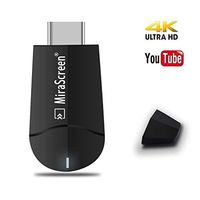
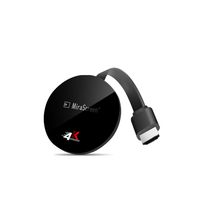
1 x 2.4G/5G Dongle
1 x WiFi Antenna Cable
1 x English User Manual
CPU: Dual core AM8272 1.6Ghz
WiFi: 2.4G/5G dual band 802.11b/g/n/ac
DDR3: 128MB
Support multi wifi display: DLNA, Airplay Miracast, no need to swtich
System requirement: iOS 9+, Android 4.4+, Mac OS and Windows(must be miracast enabled).
Access the Setting Menu of this dongle via the IP address: 192.168.203.1, you can connect this item to Internet in this Setting Menu, you can also change resolution/modes/password etc.
EZAir feature: Supports to select Mirroring Only mode and Mirroring&streaming mode, this dongle comes in Mirroring Only mode by default.
Support Resolution: 3840*2160_30P, 1920*1080_60P, 1280*720_60P
Language: 21 languages, English, German, French, Spanish, Italian, Portuguese, Dutch, Turkish, etc
Recognize your IP address and match your local language automatically.
Support OTA: Upgrade to newest version autmatically while connecting to Internet
Connection for iOS(iPhone/iPad) Users:
1. Connect this item(SSID show on display) in WiFi list on your iOS device
2. Access IP address 192.168.203.1 to open Setting Menu, connect to Internet, you will see your wifi name on display when it is connected.
3. Pull up Control Center on your iOS device and click on Airplay Mirroring to connect this item to do screen mirroring.
Note: As Youtube only supports streaming, so when you play Youtube, please stop Airplay Mirroring, then you click Youtube to play directly and click on a TV icon to stream.
Connection for Android Users(Only one step):
Method 1: Open Miracast and select MiraScreen K6 dongle to screen mirroring.
Notes: Miracast: Screen mirroring, Multicreen, Smartview, WiFi Display, Casting etc.
Method 2: If you are not sure about Miracast, you can download EZMira App and connect this item to do screen mirroring.
Package Included:
1 x 2.4G/5G Dongle
1 x WiFi Antenna Cable
1 x English User Manual
Mirascreen Wireless Display Adapter, SmartSee WiFi HDMI Converter Dual Core H.265/HEVC Decode HDTV Stick Support 4K/1080P Resolution Miracast Airplay DLNA No Need Modes Switching (2.4G/5G Dual Band)
Price is below average
Current Price
$29.99
Average
$33.83
Min Price
$29.99
Max Price
$34.99
Price dynamics
11%
Description
Specification:
CPU: Dual core AM8272 1.6Ghz
WiFi: 2.4G/5G dual band 802.11b/g/n/ac
DDR3: 128MB
Support multi wifi display: DLNA, Airplay Miracast, no need to swtich
System requirement: iOS 9+, Android 4.4+, Mac OS and Windows(must be miracast enabled).
Access the Setting Menu of this dongle via the IP address: 192.168.203.1, you can connect this item to Internet in this Setting Menu, you can also change resolution/modes/password etc.
EZAir feature: Supports to select Mirroring Only mode and Mirroring&streaming mode, this dongle comes in Mirroring Only mode by default.
Support Resolution: 3840*2160_30P, 1920*1080_60P, 1280*720_60P
Language: 21 languages, English, German, French, Spanish, Italian, Portuguese, Dutch, Turkish, etc
Recognize your IP address and match your local language automatically.
Support OTA: Upgrade to newest version autmatically while connecting to Internet
Connection for iOS(iPhone/iPad) Users:
1. Connect this item(SSID show on display) in WiFi list on your iOS device
2. Access IP address 192.168.203.1 to open Setting Menu, connect to Internet, you will see your wifi name on display when it is connected.
3. Pull up Control Center on your iOS device and click on Airplay Mirroring to connect this item to do screen mirroring.
Note: As Youtube only supports streaming, so when you play Youtube, please stop Airplay Mirroring, then you click Youtube to play directly and click on a TV icon to stream.
Connection for Android Users(Only one step):
Method 1: Open Miracast and select MiraScreen K6 dongle to screen mirroring.
Notes: Miracast: Screen mirroring, Multicreen, Smartview, WiFi Display, Casting etc.
Method 2: If you are not sure about Miracast, you can download EZMira App and connect this item to do screen mirroring.
Package Included:
1 x 2.4G/5G Dongle
1 x WiFi Antenna Cable
1 x English User Manual
CPU: Dual core AM8272 1.6Ghz
WiFi: 2.4G/5G dual band 802.11b/g/n/ac
DDR3: 128MB
Support multi wifi display: DLNA, Airplay Miracast, no need to swtich
System requirement: iOS 9+, Android 4.4+, Mac OS and Windows(must be miracast enabled).
Access the Setting Menu of this dongle via the IP address: 192.168.203.1, you can connect this item to Internet in this Setting Menu, you can also change resolution/modes/password etc.
EZAir feature: Supports to select Mirroring Only mode and Mirroring&streaming mode, this dongle comes in Mirroring Only mode by default.
Support Resolution: 3840*2160_30P, 1920*1080_60P, 1280*720_60P
Language: 21 languages, English, German, French, Spanish, Italian, Portuguese, Dutch, Turkish, etc
Recognize your IP address and match your local language automatically.
Support OTA: Upgrade to newest version autmatically while connecting to Internet
Connection for iOS(iPhone/iPad) Users:
1. Connect this item(SSID show on display) in WiFi list on your iOS device
2. Access IP address 192.168.203.1 to open Setting Menu, connect to Internet, you will see your wifi name on display when it is connected.
3. Pull up Control Center on your iOS device and click on Airplay Mirroring to connect this item to do screen mirroring.
Note: As Youtube only supports streaming, so when you play Youtube, please stop Airplay Mirroring, then you click Youtube to play directly and click on a TV icon to stream.
Connection for Android Users(Only one step):
Method 1: Open Miracast and select MiraScreen K6 dongle to screen mirroring.
Notes: Miracast: Screen mirroring, Multicreen, Smartview, WiFi Display, Casting etc.
Method 2: If you are not sure about Miracast, you can download EZMira App and connect this item to do screen mirroring.
Package Included:
1 x 2.4G/5G Dongle
1 x WiFi Antenna Cable
1 x English User Manual
Price will be lower
in next 2 weeks
in next 2 weeks
According to the data, price will be lower in next two weeks, so not waste your money and track better price!
Product review & video
[Music] yo what's up guys welcome back to another video in today I just want to show like a simple that that's kind of like it's gonna be solution to most of the things that some of you have been complaining about as to how do you get ones going to display on the next screen or how do you get you for two-spirit TV or do you get your photo display on there on a projector so that's being quite so quite a challenge for a couple of years now but there's being solutions but they were not actually catering for everyone so most assertion that we have a book there is software based and then you had to have like Internet connectivity have that but in a place where you don't have internet so what do you do do you you have to take it to fit to someone with this internet or well this product that I happy it's called a mirror screen so I'm going to do a quick review on it as to how you can use it to

Similar products