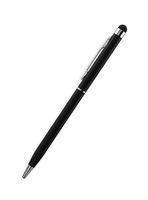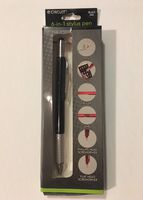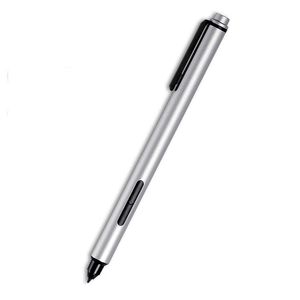
Description
What You Get:
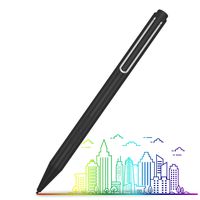
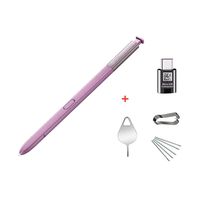
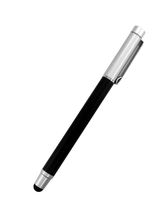
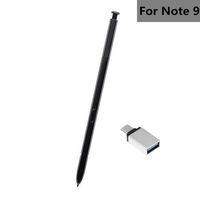
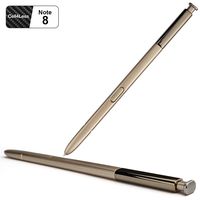
1*Active Pen
1*AAAA Battery
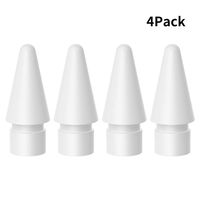
1*H&HB Tip
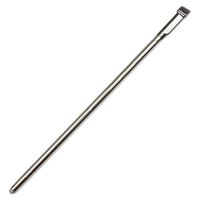
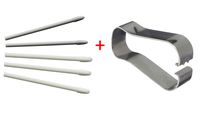
1*Tip Replacement Tool
12 Months Warranty
How to Use :
To awaken the surface pen from sleep mode, press either Eraser or Alt buttons. The digital stylus pen will be active and ready to use.
How to Replace the Tip :
With the tip replacement tool in one hand, and the pen in another, bring the tool over the tip of the pen.
Pinch the tool closed around the tip, and slowly pull the tip out of the body of the pen.
To place a new tip, use the tip replacement tool to remove a tip from the packaging, with the pointed end of the tip pinched in the tool, slide the new tip into the pen.
RECOMMENDED: Keep the unused tips in the foam portion of the package.
How to Install Battery :
Unscrew the top of the pen by turning it counter-clockwise.
Insert one battery, positive side down, into the battery compartment.
Replace the pen top by screwing back on, clockwise.
Compatible with:
New Surface
Surface 3/ Pro 3/ Pro 4
Surface Studio
Surface Book 1/2
ASUS Transformer T3 Series
HP Spectre x360 (2017)
Dell Inspiron 13-7373/ 15-7573
Warm Tips:
1. No Magnetic, can not be adsorbed to the side of tablet like original surface pen.
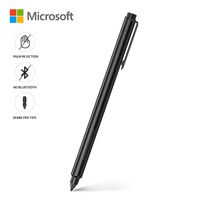
2. Bluetooth Function is NOT included, OneNote shortcut not supported.
3. It is not compatible with Surface Pro 1, Surface Pro 2 and Surface RT.
1*Active Pen
1*AAAA Battery
1*H&HB Tip
1*Tip Replacement Tool
12 Months Warranty
How to Use :
To awaken the surface pen from sleep mode, press either Eraser or Alt buttons. The digital stylus pen will be active and ready to use.
How to Replace the Tip :
With the tip replacement tool in one hand, and the pen in another, bring the tool over the tip of the pen.
Pinch the tool closed around the tip, and slowly pull the tip out of the body of the pen.
To place a new tip, use the tip replacement tool to remove a tip from the packaging, with the pointed end of the tip pinched in the tool, slide the new tip into the pen.
RECOMMENDED: Keep the unused tips in the foam portion of the package.
How to Install Battery :
Unscrew the top of the pen by turning it counter-clockwise.
Insert one battery, positive side down, into the battery compartment.
Replace the pen top by screwing back on, clockwise.
Compatible with:
New Surface
Surface 3/ Pro 3/ Pro 4
Surface Studio
Surface Book 1/2
ASUS Transformer T3 Series
HP Spectre x360 (2017)
Dell Inspiron 13-7373/ 15-7573
Warm Tips:
1. No Magnetic, can not be adsorbed to the side of tablet like original surface pen.
2. Bluetooth Function is NOT included, OneNote shortcut not supported.
3. It is not compatible with Surface Pro 1, Surface Pro 2 and Surface RT.
New Surface Pro Pen Digital Tablet Pen for Surface Pro 3 Pro 4 with 1024 Levels of Pressure for High-Fidelity Writing - Silver
Current Price
$29.99
Average
$28.19
Min Price
$25.99
Max Price
$29.99
Price dynamics
6%
Description
What You Get:
1*Active Pen
1*AAAA Battery
1*H&HB Tip
1*Tip Replacement Tool
12 Months Warranty
How to Use :
To awaken the surface pen from sleep mode, press either Eraser or Alt buttons. The digital stylus pen will be active and ready to use.
How to Replace the Tip :
With the tip replacement tool in one hand, and the pen in another, bring the tool over the tip of the pen.
Pinch the tool closed around the tip, and slowly pull the tip out of the body of the pen.
To place a new tip, use the tip replacement tool to remove a tip from the packaging, with the pointed end of the tip pinched in the tool, slide the new tip into the pen.
RECOMMENDED: Keep the unused tips in the foam portion of the package.
How to Install Battery :
Unscrew the top of the pen by turning it counter-clockwise.
Insert one battery, positive side down, into the battery compartment.
Replace the pen top by screwing back on, clockwise.
Compatible with:
New Surface
Surface 3/ Pro 3/ Pro 4
Surface Studio
Surface Book 1/2
ASUS Transformer T3 Series
HP Spectre x360 (2017)
Dell Inspiron 13-7373/ 15-7573
Warm Tips:
1. No Magnetic, can not be adsorbed to the side of tablet like original surface pen.
2. Bluetooth Function is NOT included, OneNote shortcut not supported.
3. It is not compatible with Surface Pro 1, Surface Pro 2 and Surface RT.
1*Active Pen
1*AAAA Battery
1*H&HB Tip
1*Tip Replacement Tool
12 Months Warranty
How to Use :
To awaken the surface pen from sleep mode, press either Eraser or Alt buttons. The digital stylus pen will be active and ready to use.
How to Replace the Tip :
With the tip replacement tool in one hand, and the pen in another, bring the tool over the tip of the pen.
Pinch the tool closed around the tip, and slowly pull the tip out of the body of the pen.
To place a new tip, use the tip replacement tool to remove a tip from the packaging, with the pointed end of the tip pinched in the tool, slide the new tip into the pen.
RECOMMENDED: Keep the unused tips in the foam portion of the package.
How to Install Battery :
Unscrew the top of the pen by turning it counter-clockwise.
Insert one battery, positive side down, into the battery compartment.
Replace the pen top by screwing back on, clockwise.
Compatible with:
New Surface
Surface 3/ Pro 3/ Pro 4
Surface Studio
Surface Book 1/2
ASUS Transformer T3 Series
HP Spectre x360 (2017)
Dell Inspiron 13-7373/ 15-7573
Warm Tips:
1. No Magnetic, can not be adsorbed to the side of tablet like original surface pen.
2. Bluetooth Function is NOT included, OneNote shortcut not supported.
3. It is not compatible with Surface Pro 1, Surface Pro 2 and Surface RT.
Price will be lower
in next 2 weeks
in next 2 weeks
According to the data, price will be lower in next two weeks, so not waste your money and track better price!
Product review & video
>> It was very important
for us as we're building Windows 10 to make sure that this does more than just
take handwritten notes, sign your name or circle something. We want to make it, so that
you can use your Surface Pen as a mouse and a keyboard
throughout Windows. So I want to show you a bit
about how that works. By default, your pen will behave
like a mouse throughout Windows. So as I press the Start Menu or if I'm scrolling through the different
apps and tiles that I have, click and drag is
just press and hold, and move your Pen across the screen. It will behave like that mouse. Now, if I want to
right-click on something, on the barrel of my Pen, this flat edge here, is where I have this button. I'm going to press and hold
on this right-click button, and then tap anywhere on the screen. That's going to perform
the right-click function wherever I'd like. So I have all of
that nice ad

Similar products