Description
A few tips:
1. For beginners:
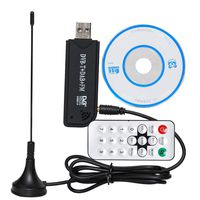
(1) This comes bare-bones. Hardware only. That's good in a way, as if you're using it for SDR, you DO NOT want to use the DVB-T drivers.
(2) This is an off-label use for this device. It was NEVER intended to be used as an SDR. Keep in mind that prior to February 2012,
all these USB sticks were good for was watching TV in Europe. The drivers and software are a work in progress. This is what I call bleeding edge technology.
Some of the software is very refined & polished; other parts have been cobbled together & borrowed from other devices.
With patience, you can get a very reliable and very functional rig from this.
(3) When in doubt, Google is your friend. Search for RTL-SDR + whatever terms you're having trouble with or curious about. We're all still learning what these devices can do.
(4) FWIW, you can use multiple USB sticks on one computer. Why would you want to do this? UniTrunker, running ADS-B + ACARS simultaneously, monitoring multiple frequencies, you name it.
2. For Windows users:
(1)Go over to NooElec's website and download the drivers there. Just look for this product there and on the product page will be a Product Download page.
Their download includes the driver installer (Zadig) and SDR Sharp (SDR#).
(2) Run the Install.bat which is inside the installer. It'll download everything and leave you a SDR Sharp folder.
(3) Plug in the USB stick. When Windows prompts to install drivers, cancel. It might prompt to do this twice. Cancel both attempts.
(4) Run Zadig.exe. It should have WinUSB selected by default. Click Install Drivers. Close Zadig when it's done
(5) Run SDR Sharp. When it loads (it can take awhile), next to the Play button, select RTL-SDR/USB in the drop-down. Click PLAY
If everything works as planned, it'll come alive. Valid frequencies are ~24MHz-1800MHz. When in doubt, try a local FM station (mode WFM) and see what happens
1. For beginners:
(1) This comes bare-bones. Hardware only. That's good in a way, as if you're using it for SDR, you DO NOT want to use the DVB-T drivers.
(2) This is an off-label use for this device. It was NEVER intended to be used as an SDR. Keep in mind that prior to February 2012,
all these USB sticks were good for was watching TV in Europe. The drivers and software are a work in progress. This is what I call bleeding edge technology.
Some of the software is very refined & polished; other parts have been cobbled together & borrowed from other devices.
With patience, you can get a very reliable and very functional rig from this.
(3) When in doubt, Google is your friend. Search for RTL-SDR + whatever terms you're having trouble with or curious about. We're all still learning what these devices can do.
(4) FWIW, you can use multiple USB sticks on one computer. Why would you want to do this? UniTrunker, running ADS-B + ACARS simultaneously, monitoring multiple frequencies, you name it.
2. For Windows users:
(1)Go over to NooElec's website and download the drivers there. Just look for this product there and on the product page will be a Product Download page.
Their download includes the driver installer (Zadig) and SDR Sharp (SDR#).
(2) Run the Install.bat which is inside the installer. It'll download everything and leave you a SDR Sharp folder.
(3) Plug in the USB stick. When Windows prompts to install drivers, cancel. It might prompt to do this twice. Cancel both attempts.
(4) Run Zadig.exe. It should have WinUSB selected by default. Click Install Drivers. Close Zadig when it's done
(5) Run SDR Sharp. When it loads (it can take awhile), next to the Play button, select RTL-SDR/USB in the drop-down. Click PLAY
If everything works as planned, it'll come alive. Valid frequencies are ~24MHz-1800MHz. When in doubt, try a local FM station (mode WFM) and see what happens
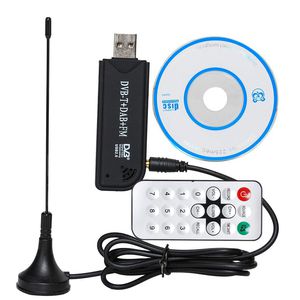
SaferCCTV(TM) USB DVB-T & RTL-SDR Realtek RTL2832U & R820T DVB-T Tuner Receiver MCX Input Antenna for SDR Radio Receiver Scanner HAM Radio Windows7 FM Tracking Air Craf Software Defined Radio Mac
Price is below average
Current Price
$15.99
Average
$18.56
Min Price
$15.47
Max Price
$19.95
Price dynamics
14%
Description
A few tips:
1. For beginners:
(1) This comes bare-bones. Hardware only. That's good in a way, as if you're using it for SDR, you DO NOT want to use the DVB-T drivers.
(2) This is an off-label use for this device. It was NEVER intended to be used as an SDR. Keep in mind that prior to February 2012,
all these USB sticks were good for was watching TV in Europe. The drivers and software are a work in progress. This is what I call bleeding edge technology.
Some of the software is very refined & polished; other parts have been cobbled together & borrowed from other devices.
With patience, you can get a very reliable and very functional rig from this.
(3) When in doubt, Google is your friend. Search for RTL-SDR + whatever terms you're having trouble with or curious about. We're all still learning what these devices can do.
(4) FWIW, you can use multiple USB sticks on one computer. Why would you want to do this? UniTrunker, running ADS-B + ACARS simultaneously, monitoring multiple frequencies, you name it.
2. For Windows users:
(1)Go over to NooElec's website and download the drivers there. Just look for this product there and on the product page will be a Product Download page.
Their download includes the driver installer (Zadig) and SDR Sharp (SDR#).
(2) Run the Install.bat which is inside the installer. It'll download everything and leave you a SDR Sharp folder.
(3) Plug in the USB stick. When Windows prompts to install drivers, cancel. It might prompt to do this twice. Cancel both attempts.
(4) Run Zadig.exe. It should have WinUSB selected by default. Click Install Drivers. Close Zadig when it's done
(5) Run SDR Sharp. When it loads (it can take awhile), next to the Play button, select RTL-SDR/USB in the drop-down. Click PLAY
If everything works as planned, it'll come alive. Valid frequencies are ~24MHz-1800MHz. When in doubt, try a local FM station (mode WFM) and see what happens
1. For beginners:
(1) This comes bare-bones. Hardware only. That's good in a way, as if you're using it for SDR, you DO NOT want to use the DVB-T drivers.
(2) This is an off-label use for this device. It was NEVER intended to be used as an SDR. Keep in mind that prior to February 2012,
all these USB sticks were good for was watching TV in Europe. The drivers and software are a work in progress. This is what I call bleeding edge technology.
Some of the software is very refined & polished; other parts have been cobbled together & borrowed from other devices.
With patience, you can get a very reliable and very functional rig from this.
(3) When in doubt, Google is your friend. Search for RTL-SDR + whatever terms you're having trouble with or curious about. We're all still learning what these devices can do.
(4) FWIW, you can use multiple USB sticks on one computer. Why would you want to do this? UniTrunker, running ADS-B + ACARS simultaneously, monitoring multiple frequencies, you name it.
2. For Windows users:
(1)Go over to NooElec's website and download the drivers there. Just look for this product there and on the product page will be a Product Download page.
Their download includes the driver installer (Zadig) and SDR Sharp (SDR#).
(2) Run the Install.bat which is inside the installer. It'll download everything and leave you a SDR Sharp folder.
(3) Plug in the USB stick. When Windows prompts to install drivers, cancel. It might prompt to do this twice. Cancel both attempts.
(4) Run Zadig.exe. It should have WinUSB selected by default. Click Install Drivers. Close Zadig when it's done
(5) Run SDR Sharp. When it loads (it can take awhile), next to the Play button, select RTL-SDR/USB in the drop-down. Click PLAY
If everything works as planned, it'll come alive. Valid frequencies are ~24MHz-1800MHz. When in doubt, try a local FM station (mode WFM) and see what happens
Price will be lower
in next 2 weeks
in next 2 weeks
According to the data, price will be lower in next two weeks, so not waste your money and track better price!
Product review & video
[Applause] what's going on guys today I just wanted to do a pretty much QuickStart guide to using the rtl-sdr and this is going to assume that you don't really know much about software-defined radio he's you never owned one so we're gonna start kind of from the basics so once you receive your device you're gonna have a few parts here the main thing you're gonna have is the actual dongle itself this is relatively simple basically this is the USB out to go to the computer this is your antenna port it's a call it sa ma adapter another thing you're gonna get is actual aunt Anna so ordinarily it comes about like this right here okay and you're gonna have two sets of antennas you can actually screw on to it you're gonna have the larger telescopic set that you see here and you're also going to have the smaller telescopic set that you see here both of these are useful in the fact that you need