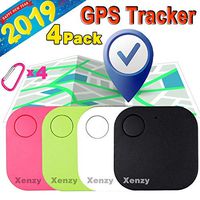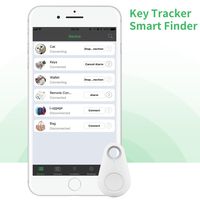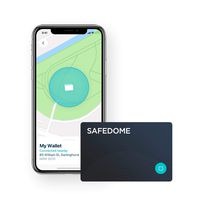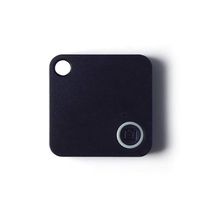
Description
How to use it
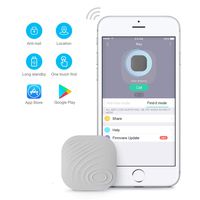
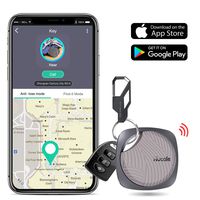
1.Download the Zenlyfe app from the Apple App Store or the Google Play Store
2.Make sure your Bluetooth on the phone is on
3.Open the Zenlyfe app
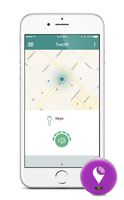
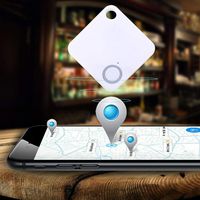
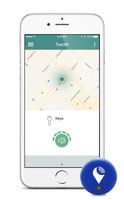
4.Follow the prompts to allow Zenlyfe access to Bluetooth and Location Service so you can see your things on a map
Activate Smart Tag
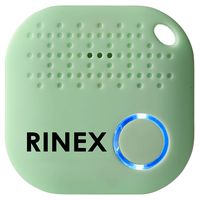
Your smart tag is on the sleep mode when you open the packing box.You just quick press the button,it will ring and be activate.You should connect it with your phone in a minute.Or it will be on the sleep mode again automatic.
Attaching Your Smart Tags to Things
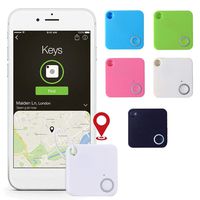
It can be anything that you want to track, like keys, bags, purses, etc. Linking Your Smart Tags to the App
1.Tap the + button on the Things tab of the app
2.Wait for the app to discover and connect the smart tag
3.Tap the save button on upper right corner of the app
4.Optionally you can take a picture of the thing that the smart tag is attached to and name it
5.Be happy because now you can always find your stuff!
Replacing Battery
The pre-inserted CR2032 button cell battery is user replaceable. In case your smart tag runs out of power, please follow the following instructions to replace the battery.
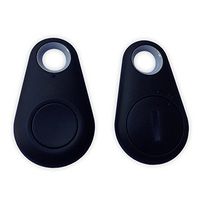
1.Open the case from the corner as shown in the image illustrated
2.Remove old battery and insert new battery with + sign facing up
3.Close the case
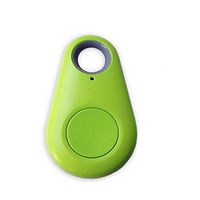
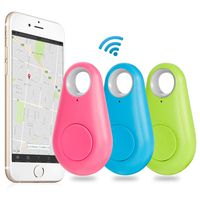
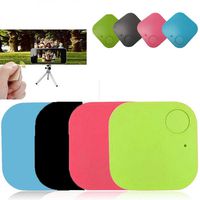
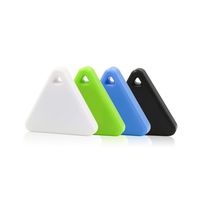
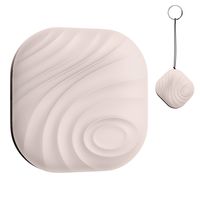
Package 1.Black Smart tag *1
2. user manual*1
1.Download the Zenlyfe app from the Apple App Store or the Google Play Store
2.Make sure your Bluetooth on the phone is on
3.Open the Zenlyfe app
4.Follow the prompts to allow Zenlyfe access to Bluetooth and Location Service so you can see your things on a map
Activate Smart Tag
Your smart tag is on the sleep mode when you open the packing box.You just quick press the button,it will ring and be activate.You should connect it with your phone in a minute.Or it will be on the sleep mode again automatic.
Attaching Your Smart Tags to Things
It can be anything that you want to track, like keys, bags, purses, etc. Linking Your Smart Tags to the App
1.Tap the + button on the Things tab of the app
2.Wait for the app to discover and connect the smart tag
3.Tap the save button on upper right corner of the app
4.Optionally you can take a picture of the thing that the smart tag is attached to and name it
5.Be happy because now you can always find your stuff!
Replacing Battery
The pre-inserted CR2032 button cell battery is user replaceable. In case your smart tag runs out of power, please follow the following instructions to replace the battery.
1.Open the case from the corner as shown in the image illustrated
2.Remove old battery and insert new battery with + sign facing up
3.Close the case
Package 1.Black Smart tag *1
2. user manual*1
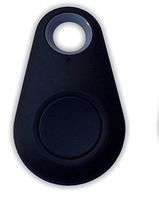
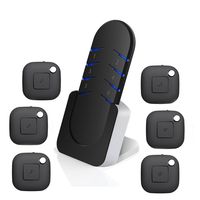
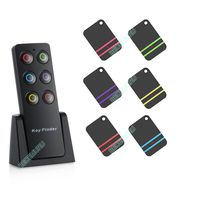
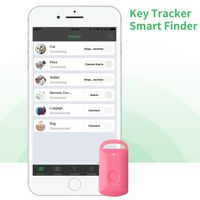
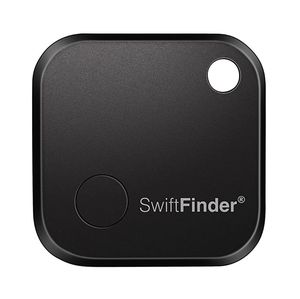
Smart Key Finder, SwiftFinder Mini Wireless Locator Anti-Lost Bluetooth Tracker for Key/Phone/Wallets/Purse/Luggage and Bags with APP Control Black
Price is below average
Current Price
$13.99
Average
$14.49
Min Price
$13.99
Max Price
$14.99
Price dynamics
3%
Description
How to use it
1.Download the Zenlyfe app from the Apple App Store or the Google Play Store
2.Make sure your Bluetooth on the phone is on
3.Open the Zenlyfe app
4.Follow the prompts to allow Zenlyfe access to Bluetooth and Location Service so you can see your things on a map
Activate Smart Tag
Your smart tag is on the sleep mode when you open the packing box.You just quick press the button,it will ring and be activate.You should connect it with your phone in a minute.Or it will be on the sleep mode again automatic.
Attaching Your Smart Tags to Things
It can be anything that you want to track, like keys, bags, purses, etc. Linking Your Smart Tags to the App
1.Tap the + button on the Things tab of the app
2.Wait for the app to discover and connect the smart tag
3.Tap the save button on upper right corner of the app
4.Optionally you can take a picture of the thing that the smart tag is attached to and name it
5.Be happy because now you can always find your stuff!
Replacing Battery
The pre-inserted CR2032 button cell battery is user replaceable. In case your smart tag runs out of power, please follow the following instructions to replace the battery.
1.Open the case from the corner as shown in the image illustrated
2.Remove old battery and insert new battery with + sign facing up
3.Close the case
Package 1.Black Smart tag *1
2. user manual*1
1.Download the Zenlyfe app from the Apple App Store or the Google Play Store
2.Make sure your Bluetooth on the phone is on
3.Open the Zenlyfe app
4.Follow the prompts to allow Zenlyfe access to Bluetooth and Location Service so you can see your things on a map
Activate Smart Tag
Your smart tag is on the sleep mode when you open the packing box.You just quick press the button,it will ring and be activate.You should connect it with your phone in a minute.Or it will be on the sleep mode again automatic.
Attaching Your Smart Tags to Things
It can be anything that you want to track, like keys, bags, purses, etc. Linking Your Smart Tags to the App
1.Tap the + button on the Things tab of the app
2.Wait for the app to discover and connect the smart tag
3.Tap the save button on upper right corner of the app
4.Optionally you can take a picture of the thing that the smart tag is attached to and name it
5.Be happy because now you can always find your stuff!
Replacing Battery
The pre-inserted CR2032 button cell battery is user replaceable. In case your smart tag runs out of power, please follow the following instructions to replace the battery.
1.Open the case from the corner as shown in the image illustrated
2.Remove old battery and insert new battery with + sign facing up
3.Close the case
Package 1.Black Smart tag *1
2. user manual*1
Price will be lower
in next 2 weeks
in next 2 weeks
According to the data, price will be lower in next two weeks, so not waste your money and track better price!
Similar products