- HomeElectronicsAccessories & SuppliesAudio & Video AccessoriesCables & InterconnectsVideo CablesHDMI Cables
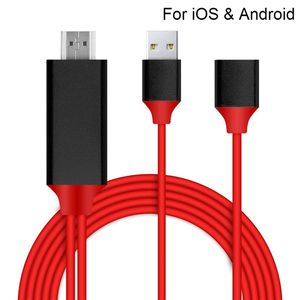
Description
Using help:
1. The product must be powered by an external power supply (5V 1A or higher), otherwise it cannot be output to HDMI.
2, after connecting the product, you must restart the phone, remember, the first time you must plug the product on the phone to restart the phone, otherwise there is no HDMI output
3, the product output does not require any settings, automatically output after restarting the phone
4. After the product is connected, the HDMI logo will be displayed on the mobile phone (some mobile phones will not be displayed), and the mobile phone will display charging.
【Installation】
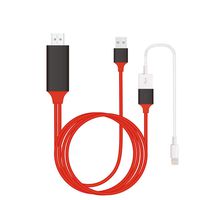
Step 1: Connect it:
● Insert the USB port into the 5V/1A adapter, or 5V/2A USB interface on the TV / Monitor or Projector.
● Insert the HDMI out port of onenuts cable into the HDMI Port of TV / Monitor or Projector.
● Insert the Original power cable of IOS devices/ Samsung phone / Huawei phone into USB female port of onenuts cable.
Step 2: Trust for Different Devices
● For iOS Devices
Connect the phone and the lightning cable with the USB cable, just click"Trust", wait 10 seconds to synchronize the phone screen with the TV.
● For Samsung Cell phone
(1) Please open your cell phone "Developer Options", then choose "USB debugging", then click "OK", trust the devices.
(2) If there is no "Developer Options" on your phone, please click 6 times continuously in "Build number" of the "Software info" in the setting, then "Development Options" will be opened automatically.
●Android phones:
You need download "EZcast"
*Connect to TV or projector via digital AV adapter
*Plug HDMI cable to your Android devices
*Plug USB to power adapter or outlet
*Open "EZcast"to connect , which is also very easy and quick to operate
Matters Needing Attention:
Heat Problem:
It is normal to get hot while in use as hdmi interface is made of Aluminum alloy. Please take a rest before a long using.
1. The product must be powered by an external power supply (5V 1A or higher), otherwise it cannot be output to HDMI.
2, after connecting the product, you must restart the phone, remember, the first time you must plug the product on the phone to restart the phone, otherwise there is no HDMI output
3, the product output does not require any settings, automatically output after restarting the phone
4. After the product is connected, the HDMI logo will be displayed on the mobile phone (some mobile phones will not be displayed), and the mobile phone will display charging.
【Installation】
Step 1: Connect it:
● Insert the USB port into the 5V/1A adapter, or 5V/2A USB interface on the TV / Monitor or Projector.
● Insert the HDMI out port of onenuts cable into the HDMI Port of TV / Monitor or Projector.
● Insert the Original power cable of IOS devices/ Samsung phone / Huawei phone into USB female port of onenuts cable.
Step 2: Trust for Different Devices
● For iOS Devices
Connect the phone and the lightning cable with the USB cable, just click"Trust", wait 10 seconds to synchronize the phone screen with the TV.
● For Samsung Cell phone
(1) Please open your cell phone "Developer Options", then choose "USB debugging", then click "OK", trust the devices.
(2) If there is no "Developer Options" on your phone, please click 6 times continuously in "Build number" of the "Software info" in the setting, then "Development Options" will be opened automatically.
●Android phones:
You need download "EZcast"
*Connect to TV or projector via digital AV adapter
*Plug HDMI cable to your Android devices
*Plug USB to power adapter or outlet
*Open "EZcast"to connect , which is also very easy and quick to operate
Matters Needing Attention:
Heat Problem:
It is normal to get hot while in use as hdmi interface is made of Aluminum alloy. Please take a rest before a long using.
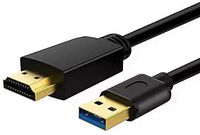
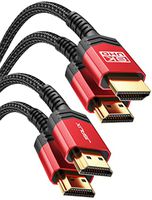
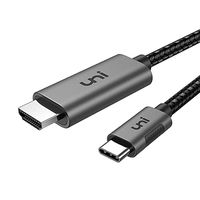
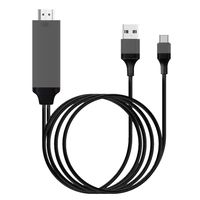
【Support iOS and Android】USB to HDMI Adapter Converter Cable 1080P HDTV Cord HDMI Adapter Cable HDTV Phone to HDMI TV Cable for iOS and Android and Type C USB 3.0 Devices Red/Black (Plug and Play)
Current Price
$15.89
Average
$14.02
Min Price
$11.29
Max Price
$15.89
Price dynamics
12%
Description
Using help:
1. The product must be powered by an external power supply (5V 1A or higher), otherwise it cannot be output to HDMI.
2, after connecting the product, you must restart the phone, remember, the first time you must plug the product on the phone to restart the phone, otherwise there is no HDMI output
3, the product output does not require any settings, automatically output after restarting the phone
4. After the product is connected, the HDMI logo will be displayed on the mobile phone (some mobile phones will not be displayed), and the mobile phone will display charging.
【Installation】
Step 1: Connect it:
● Insert the USB port into the 5V/1A adapter, or 5V/2A USB interface on the TV / Monitor or Projector.
● Insert the HDMI out port of onenuts cable into the HDMI Port of TV / Monitor or Projector.
● Insert the Original power cable of IOS devices/ Samsung phone / Huawei phone into USB female port of onenuts cable.
Step 2: Trust for Different Devices
● For iOS Devices
Connect the phone and the lightning cable with the USB cable, just click"Trust", wait 10 seconds to synchronize the phone screen with the TV.
● For Samsung Cell phone
(1) Please open your cell phone "Developer Options", then choose "USB debugging", then click "OK", trust the devices.
(2) If there is no "Developer Options" on your phone, please click 6 times continuously in "Build number" of the "Software info" in the setting, then "Development Options" will be opened automatically.
●Android phones:
You need download "EZcast"
*Connect to TV or projector via digital AV adapter
*Plug HDMI cable to your Android devices
*Plug USB to power adapter or outlet
*Open "EZcast"to connect , which is also very easy and quick to operate
Matters Needing Attention:
Heat Problem:
It is normal to get hot while in use as hdmi interface is made of Aluminum alloy. Please take a rest before a long using.
1. The product must be powered by an external power supply (5V 1A or higher), otherwise it cannot be output to HDMI.
2, after connecting the product, you must restart the phone, remember, the first time you must plug the product on the phone to restart the phone, otherwise there is no HDMI output
3, the product output does not require any settings, automatically output after restarting the phone
4. After the product is connected, the HDMI logo will be displayed on the mobile phone (some mobile phones will not be displayed), and the mobile phone will display charging.
【Installation】
Step 1: Connect it:
● Insert the USB port into the 5V/1A adapter, or 5V/2A USB interface on the TV / Monitor or Projector.
● Insert the HDMI out port of onenuts cable into the HDMI Port of TV / Monitor or Projector.
● Insert the Original power cable of IOS devices/ Samsung phone / Huawei phone into USB female port of onenuts cable.
Step 2: Trust for Different Devices
● For iOS Devices
Connect the phone and the lightning cable with the USB cable, just click"Trust", wait 10 seconds to synchronize the phone screen with the TV.
● For Samsung Cell phone
(1) Please open your cell phone "Developer Options", then choose "USB debugging", then click "OK", trust the devices.
(2) If there is no "Developer Options" on your phone, please click 6 times continuously in "Build number" of the "Software info" in the setting, then "Development Options" will be opened automatically.
●Android phones:
You need download "EZcast"
*Connect to TV or projector via digital AV adapter
*Plug HDMI cable to your Android devices
*Plug USB to power adapter or outlet
*Open "EZcast"to connect , which is also very easy and quick to operate
Matters Needing Attention:
Heat Problem:
It is normal to get hot while in use as hdmi interface is made of Aluminum alloy. Please take a rest before a long using.
Price will be lower
in next 2 weeks
in next 2 weeks
According to the data, price will be lower in next two weeks, so not waste your money and track better price!
Product review & video
hey what's going on guys this eta prime back here again today we're going to be taking a look at this adapter that claims it can add hdmi to any android device now i'm really interested in this because that's one of the main things that i look for when i'm buying a high-end phone with these cheaper phones that we're going to be testing out in this video here the samsung a01 the moto g fast the poco m3 and the all do cube i play 40 tablet do not have hdmi from the factory but if you pick up a higher end phone from let's say lg oneplus or even samsung chances are it will have hdmi capabilities over usb type-c but all of the devices we're going to be testing out in this video don't support hdmi and that's where this adapter comes in they claim that this can add hdmi to any android device as long as it's running android 4.4 or higher now i've done a little bit of research on these devices a


Similar products