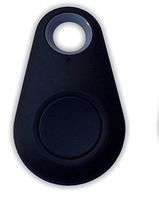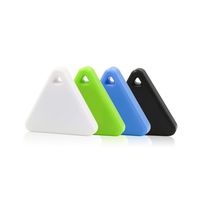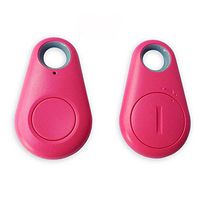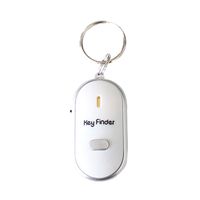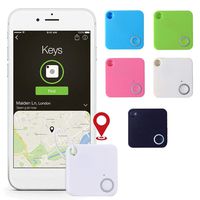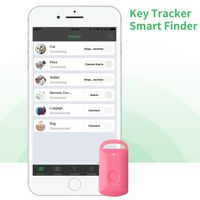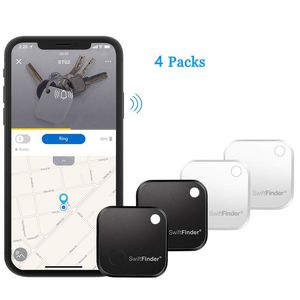
Description
How to use it
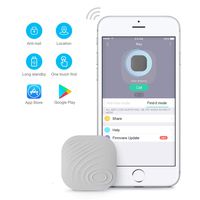
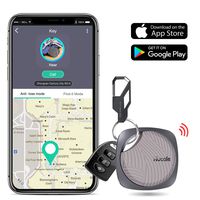
1.Download the Zenlyfe app from the App Store or the Google Play Store
2.Make sure your Bluetooth on the phone is on
3.Open the Zenlyfe app
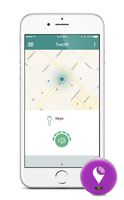
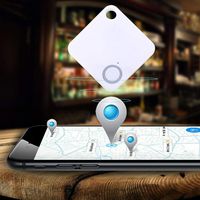
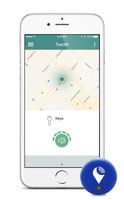
4.Follow the prompts to allow Zenlyfe access to Bluetooth and Location Service so you can see your things on a map
Activate Smart Tag
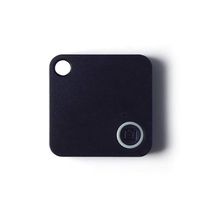
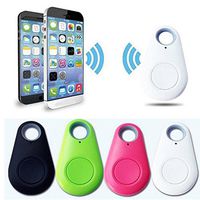
Your smart tag is on the sleep mode when you open the packing box.You just quick press the button,it will ring and be activate.You should connect it with your phone in a minute.Or it will be on the sleep mode again automatic.
Attaching Your Smart Tags to Things
It can be anything that you want to track, like keys, bags, purses, etc. Linking Your Smart Tags to the App
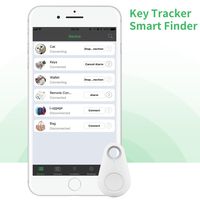
1.Tap the + button on the Things tab of the app
2.Wait for the app to discover and connect the smart tag
3.Tap the save button on upper right corner of the app
4.Optionally you can take a picture of the thing that the smart tag is attached to and name it
5.Be happy because now you can always find your stuff!
Replacing Battery
The pre-inserted CR2032 button cell battery is user replaceable. In case your smart tag runs out of power, please follow the following instructions to replace the battery.
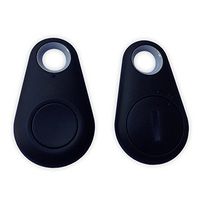
1.Open the case from the corner as shown in the image illustrated
2.Remove old battery and insert new battery with + sign facing up
3.Close the case
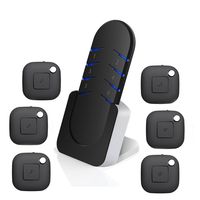
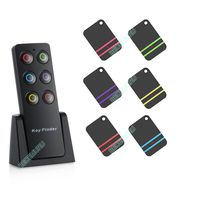
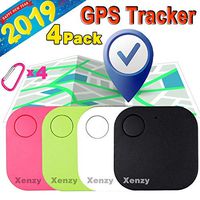
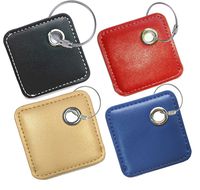
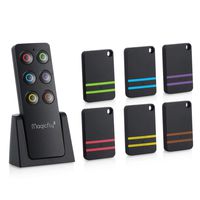
Package 1.Black Smart tag *2,White Smart tag *2
2. user manual*1
1.Download the Zenlyfe app from the App Store or the Google Play Store
2.Make sure your Bluetooth on the phone is on
3.Open the Zenlyfe app
4.Follow the prompts to allow Zenlyfe access to Bluetooth and Location Service so you can see your things on a map
Activate Smart Tag
Your smart tag is on the sleep mode when you open the packing box.You just quick press the button,it will ring and be activate.You should connect it with your phone in a minute.Or it will be on the sleep mode again automatic.
Attaching Your Smart Tags to Things
It can be anything that you want to track, like keys, bags, purses, etc. Linking Your Smart Tags to the App
1.Tap the + button on the Things tab of the app
2.Wait for the app to discover and connect the smart tag
3.Tap the save button on upper right corner of the app
4.Optionally you can take a picture of the thing that the smart tag is attached to and name it
5.Be happy because now you can always find your stuff!
Replacing Battery
The pre-inserted CR2032 button cell battery is user replaceable. In case your smart tag runs out of power, please follow the following instructions to replace the battery.
1.Open the case from the corner as shown in the image illustrated
2.Remove old battery and insert new battery with + sign facing up
3.Close the case
Package 1.Black Smart tag *2,White Smart tag *2
2. user manual*1
SwiftFinder Wireless Key Finder, Mini Bluetooth Anti-Lost Smart Tag Locator GPS Tracker for Key/Phone/Wallets/Purse/Luggage and Bags with APP Control Compatible with iOS and Android 4 Packs
Price is below average
Current Price
$39.99
Average
$48.94
Min Price
$38.99
Max Price
$79.99
Price dynamics
18%
Description
How to use it
1.Download the Zenlyfe app from the App Store or the Google Play Store
2.Make sure your Bluetooth on the phone is on
3.Open the Zenlyfe app
4.Follow the prompts to allow Zenlyfe access to Bluetooth and Location Service so you can see your things on a map
Activate Smart Tag
Your smart tag is on the sleep mode when you open the packing box.You just quick press the button,it will ring and be activate.You should connect it with your phone in a minute.Or it will be on the sleep mode again automatic.
Attaching Your Smart Tags to Things
It can be anything that you want to track, like keys, bags, purses, etc. Linking Your Smart Tags to the App
1.Tap the + button on the Things tab of the app
2.Wait for the app to discover and connect the smart tag
3.Tap the save button on upper right corner of the app
4.Optionally you can take a picture of the thing that the smart tag is attached to and name it
5.Be happy because now you can always find your stuff!
Replacing Battery
The pre-inserted CR2032 button cell battery is user replaceable. In case your smart tag runs out of power, please follow the following instructions to replace the battery.
1.Open the case from the corner as shown in the image illustrated
2.Remove old battery and insert new battery with + sign facing up
3.Close the case
Package 1.Black Smart tag *2,White Smart tag *2
2. user manual*1
1.Download the Zenlyfe app from the App Store or the Google Play Store
2.Make sure your Bluetooth on the phone is on
3.Open the Zenlyfe app
4.Follow the prompts to allow Zenlyfe access to Bluetooth and Location Service so you can see your things on a map
Activate Smart Tag
Your smart tag is on the sleep mode when you open the packing box.You just quick press the button,it will ring and be activate.You should connect it with your phone in a minute.Or it will be on the sleep mode again automatic.
Attaching Your Smart Tags to Things
It can be anything that you want to track, like keys, bags, purses, etc. Linking Your Smart Tags to the App
1.Tap the + button on the Things tab of the app
2.Wait for the app to discover and connect the smart tag
3.Tap the save button on upper right corner of the app
4.Optionally you can take a picture of the thing that the smart tag is attached to and name it
5.Be happy because now you can always find your stuff!
Replacing Battery
The pre-inserted CR2032 button cell battery is user replaceable. In case your smart tag runs out of power, please follow the following instructions to replace the battery.
1.Open the case from the corner as shown in the image illustrated
2.Remove old battery and insert new battery with + sign facing up
3.Close the case
Package 1.Black Smart tag *2,White Smart tag *2
2. user manual*1
Price will be lower
in next 2 weeks
in next 2 weeks
According to the data, price will be lower in next two weeks, so not waste your money and track better price!
Product review & video
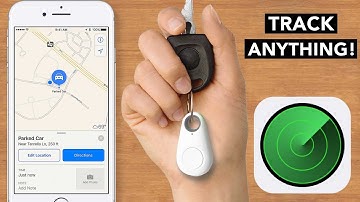
- I have an insane deal today to help you locate and track everything it is you're looking for. (gentle music) Well not everything, I'm still looking for a lot of things
that I have yet to find. Hi I'm the Youtube deal guy Matt Granite. I'm here everyday to save you more cash than anyone else in the country. All of the items I find which are located right under this video screen also get given out to subscribers
at the end of this video. If you're subscribed with
your notifications turned on, you will have access to one
of my favorite deals today and I got a lot of
requests for people looking for great ways to clip
these to your key chain and track anything from remote controls to smartphones, keys,
whatever it is you lose, and I have actually tested
many different set ups and the tile system I still
think is one of the best. It's a little bit
pricier than what I found and today the dea

Similar products