- HomeElectronicsComputers & AccessoriesComputer Accessories & PeripheralsCables & InterconnectsUSB Cables
Description
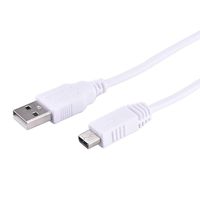
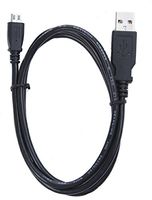
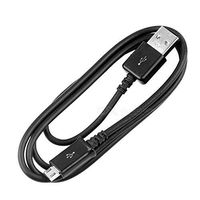
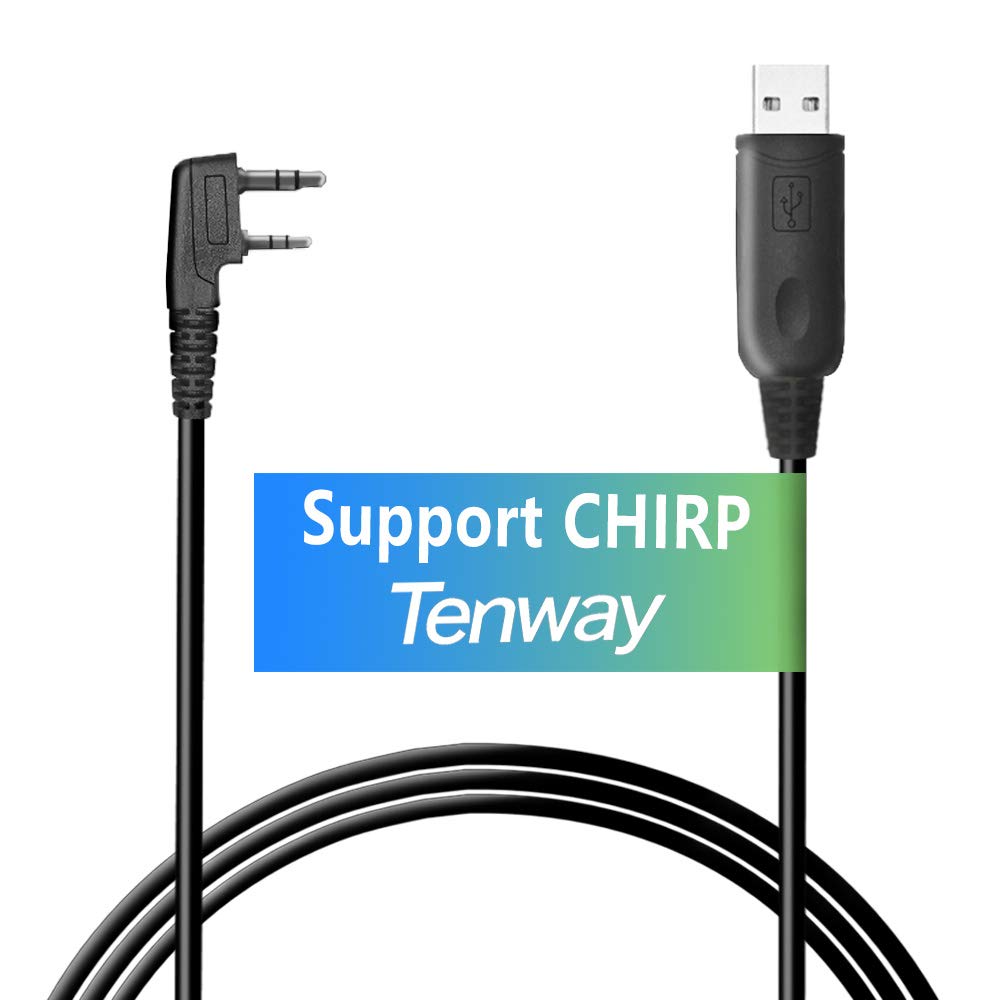
Tenway Baofeng USB Programming Cable for Baofeng UV-5R, BF-888S,BF-F8+ With Driver CD Support WIN7/10, 64 Bit PC
Features:
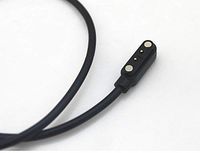
Newest Version Support Windows 7/10, 64 Bit PC Space of two-pin:11mm;
Length: 100cm;
Two-pin standard diameter : Ear 3.5mm stereo (top pin);
Mic 2.5mm stereo (bottom pin)
Compatible with walkie talkie: The cable works with UV-5R/5RA/5R PLUS/5RE, UV3R PLUS, BF-888S, BF-F8+
Package includes:
1 x USB Programming Cable
1 x Driver CD
Operation is simple (using CHIRP).
1. Install CHIRP software (latest build .exe) from their website (linked from btech site url is in the included instruction sheet)
2. Plugin the cable and wait for windows to install drivers
3. Start CHIRP software from your start menu
4. Select 'Radio'->'download from radio'
5. In the open dialog window select your port, radio manufacturer and model number
6. You will see progress bar and when it is done there will be a new tab with your radio's config open
7. Save your original config just in case you need to go to it.
8. With your config tab selected go to 'Radio'->'import from stock config' and select which bad file you want to load
9. Pop-up window will open with list of bends and memory locations, use controls on pop-up window to modify list as you need and press OK.
Take advantage of buttons under 'adjust new location', these will alter all addresses in the list for you. Press OK when done
10. Verify that your address list is what you want and go to 'radio'->'update to radio'
11. Answer whatever prompts you get and let it rip. You will see progress bar going. When it is done, your radio is ready to be used with updated channel list.
Before you upload to radio, you can also change settings, see there is a tab under 'memories memory range' label at top left corner.
Features:
Newest Version Support Windows 7/10, 64 Bit PC Space of two-pin:11mm;
Length: 100cm;
Two-pin standard diameter : Ear 3.5mm stereo (top pin);
Mic 2.5mm stereo (bottom pin)
Compatible with walkie talkie: The cable works with UV-5R/5RA/5R PLUS/5RE, UV3R PLUS, BF-888S, BF-F8+
Package includes:
1 x USB Programming Cable
1 x Driver CD
Operation is simple (using CHIRP).
1. Install CHIRP software (latest build .exe) from their website (linked from btech site url is in the included instruction sheet)
2. Plugin the cable and wait for windows to install drivers
3. Start CHIRP software from your start menu
4. Select 'Radio'->'download from radio'
5. In the open dialog window select your port, radio manufacturer and model number
6. You will see progress bar and when it is done there will be a new tab with your radio's config open
7. Save your original config just in case you need to go to it.
8. With your config tab selected go to 'Radio'->'import from stock config' and select which bad file you want to load
9. Pop-up window will open with list of bends and memory locations, use controls on pop-up window to modify list as you need and press OK.
Take advantage of buttons under 'adjust new location', these will alter all addresses in the list for you. Press OK when done
10. Verify that your address list is what you want and go to 'radio'->'update to radio'
11. Answer whatever prompts you get and let it rip. You will see progress bar going. When it is done, your radio is ready to be used with updated channel list.
Before you upload to radio, you can also change settings, see there is a tab under 'memories memory range' label at top left corner.
Tenway Baofeng USB Programming Cable Win 7/10, 64Bit for Baofeng Radio UV-5R, BF-888S, H-777 with Driver CD
Current Price
$9.99
Average
$9.99
Min Price
$9.99
Max Price
$9.99
Description
Tenway Baofeng USB Programming Cable for Baofeng UV-5R, BF-888S,BF-F8+ With Driver CD Support WIN7/10, 64 Bit PC
Features:
Newest Version Support Windows 7/10, 64 Bit PC Space of two-pin:11mm;
Length: 100cm;
Two-pin standard diameter : Ear 3.5mm stereo (top pin);
Mic 2.5mm stereo (bottom pin)
Compatible with walkie talkie: The cable works with UV-5R/5RA/5R PLUS/5RE, UV3R PLUS, BF-888S, BF-F8+
Package includes:
1 x USB Programming Cable
1 x Driver CD
Operation is simple (using CHIRP).
1. Install CHIRP software (latest build .exe) from their website (linked from btech site url is in the included instruction sheet)
2. Plugin the cable and wait for windows to install drivers
3. Start CHIRP software from your start menu
4. Select 'Radio'->'download from radio'
5. In the open dialog window select your port, radio manufacturer and model number
6. You will see progress bar and when it is done there will be a new tab with your radio's config open
7. Save your original config just in case you need to go to it.
8. With your config tab selected go to 'Radio'->'import from stock config' and select which bad file you want to load
9. Pop-up window will open with list of bends and memory locations, use controls on pop-up window to modify list as you need and press OK.
Take advantage of buttons under 'adjust new location', these will alter all addresses in the list for you. Press OK when done
10. Verify that your address list is what you want and go to 'radio'->'update to radio'
11. Answer whatever prompts you get and let it rip. You will see progress bar going. When it is done, your radio is ready to be used with updated channel list.
Before you upload to radio, you can also change settings, see there is a tab under 'memories memory range' label at top left corner.
Features:
Newest Version Support Windows 7/10, 64 Bit PC Space of two-pin:11mm;
Length: 100cm;
Two-pin standard diameter : Ear 3.5mm stereo (top pin);
Mic 2.5mm stereo (bottom pin)
Compatible with walkie talkie: The cable works with UV-5R/5RA/5R PLUS/5RE, UV3R PLUS, BF-888S, BF-F8+
Package includes:
1 x USB Programming Cable
1 x Driver CD
Operation is simple (using CHIRP).
1. Install CHIRP software (latest build .exe) from their website (linked from btech site url is in the included instruction sheet)
2. Plugin the cable and wait for windows to install drivers
3. Start CHIRP software from your start menu
4. Select 'Radio'->'download from radio'
5. In the open dialog window select your port, radio manufacturer and model number
6. You will see progress bar and when it is done there will be a new tab with your radio's config open
7. Save your original config just in case you need to go to it.
8. With your config tab selected go to 'Radio'->'import from stock config' and select which bad file you want to load
9. Pop-up window will open with list of bends and memory locations, use controls on pop-up window to modify list as you need and press OK.
Take advantage of buttons under 'adjust new location', these will alter all addresses in the list for you. Press OK when done
10. Verify that your address list is what you want and go to 'radio'->'update to radio'
11. Answer whatever prompts you get and let it rip. You will see progress bar going. When it is done, your radio is ready to be used with updated channel list.
Before you upload to radio, you can also change settings, see there is a tab under 'memories memory range' label at top left corner.
Price will be lower
in next 2 weeks
in next 2 weeks
According to the data, price will be lower in next two weeks, so not waste your money and track better price!
Product review & video
[Music] this is kg 5i n today I wanted to go ahead and go over how to set up your Bay open u v5 are utilizing Windows 10 Windows 7 was the way things were done before and and I have an older video which I'll put in the description showing on how to do the installation on utilizing the Windows 7 but since everything seems to be moving towards the Windows 10 version of Windows we're gonna go ahead and do the setup utilizing Windows 10 beginning of next year 107 will be unsupported by Microsoft which means there's gonna be security support and all that stuff which is gonna be no longer so with that said we're gonna go ahead and try to set this up and I'll run through the whole process so in my case my laptop doesn't come with a DVD drive or CD drive or anything like that at all it's actually just USB ports and that's it they took all the space out of it to utilize that space for batteries


Similar products