Description
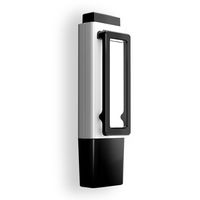
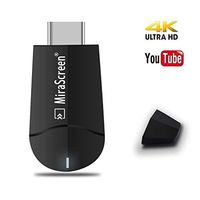
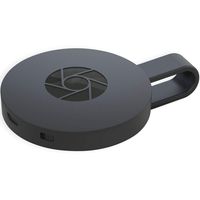
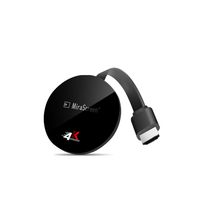
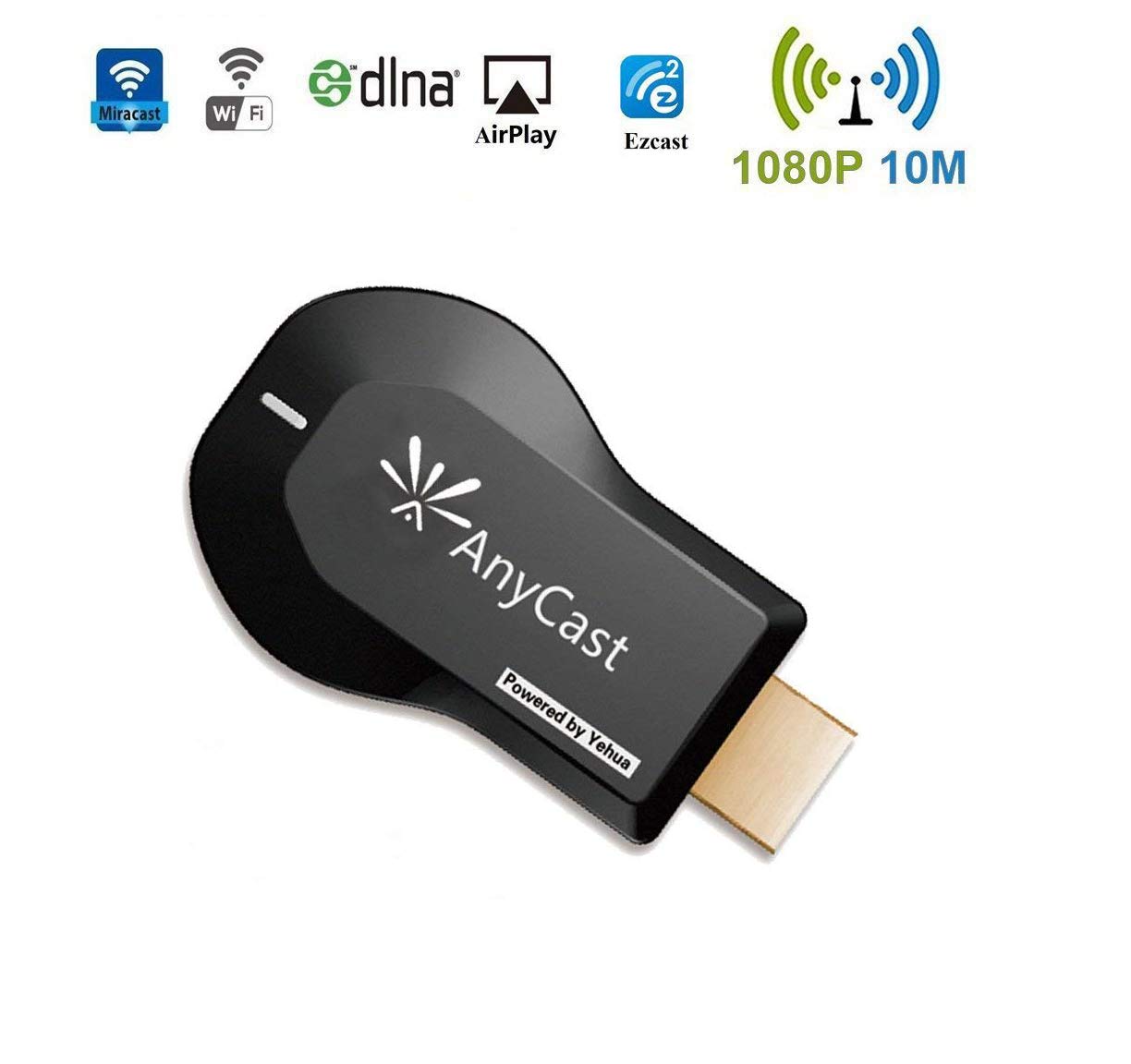
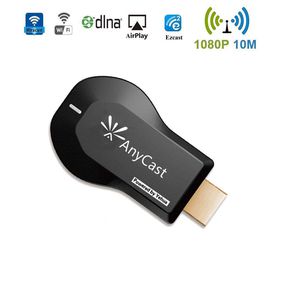
The wifi display dongle supports DLNA/Airplay Mirror/Miracast/Ezcast Function for iOS/Android/Samsung/LG/ Nokia/iPhone/iPad Air/Mini/Pro devices, which is perfect for watching movies, conference use and gaming to pursuit different audio-visual feast. Compared with traditional receiver, the item has better connectivity and strong anti-jamming that give smoother data transfer.
Do you have trouble with small screen:
★ Want to share screen with people at home, meeting, conference at the same time.
★ Want to protect your kid's eyesight and your love
★ Have fun with your friend together
Anycast Adapter is the solution Lightweight design, Easy Setup, Hassle free No App or drivers required. 3 steps to enjoy media on large screen: Plug->Connect->Mirroring
USAGE
Step 1:
Plug into HDMI port. Set your TV to the HDMI port you picked.
Step: 2
Connect to AnyCast Dongle WiFi (Get SSID and Password on screen)
Configure HDMI WiFi Dongle to hook up Home WiFi Go to a browser and input 192.168.201.1 to come to the setting menu => Select Home WiFi SSID and type in Password => Save and Connect to Home WiFi
Step 3:
Mirroring(iOS) Pull up Control Center and tap "Airplay Mirroring". Once you tap it your iPhone/iPad screen will now be cast to your TV.
Mirroring(Android) Pull down "Control Center" on your phone and turn on Miracast (Screen mirroring/ Multicreen / Smartview) and select it.
Do you have trouble with small screen:
★ Want to share screen with people at home, meeting, conference at the same time.
★ Want to protect your kid's eyesight and your love
★ Have fun with your friend together
Anycast Adapter is the solution Lightweight design, Easy Setup, Hassle free No App or drivers required. 3 steps to enjoy media on large screen: Plug->Connect->Mirroring
USAGE
Step 1:
Plug into HDMI port. Set your TV to the HDMI port you picked.
Step: 2
Connect to AnyCast Dongle WiFi (Get SSID and Password on screen)
Configure HDMI WiFi Dongle to hook up Home WiFi Go to a browser and input 192.168.201.1 to come to the setting menu => Select Home WiFi SSID and type in Password => Save and Connect to Home WiFi
Step 3:
Mirroring(iOS) Pull up Control Center and tap "Airplay Mirroring". Once you tap it your iPhone/iPad screen will now be cast to your TV.
Mirroring(Android) Pull down "Control Center" on your phone and turn on Miracast (Screen mirroring/ Multicreen / Smartview) and select it.
WiFi Wireless Display Dongle 1080P Mini Receiver Sharing HD Video from Projectors Cell Phones Tablet PC Support Airplay/ Chromecast/Chromecast Tv/Miracast/Miracast Dongle for Tv
Price is below average
Current Price
$14.99
Average
$18.26
Min Price
$14.99
Max Price
$25
Price dynamics
18%
Description
The wifi display dongle supports DLNA/Airplay Mirror/Miracast/Ezcast Function for iOS/Android/Samsung/LG/ Nokia/iPhone/iPad Air/Mini/Pro devices, which is perfect for watching movies, conference use and gaming to pursuit different audio-visual feast. Compared with traditional receiver, the item has better connectivity and strong anti-jamming that give smoother data transfer.
Do you have trouble with small screen:
★ Want to share screen with people at home, meeting, conference at the same time.
★ Want to protect your kid's eyesight and your love
★ Have fun with your friend together
Anycast Adapter is the solution Lightweight design, Easy Setup, Hassle free No App or drivers required. 3 steps to enjoy media on large screen: Plug->Connect->Mirroring
USAGE
Step 1:
Plug into HDMI port. Set your TV to the HDMI port you picked.
Step: 2
Connect to AnyCast Dongle WiFi (Get SSID and Password on screen)
Configure HDMI WiFi Dongle to hook up Home WiFi Go to a browser and input 192.168.201.1 to come to the setting menu => Select Home WiFi SSID and type in Password => Save and Connect to Home WiFi
Step 3:
Mirroring(iOS) Pull up Control Center and tap "Airplay Mirroring". Once you tap it your iPhone/iPad screen will now be cast to your TV.
Mirroring(Android) Pull down "Control Center" on your phone and turn on Miracast (Screen mirroring/ Multicreen / Smartview) and select it.
Do you have trouble with small screen:
★ Want to share screen with people at home, meeting, conference at the same time.
★ Want to protect your kid's eyesight and your love
★ Have fun with your friend together
Anycast Adapter is the solution Lightweight design, Easy Setup, Hassle free No App or drivers required. 3 steps to enjoy media on large screen: Plug->Connect->Mirroring
USAGE
Step 1:
Plug into HDMI port. Set your TV to the HDMI port you picked.
Step: 2
Connect to AnyCast Dongle WiFi (Get SSID and Password on screen)
Configure HDMI WiFi Dongle to hook up Home WiFi Go to a browser and input 192.168.201.1 to come to the setting menu => Select Home WiFi SSID and type in Password => Save and Connect to Home WiFi
Step 3:
Mirroring(iOS) Pull up Control Center and tap "Airplay Mirroring". Once you tap it your iPhone/iPad screen will now be cast to your TV.
Mirroring(Android) Pull down "Control Center" on your phone and turn on Miracast (Screen mirroring/ Multicreen / Smartview) and select it.
Price will be lower
in next 2 weeks
in next 2 weeks
According to the data, price will be lower in next two weeks, so not waste your money and track better price!
Similar products