Description
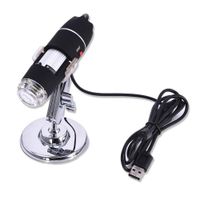
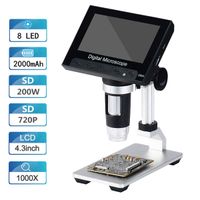
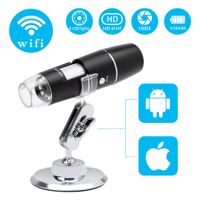
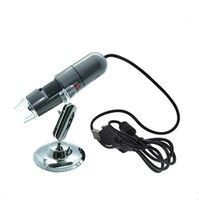
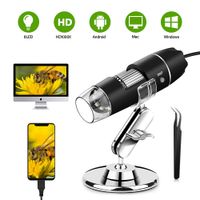
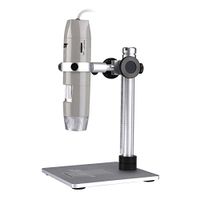
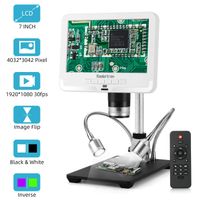
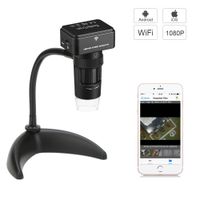
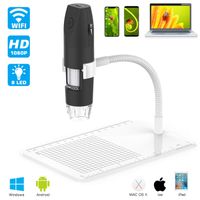
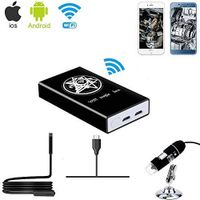
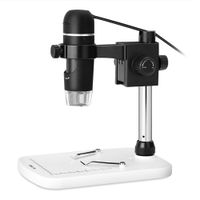
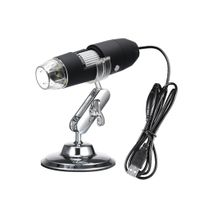
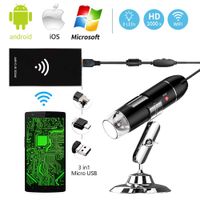
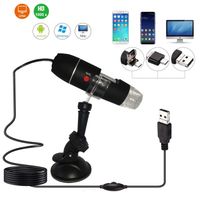
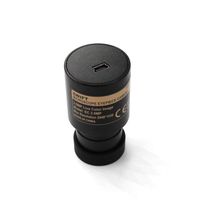
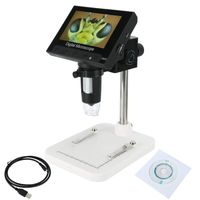
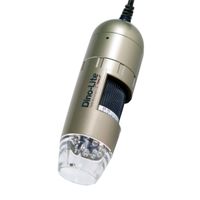
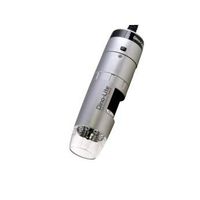
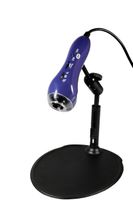
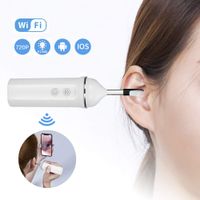
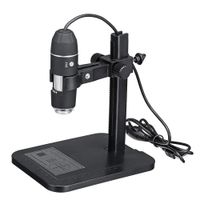
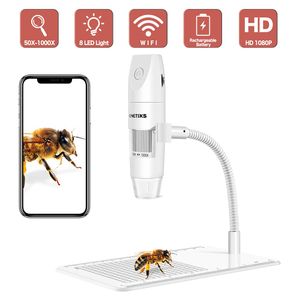
ONETEKS WiFi Microscope
Use it on Android Phones:
1. Search for "inskam" on Google Play or follow the link below (www.inskam.com/download/inskam1.apk) for download and installation.
2. Turn on the device.
3. Connect wifi.
4. Ajust the focal length and light.
Use it on IOS Phones:
1. Search for "inskam" in App Store to download and install.
2. Turn on the device.
3. Connect wifi.
4. Ajust the focal length and light.
Use it on Windows system:
1. Download and install the software "Smart Camera" from the following link: www.inskam.com/download/camera.zip.
2. Move the WiF/PC switch button to the PC, long press the camera/switch button for 3 seconds to turn on turn on the device.
3. Use a data cable to connect your device to your computer and run the "Smart Camera".
4. Click the device option in the setup interface, switch and select the camera "USB CAMERA" to make it work.
Use it on MAC system:
1. Find out an app called Photo Booth in the applicationsof the Finder window.
2. Move the WiF/PC switch button to the PC, long press the camera/switch button for 3 seconds to turn on turn on the device.
3. Use a data cable to connect your device to your computer and run the "Photo Booth".
4. Click Photo Booth and select the "USB CAMERA" to make it work.
*The camera button cannot be used when connecting with computer, it only can be used via software.
Wireless Digital Microscope Specification:
Best Focal Distance: 0.11-2.36inch
Resolution: 1920*1080, 1280*720, 640*480
Pixels: 2.0 megapixels
magnification power: 50x-1000x
Light Sources: 8 adjustable LEDs
Wifi Connection: 10M
Video Format: MP4/AVI
Image Format: JPG
Frame Rate: 15 F/S
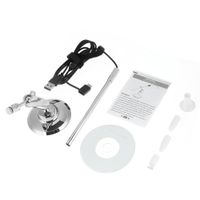
USB Microscope Package Include:
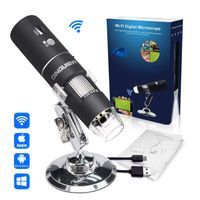
1 x Wireless Microscope
1 x Microscope Case
1 x Plastic Stand
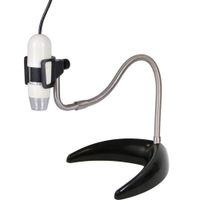
1 x Microscope Holder
1 x Charging cable
1 x Instruction
Use it on Android Phones:
1. Search for "inskam" on Google Play or follow the link below (www.inskam.com/download/inskam1.apk) for download and installation.
2. Turn on the device.
3. Connect wifi.
4. Ajust the focal length and light.
Use it on IOS Phones:
1. Search for "inskam" in App Store to download and install.
2. Turn on the device.
3. Connect wifi.
4. Ajust the focal length and light.
Use it on Windows system:
1. Download and install the software "Smart Camera" from the following link: www.inskam.com/download/camera.zip.
2. Move the WiF/PC switch button to the PC, long press the camera/switch button for 3 seconds to turn on turn on the device.
3. Use a data cable to connect your device to your computer and run the "Smart Camera".
4. Click the device option in the setup interface, switch and select the camera "USB CAMERA" to make it work.
Use it on MAC system:
1. Find out an app called Photo Booth in the applicationsof the Finder window.
2. Move the WiF/PC switch button to the PC, long press the camera/switch button for 3 seconds to turn on turn on the device.
3. Use a data cable to connect your device to your computer and run the "Photo Booth".
4. Click Photo Booth and select the "USB CAMERA" to make it work.
*The camera button cannot be used when connecting with computer, it only can be used via software.
Wireless Digital Microscope Specification:
Best Focal Distance: 0.11-2.36inch
Resolution: 1920*1080, 1280*720, 640*480
Pixels: 2.0 megapixels
magnification power: 50x-1000x
Light Sources: 8 adjustable LEDs
Wifi Connection: 10M
Video Format: MP4/AVI
Image Format: JPG
Frame Rate: 15 F/S
USB Microscope Package Include:
1 x Wireless Microscope
1 x Microscope Case
1 x Plastic Stand
1 x Microscope Holder
1 x Charging cable
1 x Instruction
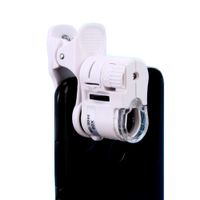
Wireless Digital Microscope, 50X to 1000XUSB Digital Microscope, Flexible Arm Observation Stand with 1080P HD 2.0 MP 8 LED Camera, Mini Handheld Microscope Camera for Android and iOS Smartphone or Tab
Current Price
$42.99
Average
$41.49
Min Price
$39.99
Max Price
$42.99
Price dynamics
3%
Description
ONETEKS WiFi Microscope
Use it on Android Phones:
1. Search for "inskam" on Google Play or follow the link below (www.inskam.com/download/inskam1.apk) for download and installation.
2. Turn on the device.
3. Connect wifi.
4. Ajust the focal length and light.
Use it on IOS Phones:
1. Search for "inskam" in App Store to download and install.
2. Turn on the device.
3. Connect wifi.
4. Ajust the focal length and light.
Use it on Windows system:
1. Download and install the software "Smart Camera" from the following link: www.inskam.com/download/camera.zip.
2. Move the WiF/PC switch button to the PC, long press the camera/switch button for 3 seconds to turn on turn on the device.
3. Use a data cable to connect your device to your computer and run the "Smart Camera".
4. Click the device option in the setup interface, switch and select the camera "USB CAMERA" to make it work.
Use it on MAC system:
1. Find out an app called Photo Booth in the applicationsof the Finder window.
2. Move the WiF/PC switch button to the PC, long press the camera/switch button for 3 seconds to turn on turn on the device.
3. Use a data cable to connect your device to your computer and run the "Photo Booth".
4. Click Photo Booth and select the "USB CAMERA" to make it work.
*The camera button cannot be used when connecting with computer, it only can be used via software.
Wireless Digital Microscope Specification:
Best Focal Distance: 0.11-2.36inch
Resolution: 1920*1080, 1280*720, 640*480
Pixels: 2.0 megapixels
magnification power: 50x-1000x
Light Sources: 8 adjustable LEDs
Wifi Connection: 10M
Video Format: MP4/AVI
Image Format: JPG
Frame Rate: 15 F/S
USB Microscope Package Include:
1 x Wireless Microscope
1 x Microscope Case
1 x Plastic Stand
1 x Microscope Holder
1 x Charging cable
1 x Instruction
Use it on Android Phones:
1. Search for "inskam" on Google Play or follow the link below (www.inskam.com/download/inskam1.apk) for download and installation.
2. Turn on the device.
3. Connect wifi.
4. Ajust the focal length and light.
Use it on IOS Phones:
1. Search for "inskam" in App Store to download and install.
2. Turn on the device.
3. Connect wifi.
4. Ajust the focal length and light.
Use it on Windows system:
1. Download and install the software "Smart Camera" from the following link: www.inskam.com/download/camera.zip.
2. Move the WiF/PC switch button to the PC, long press the camera/switch button for 3 seconds to turn on turn on the device.
3. Use a data cable to connect your device to your computer and run the "Smart Camera".
4. Click the device option in the setup interface, switch and select the camera "USB CAMERA" to make it work.
Use it on MAC system:
1. Find out an app called Photo Booth in the applicationsof the Finder window.
2. Move the WiF/PC switch button to the PC, long press the camera/switch button for 3 seconds to turn on turn on the device.
3. Use a data cable to connect your device to your computer and run the "Photo Booth".
4. Click Photo Booth and select the "USB CAMERA" to make it work.
*The camera button cannot be used when connecting with computer, it only can be used via software.
Wireless Digital Microscope Specification:
Best Focal Distance: 0.11-2.36inch
Resolution: 1920*1080, 1280*720, 640*480
Pixels: 2.0 megapixels
magnification power: 50x-1000x
Light Sources: 8 adjustable LEDs
Wifi Connection: 10M
Video Format: MP4/AVI
Image Format: JPG
Frame Rate: 15 F/S
USB Microscope Package Include:
1 x Wireless Microscope
1 x Microscope Case
1 x Plastic Stand
1 x Microscope Holder
1 x Charging cable
1 x Instruction
Price will be lower
in next 2 weeks
in next 2 weeks
According to the data, price will be lower in next two weeks, so not waste your money and track better price!