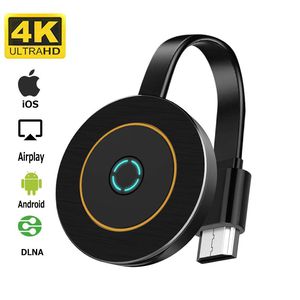
Description
iOS (iPhone / iPad) operating instructions:
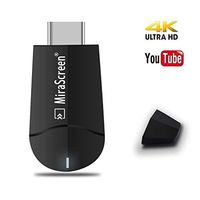
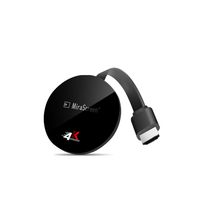
1. Plug the HDMI end of the wireless dongle into the TV or projector, then connect the antenna to the dongle
2. Wait for the MiraScreen main screen to appear
3. In your phone's Wi-Fi settings, search for Miracast-XXX Wi-Fi and enter the dongle password: 12345678
4. Enter 192.168.203.1 in the Safari
5. Click "Internet" on the settings page, select the available WiFi at home, and enter the WiFi password.
6. Wait until the standby screen appears without touching anything, then you can see the name of the Wi-Fi displayed in the upper right corner of the screen
7. Return to your phone's Wi-Fi settings and connect to your home Wi-Fi(same as WiFi connected to the screen)
8. Open the AirPlay image and select a dongle named Miracast-XXX. After that, you finish mirroring on the big screen.
Android (Miracast) operating instructions
1. After startup, wait for the main screen of MiraScreen to be displayed
2. Open the Android phone settings and open the Miracast function (for example, Samsung smartphone is Smart View, Huawei smartphone is multi-screen interactive, Oppo is wireless display, and Xiaomi is wireless display. Also different)
3. Click on MiraScreen in the Miracast list and wait for the mirror connection
4. After the image is successful, the Android smartphone screen will be displayed on the big screen.
Windows operating instructions:
1. After startup, wait for the main screen of MiraScreen to be displayed
2. Display the Miracast Wi-Fi name and password above the WiFi dongle's standby screen.
3. Click on MiraScreen in the Miracast list and wait for the mirror connection
4. After the image is successful, the Windows screen will appear on the big screen
YIKESHU provide Free Lifetime Technical Support. If there is any question about our product, please feel free to contact with us
1. Plug the HDMI end of the wireless dongle into the TV or projector, then connect the antenna to the dongle
2. Wait for the MiraScreen main screen to appear
3. In your phone's Wi-Fi settings, search for Miracast-XXX Wi-Fi and enter the dongle password: 12345678
4. Enter 192.168.203.1 in the Safari
5. Click "Internet" on the settings page, select the available WiFi at home, and enter the WiFi password.
6. Wait until the standby screen appears without touching anything, then you can see the name of the Wi-Fi displayed in the upper right corner of the screen
7. Return to your phone's Wi-Fi settings and connect to your home Wi-Fi(same as WiFi connected to the screen)
8. Open the AirPlay image and select a dongle named Miracast-XXX. After that, you finish mirroring on the big screen.
Android (Miracast) operating instructions
1. After startup, wait for the main screen of MiraScreen to be displayed
2. Open the Android phone settings and open the Miracast function (for example, Samsung smartphone is Smart View, Huawei smartphone is multi-screen interactive, Oppo is wireless display, and Xiaomi is wireless display. Also different)
3. Click on MiraScreen in the Miracast list and wait for the mirror connection
4. After the image is successful, the Android smartphone screen will be displayed on the big screen.
Windows operating instructions:
1. After startup, wait for the main screen of MiraScreen to be displayed
2. Display the Miracast Wi-Fi name and password above the WiFi dongle's standby screen.
3. Click on MiraScreen in the Miracast list and wait for the mirror connection
4. After the image is successful, the Windows screen will appear on the big screen
YIKESHU provide Free Lifetime Technical Support. If there is any question about our product, please feel free to contact with us
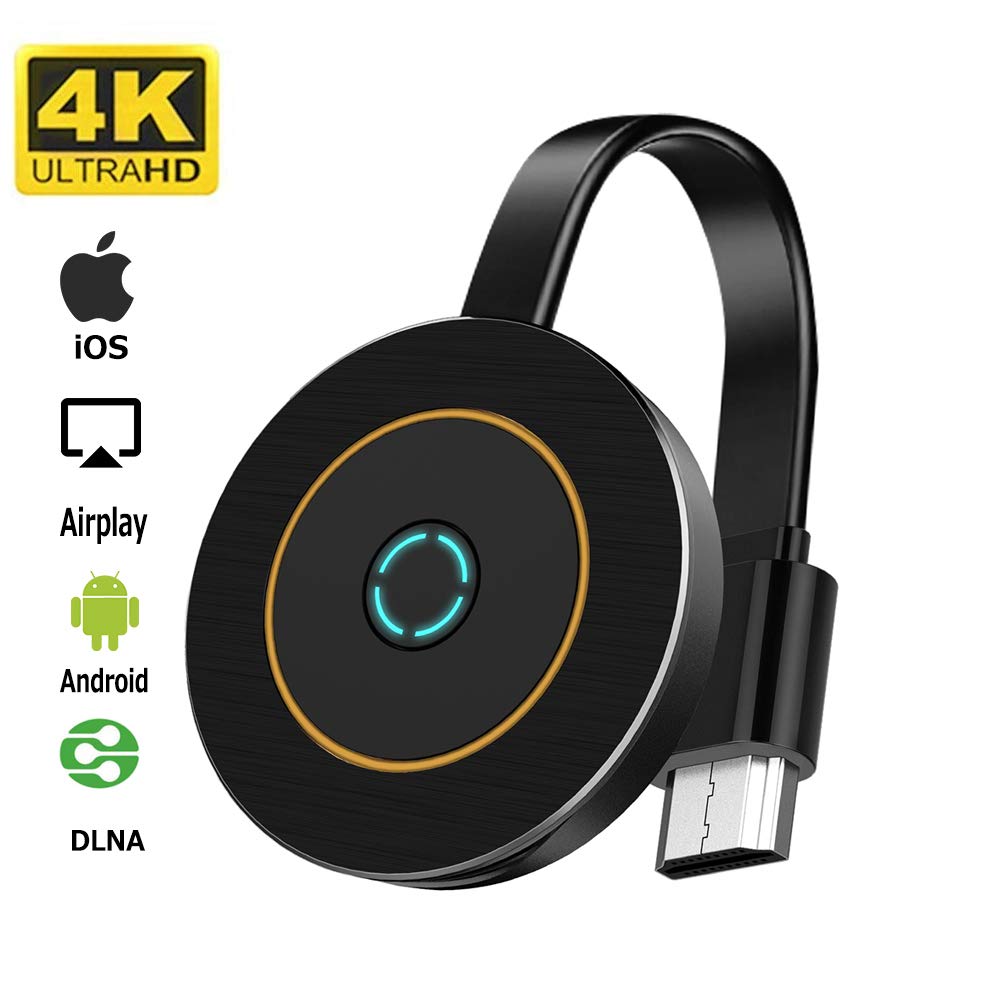
Wireless Display Adapter, YIKESHU 4K@30Hz WiFi Display Dongle Wireless HDMI Adapter Compatible iOS Android Windows - Support Miracast Airplay DLNA TV Stick for Laptop Phone to TV Monitor Projector
Current Price
$29.99
Average
$25.04
Min Price
$16.99
Max Price
$32.99
Price dynamics
17%
Description
iOS (iPhone / iPad) operating instructions:
1. Plug the HDMI end of the wireless dongle into the TV or projector, then connect the antenna to the dongle
2. Wait for the MiraScreen main screen to appear
3. In your phone's Wi-Fi settings, search for Miracast-XXX Wi-Fi and enter the dongle password: 12345678
4. Enter 192.168.203.1 in the Safari
5. Click "Internet" on the settings page, select the available WiFi at home, and enter the WiFi password.
6. Wait until the standby screen appears without touching anything, then you can see the name of the Wi-Fi displayed in the upper right corner of the screen
7. Return to your phone's Wi-Fi settings and connect to your home Wi-Fi(same as WiFi connected to the screen)
8. Open the AirPlay image and select a dongle named Miracast-XXX. After that, you finish mirroring on the big screen.
Android (Miracast) operating instructions
1. After startup, wait for the main screen of MiraScreen to be displayed
2. Open the Android phone settings and open the Miracast function (for example, Samsung smartphone is Smart View, Huawei smartphone is multi-screen interactive, Oppo is wireless display, and Xiaomi is wireless display. Also different)
3. Click on MiraScreen in the Miracast list and wait for the mirror connection
4. After the image is successful, the Android smartphone screen will be displayed on the big screen.
Windows operating instructions:
1. After startup, wait for the main screen of MiraScreen to be displayed
2. Display the Miracast Wi-Fi name and password above the WiFi dongle's standby screen.
3. Click on MiraScreen in the Miracast list and wait for the mirror connection
4. After the image is successful, the Windows screen will appear on the big screen
YIKESHU provide Free Lifetime Technical Support. If there is any question about our product, please feel free to contact with us
1. Plug the HDMI end of the wireless dongle into the TV or projector, then connect the antenna to the dongle
2. Wait for the MiraScreen main screen to appear
3. In your phone's Wi-Fi settings, search for Miracast-XXX Wi-Fi and enter the dongle password: 12345678
4. Enter 192.168.203.1 in the Safari
5. Click "Internet" on the settings page, select the available WiFi at home, and enter the WiFi password.
6. Wait until the standby screen appears without touching anything, then you can see the name of the Wi-Fi displayed in the upper right corner of the screen
7. Return to your phone's Wi-Fi settings and connect to your home Wi-Fi(same as WiFi connected to the screen)
8. Open the AirPlay image and select a dongle named Miracast-XXX. After that, you finish mirroring on the big screen.
Android (Miracast) operating instructions
1. After startup, wait for the main screen of MiraScreen to be displayed
2. Open the Android phone settings and open the Miracast function (for example, Samsung smartphone is Smart View, Huawei smartphone is multi-screen interactive, Oppo is wireless display, and Xiaomi is wireless display. Also different)
3. Click on MiraScreen in the Miracast list and wait for the mirror connection
4. After the image is successful, the Android smartphone screen will be displayed on the big screen.
Windows operating instructions:
1. After startup, wait for the main screen of MiraScreen to be displayed
2. Display the Miracast Wi-Fi name and password above the WiFi dongle's standby screen.
3. Click on MiraScreen in the Miracast list and wait for the mirror connection
4. After the image is successful, the Windows screen will appear on the big screen
YIKESHU provide Free Lifetime Technical Support. If there is any question about our product, please feel free to contact with us
Price will be lower
in next 2 weeks
in next 2 weeks
According to the data, price will be lower in next two weeks, so not waste your money and track better price!
Product review & video
[Music] hello guys uh we are back with one of our new product and today we are going to check this ez chromecast it's a mirror cast device you can easily mirror with your phone to your tv wireless so let's see what we get inside first of all user manual we have main device it's uh actually my phone over here here you can see there is a power port and a reset button and here we can get one wireless receiver power adapter micro usb and usb port you can plug back to your tv or you can use uh adapter 5 volt adapter so it will be easy to get constant 5 for 5.0 volt power you can use this kind of adapter over here just plug it this way it's easy and connect this device to your easier cast and this one goes back to your tv and you can mirror from your phone directly to your tv okay guys so here we have a hdmi cable from back to our tv okay so what we're going to do we just connect it this devi

Similar products