Description
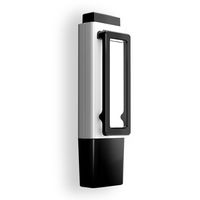
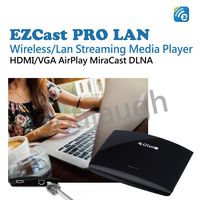
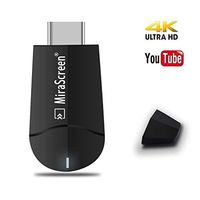
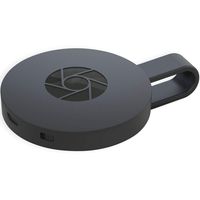
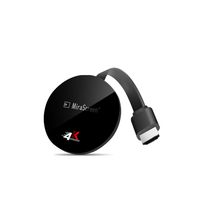
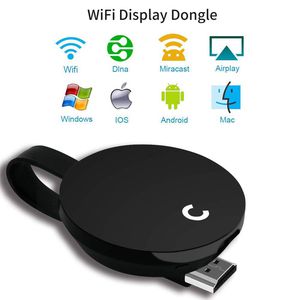
Wifi display dongle is like a TV Stick which streaming video, picture or files from phone to big screen by Airplay, Miracast and DLNA.In Order to provide customer easy life.
What's in the package:
1 x WiFi display dongle
1 x WiFi antenna
1 x User Manual
Connect Step:
Step 1: Connect devices to HDMI PORT and keep on 5V1A power charging.
Step 2: Get SSID and PSK/Password on TV Screen page.
Step 3: Connect G5 in WiFi Setting on iPhone
Step 4: Open Airplay(ios devices) or Mirroring screen(android devices). Different devices have different name. Now your iPhone screen will be mirrored to your TV now.
Connect to Home Wifi step:
Same 3 steps above
Step 4: Go to Safari and input 192.168.203.1 to come to the setting menu(You can connect your home wifi here by clicking "Internet" and Choosing your home Wifi to connect)
Step 4: Pull up the Control Center on iPhone and turn on Airplay or screen mirroring, and select display dongle to start mirroring.
Now your iPhone screen will be mirrored to your TV now.
Notes:
1.Check your phone in setting and find out mirroring screen(or other name) first.
2.Please read the user manual first.
3.Contact with our service team first if you can not operate well.it is very important. Our service team will provide you operate video and tell you by steps.
What's in the package:
1 x WiFi display dongle
1 x WiFi antenna
1 x User Manual
Connect Step:
Step 1: Connect devices to HDMI PORT and keep on 5V1A power charging.
Step 2: Get SSID and PSK/Password on TV Screen page.
Step 3: Connect G5 in WiFi Setting on iPhone
Step 4: Open Airplay(ios devices) or Mirroring screen(android devices). Different devices have different name. Now your iPhone screen will be mirrored to your TV now.
Connect to Home Wifi step:
Same 3 steps above
Step 4: Go to Safari and input 192.168.203.1 to come to the setting menu(You can connect your home wifi here by clicking "Internet" and Choosing your home Wifi to connect)
Step 4: Pull up the Control Center on iPhone and turn on Airplay or screen mirroring, and select display dongle to start mirroring.
Now your iPhone screen will be mirrored to your TV now.
Notes:
1.Check your phone in setting and find out mirroring screen(or other name) first.
2.Please read the user manual first.
3.Contact with our service team first if you can not operate well.it is very important. Our service team will provide you operate video and tell you by steps.
YEHUA Wireless Display Receiver Miracast WiFi Display Adapter Screen Mirroring Dongle Compatible Airplay Miracast DLNA for iOS Devices Android Smartphone Mac Windows8.1/10
Price is below average
Current Price
$19.99
Average
$23.17
Min Price
$18.95
Max Price
$39.9
Price dynamics
14%
Description
Wifi display dongle is like a TV Stick which streaming video, picture or files from phone to big screen by Airplay, Miracast and DLNA.In Order to provide customer easy life.
What's in the package:
1 x WiFi display dongle
1 x WiFi antenna
1 x User Manual
Connect Step:
Step 1: Connect devices to HDMI PORT and keep on 5V1A power charging.
Step 2: Get SSID and PSK/Password on TV Screen page.
Step 3: Connect G5 in WiFi Setting on iPhone
Step 4: Open Airplay(ios devices) or Mirroring screen(android devices). Different devices have different name. Now your iPhone screen will be mirrored to your TV now.
Connect to Home Wifi step:
Same 3 steps above
Step 4: Go to Safari and input 192.168.203.1 to come to the setting menu(You can connect your home wifi here by clicking "Internet" and Choosing your home Wifi to connect)
Step 4: Pull up the Control Center on iPhone and turn on Airplay or screen mirroring, and select display dongle to start mirroring.
Now your iPhone screen will be mirrored to your TV now.
Notes:
1.Check your phone in setting and find out mirroring screen(or other name) first.
2.Please read the user manual first.
3.Contact with our service team first if you can not operate well.it is very important. Our service team will provide you operate video and tell you by steps.
What's in the package:
1 x WiFi display dongle
1 x WiFi antenna
1 x User Manual
Connect Step:
Step 1: Connect devices to HDMI PORT and keep on 5V1A power charging.
Step 2: Get SSID and PSK/Password on TV Screen page.
Step 3: Connect G5 in WiFi Setting on iPhone
Step 4: Open Airplay(ios devices) or Mirroring screen(android devices). Different devices have different name. Now your iPhone screen will be mirrored to your TV now.
Connect to Home Wifi step:
Same 3 steps above
Step 4: Go to Safari and input 192.168.203.1 to come to the setting menu(You can connect your home wifi here by clicking "Internet" and Choosing your home Wifi to connect)
Step 4: Pull up the Control Center on iPhone and turn on Airplay or screen mirroring, and select display dongle to start mirroring.
Now your iPhone screen will be mirrored to your TV now.
Notes:
1.Check your phone in setting and find out mirroring screen(or other name) first.
2.Please read the user manual first.
3.Contact with our service team first if you can not operate well.it is very important. Our service team will provide you operate video and tell you by steps.
Price will be lower
in next 2 weeks
in next 2 weeks
According to the data, price will be lower in next two weeks, so not waste your money and track better price!
Similar products