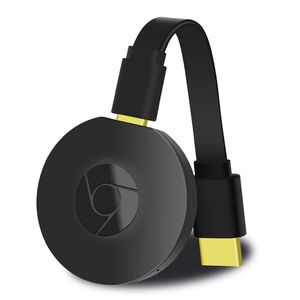
Description
For iOS: Support iOS 8.0 windows 8.1 windows 10.and Above
For Android: Support Android 4.2 and Above
For Mac OS: Support Mac OS 10 and Above
Specifications:
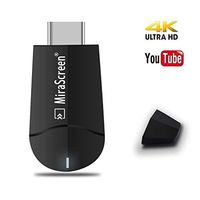
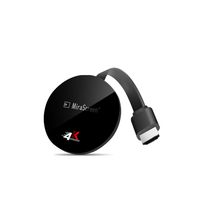
Brand:MiraScreen
Model:G1-1
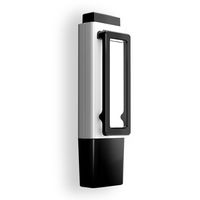
Size :58*10mm
Power:5V 1A
CPU:AM8252B
System :LINUX
Storage :DDR3 128MM
Interface:HDMI
Package List:
1 * G1-1 WiFi Dongle
1 * W3 V type WiFi Part with USB Cable
1 * G1-1 User Manual
Support Projector with HDMI Output Interface
Support Photo Format: JPEG / BMP
Material:Aluminium Alloy+ABS
HDMI:1* HDMI 1.4
DC/Power:1*Micro USB Port
How to operation: 1.Taking out of devices connect with TV via the HDMI port and the 5V 1A charger and plug into the outlet.
2.Select HDMI chanel, now the G1-1(device name) connecting menu appeared on the screen.if you use iOS phone pls choose Airplay, if you use android phone pls choose miracast on the screen by using button on the side.
3.Open the wifi of your iphone, choose the SSID and enter the password which says on the screen.
4.Open the browser and enter the URL which is "Step 2" on the screen, select the Wifi and connect with your home wifi.
for iOS:5. Open the Airplay, select the device name and mirroring.
for Android:(Please pay attention that some style Android doesn't support for Mirroring screen display.)
5. Select the mirroring screen display, then select our device SSID and connect, and wait for a few seconds.
After connected, now you can use it .
Please contact with our service team firstly via Amazon.If you do not know how to operate after reading user manual
For Android: Support Android 4.2 and Above
For Mac OS: Support Mac OS 10 and Above
Specifications:
Brand:MiraScreen
Model:G1-1
Size :58*10mm
Power:5V 1A
CPU:AM8252B
System :LINUX
Storage :DDR3 128MM
Interface:HDMI
Package List:
1 * G1-1 WiFi Dongle
1 * W3 V type WiFi Part with USB Cable
1 * G1-1 User Manual
Support Projector with HDMI Output Interface
Support Photo Format: JPEG / BMP
Material:Aluminium Alloy+ABS
HDMI:1* HDMI 1.4
DC/Power:1*Micro USB Port
How to operation: 1.Taking out of devices connect with TV via the HDMI port and the 5V 1A charger and plug into the outlet.
2.Select HDMI chanel, now the G1-1(device name) connecting menu appeared on the screen.if you use iOS phone pls choose Airplay, if you use android phone pls choose miracast on the screen by using button on the side.
3.Open the wifi of your iphone, choose the SSID and enter the password which says on the screen.
4.Open the browser and enter the URL which is "Step 2" on the screen, select the Wifi and connect with your home wifi.
for iOS:5. Open the Airplay, select the device name and mirroring.
for Android:(Please pay attention that some style Android doesn't support for Mirroring screen display.)
5. Select the mirroring screen display, then select our device SSID and connect, and wait for a few seconds.
After connected, now you can use it .
Please contact with our service team firstly via Amazon.If you do not know how to operate after reading user manual
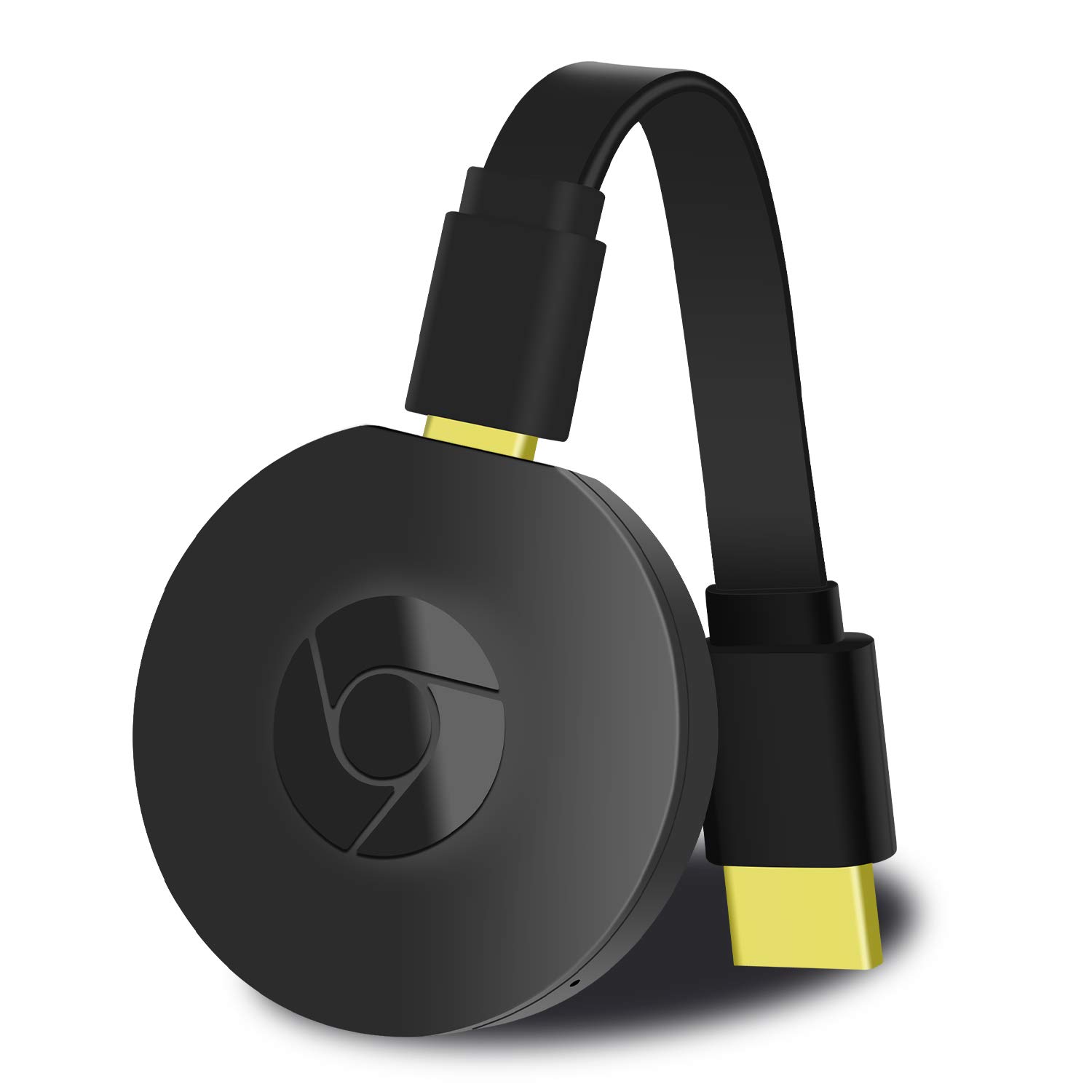
YEHUA Wireless HDMI Dongle 1080P WiFi Display Receiver to TV Mirroring Device Screen Support Airplay/ DLNA / Miracast Adapter for iOS/Mac/Android/Windows
Price is below average
Current Price
$16.25
Average
$20.84
Min Price
$16.25
Max Price
$22.99
Price dynamics
22%
Description
For iOS: Support iOS 8.0 windows 8.1 windows 10.and Above
For Android: Support Android 4.2 and Above
For Mac OS: Support Mac OS 10 and Above
Specifications:
Brand:MiraScreen
Model:G1-1
Size :58*10mm
Power:5V 1A
CPU:AM8252B
System :LINUX
Storage :DDR3 128MM
Interface:HDMI
Package List:
1 * G1-1 WiFi Dongle
1 * W3 V type WiFi Part with USB Cable
1 * G1-1 User Manual
Support Projector with HDMI Output Interface
Support Photo Format: JPEG / BMP
Material:Aluminium Alloy+ABS
HDMI:1* HDMI 1.4
DC/Power:1*Micro USB Port
How to operation: 1.Taking out of devices connect with TV via the HDMI port and the 5V 1A charger and plug into the outlet.
2.Select HDMI chanel, now the G1-1(device name) connecting menu appeared on the screen.if you use iOS phone pls choose Airplay, if you use android phone pls choose miracast on the screen by using button on the side.
3.Open the wifi of your iphone, choose the SSID and enter the password which says on the screen.
4.Open the browser and enter the URL which is "Step 2" on the screen, select the Wifi and connect with your home wifi.
for iOS:5. Open the Airplay, select the device name and mirroring.
for Android:(Please pay attention that some style Android doesn't support for Mirroring screen display.)
5. Select the mirroring screen display, then select our device SSID and connect, and wait for a few seconds.
After connected, now you can use it .
Please contact with our service team firstly via Amazon.If you do not know how to operate after reading user manual
For Android: Support Android 4.2 and Above
For Mac OS: Support Mac OS 10 and Above
Specifications:
Brand:MiraScreen
Model:G1-1
Size :58*10mm
Power:5V 1A
CPU:AM8252B
System :LINUX
Storage :DDR3 128MM
Interface:HDMI
Package List:
1 * G1-1 WiFi Dongle
1 * W3 V type WiFi Part with USB Cable
1 * G1-1 User Manual
Support Projector with HDMI Output Interface
Support Photo Format: JPEG / BMP
Material:Aluminium Alloy+ABS
HDMI:1* HDMI 1.4
DC/Power:1*Micro USB Port
How to operation: 1.Taking out of devices connect with TV via the HDMI port and the 5V 1A charger and plug into the outlet.
2.Select HDMI chanel, now the G1-1(device name) connecting menu appeared on the screen.if you use iOS phone pls choose Airplay, if you use android phone pls choose miracast on the screen by using button on the side.
3.Open the wifi of your iphone, choose the SSID and enter the password which says on the screen.
4.Open the browser and enter the URL which is "Step 2" on the screen, select the Wifi and connect with your home wifi.
for iOS:5. Open the Airplay, select the device name and mirroring.
for Android:(Please pay attention that some style Android doesn't support for Mirroring screen display.)
5. Select the mirroring screen display, then select our device SSID and connect, and wait for a few seconds.
After connected, now you can use it .
Please contact with our service team firstly via Amazon.If you do not know how to operate after reading user manual
Price will be lower
in next 2 weeks
in next 2 weeks
According to the data, price will be lower in next two weeks, so not waste your money and track better price!
Product review & video
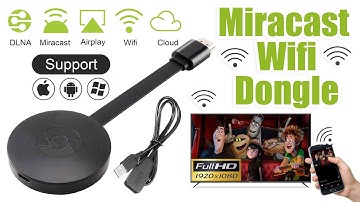
[Music] hello guys uh we are back with one of our new product and today we are going to check this ez chromecast it's a mirror cast device you can easily mirror with your phone to your tv wireless so let's see what we get inside first of all user manual we have main device it's uh actually my phone over here here you can see there is a power port and a reset button and here we can get one wireless receiver power adapter micro usb and usb port you can plug back to your tv or you can use uh adapter 5 volt adapter so it will be easy to get constant 5 for 5.0 volt power you can use this kind of adapter over here just plug it this way it's easy and connect this device to your easier cast and this one goes back to your tv and you can mirror from your phone directly to your tv okay guys so here we have a hdmi cable from back to our tv okay so what we're going to do we just connect it this devi

Similar products