Description
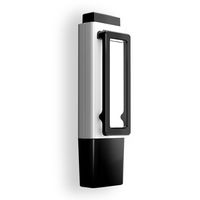
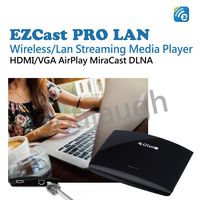
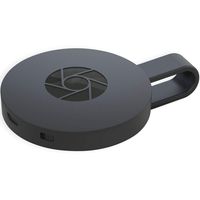
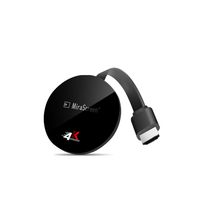
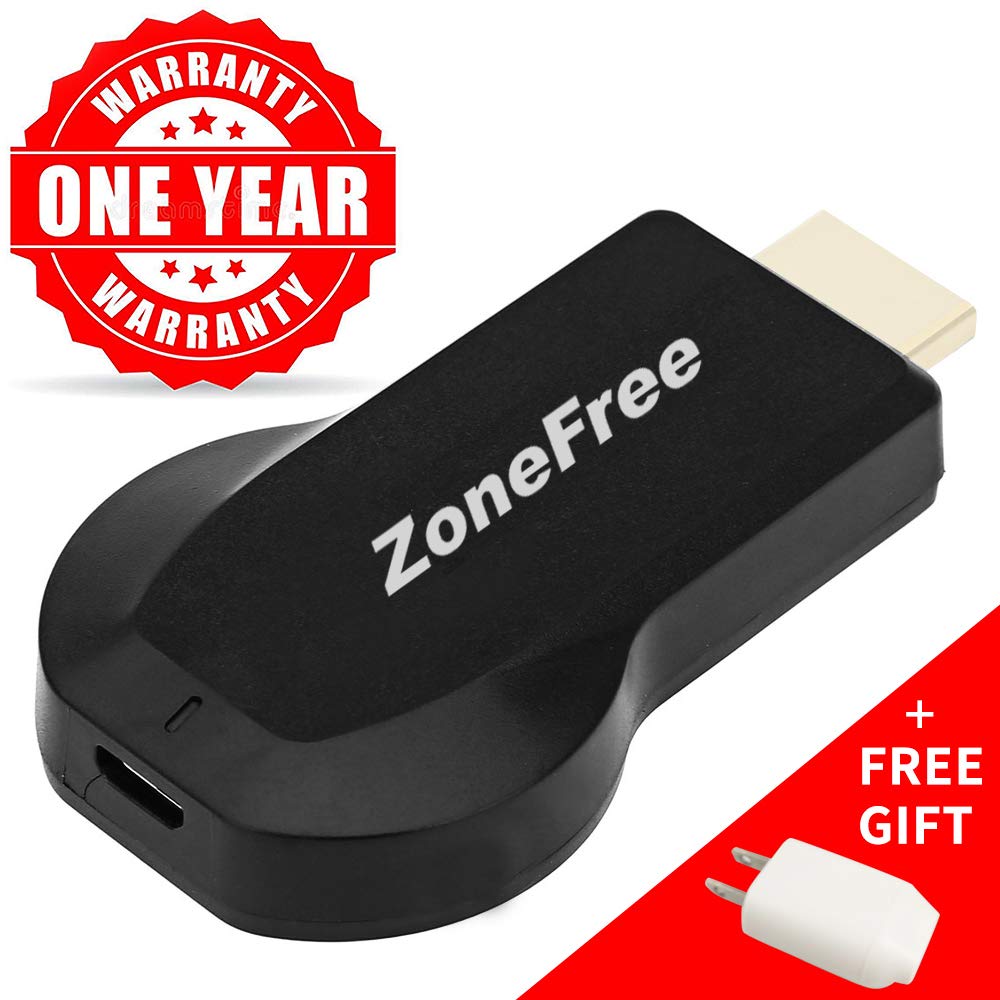
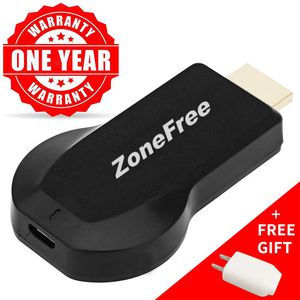
The wifi display dongle is a special device to project your mobile phone/MID/Notebook to another big screen through WIFI connection,
under the popular standards like DLNA, Miracast and Airplay. You can enhance your TV/Projector/Monitor which have HDMI input socket,
with more features like streaming video, websurfing, photo viewer, live camera, internet video and more, to enjoy excellent multi-display sharing.
How to Use:
Step 1: Plug
Plug HDMI and USB into ports. Set your TV to the HDMI port you picked.
Step 2: Connect
Direct connect to AnyCast Wifi (Get SSID and Password/PSK on screen)
Step 3: Mirroring
Pull up Control Center and tap "Airplay Mirroring". It may take awhile for it to
show, but once you tap it your iPhone/iPad screen will now be cast to your TV.
Pull down "Control Center" on your phone and turn on Miracast(Screen mirroring/ Multicreen/smartview) and wait for it to appear and then select it
(Get SSID and Password/PSK on screen)
Attention:
1. The Anycast dongle must be powered by at least 5V/1A power adapter/charger. And we suggest you use 5V/2A above power adapter/charger to make sure the wifi works fine.
2. In order to have a good use experience,please read the User Manual before use.
Package:
1 x WiFi display dongle
1x WiFi Antenna/Cable
1 x User Manual
1 x USB Charger
under the popular standards like DLNA, Miracast and Airplay. You can enhance your TV/Projector/Monitor which have HDMI input socket,
with more features like streaming video, websurfing, photo viewer, live camera, internet video and more, to enjoy excellent multi-display sharing.
How to Use:
Step 1: Plug
Plug HDMI and USB into ports. Set your TV to the HDMI port you picked.
Step 2: Connect
Direct connect to AnyCast Wifi (Get SSID and Password/PSK on screen)
Step 3: Mirroring
Pull up Control Center and tap "Airplay Mirroring". It may take awhile for it to
show, but once you tap it your iPhone/iPad screen will now be cast to your TV.
Pull down "Control Center" on your phone and turn on Miracast(Screen mirroring/ Multicreen/smartview) and wait for it to appear and then select it
(Get SSID and Password/PSK on screen)
Attention:
1. The Anycast dongle must be powered by at least 5V/1A power adapter/charger. And we suggest you use 5V/2A above power adapter/charger to make sure the wifi works fine.
2. In order to have a good use experience,please read the User Manual before use.
Package:
1 x WiFi display dongle
1x WiFi Antenna/Cable
1 x User Manual
1 x USB Charger
Zonefree WiFi Display Dongle Airplay Miracast Receiver for iPhone/Android Screen Mirroring Adapter 1080P Wireless HDMI for TV/Projector with Charger
Current Price
$23.99
Average
$23.99
Min Price
$22.99
Max Price
$24.99
Price dynamics
0%
Description
The wifi display dongle is a special device to project your mobile phone/MID/Notebook to another big screen through WIFI connection,
under the popular standards like DLNA, Miracast and Airplay. You can enhance your TV/Projector/Monitor which have HDMI input socket,
with more features like streaming video, websurfing, photo viewer, live camera, internet video and more, to enjoy excellent multi-display sharing.
How to Use:
Step 1: Plug
Plug HDMI and USB into ports. Set your TV to the HDMI port you picked.
Step 2: Connect
Direct connect to AnyCast Wifi (Get SSID and Password/PSK on screen)
Step 3: Mirroring
Pull up Control Center and tap "Airplay Mirroring". It may take awhile for it to
show, but once you tap it your iPhone/iPad screen will now be cast to your TV.
Pull down "Control Center" on your phone and turn on Miracast(Screen mirroring/ Multicreen/smartview) and wait for it to appear and then select it
(Get SSID and Password/PSK on screen)
Attention:
1. The Anycast dongle must be powered by at least 5V/1A power adapter/charger. And we suggest you use 5V/2A above power adapter/charger to make sure the wifi works fine.
2. In order to have a good use experience,please read the User Manual before use.
Package:
1 x WiFi display dongle
1x WiFi Antenna/Cable
1 x User Manual
1 x USB Charger
under the popular standards like DLNA, Miracast and Airplay. You can enhance your TV/Projector/Monitor which have HDMI input socket,
with more features like streaming video, websurfing, photo viewer, live camera, internet video and more, to enjoy excellent multi-display sharing.
How to Use:
Step 1: Plug
Plug HDMI and USB into ports. Set your TV to the HDMI port you picked.
Step 2: Connect
Direct connect to AnyCast Wifi (Get SSID and Password/PSK on screen)
Step 3: Mirroring
Pull up Control Center and tap "Airplay Mirroring". It may take awhile for it to
show, but once you tap it your iPhone/iPad screen will now be cast to your TV.
Pull down "Control Center" on your phone and turn on Miracast(Screen mirroring/ Multicreen/smartview) and wait for it to appear and then select it
(Get SSID and Password/PSK on screen)
Attention:
1. The Anycast dongle must be powered by at least 5V/1A power adapter/charger. And we suggest you use 5V/2A above power adapter/charger to make sure the wifi works fine.
2. In order to have a good use experience,please read the User Manual before use.
Package:
1 x WiFi display dongle
1x WiFi Antenna/Cable
1 x User Manual
1 x USB Charger
Price will be lower
in next 2 weeks
in next 2 weeks
According to the data, price will be lower in next two weeks, so not waste your money and track better price!
Product review & video
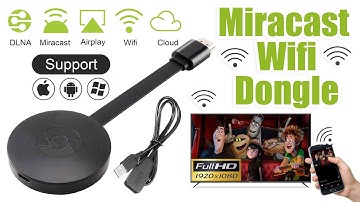
[Music] hello guys uh we are back with one of our new product and today we are going to check this ez chromecast it's a mirror cast device you can easily mirror with your phone to your tv wireless so let's see what we get inside first of all user manual we have main device it's uh actually my phone over here here you can see there is a power port and a reset button and here we can get one wireless receiver power adapter micro usb and usb port you can plug back to your tv or you can use uh adapter 5 volt adapter so it will be easy to get constant 5 for 5.0 volt power you can use this kind of adapter over here just plug it this way it's easy and connect this device to your easier cast and this one goes back to your tv and you can mirror from your phone directly to your tv okay guys so here we have a hdmi cable from back to our tv okay so what we're going to do we just connect it this devi

Similar products