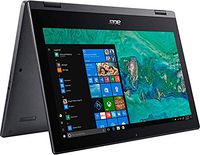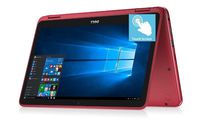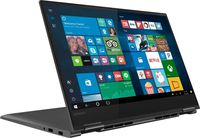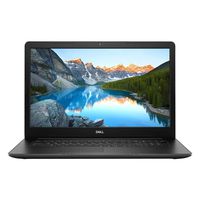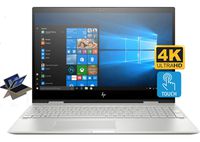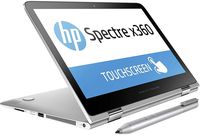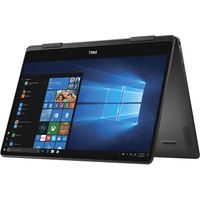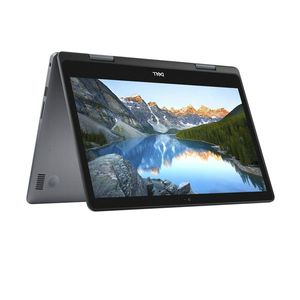
Processor: 8th Generation Intel Core i3-8145U Processor (4MB Cache, up to 3.9 GHz)
Operating System: Windows 10 Home in S Mode 64bit English
Display: 14.0-inch HD (1366 x 768) LED-Backlit Touch Display
Graphics: Intel UHD Graphics 620 with shared graphics
RAM: 16GB DDR4 2666MHz SDRAM
Hard Drive: 1TB HDD + 1TB SSD
Wireless: 802.11ac 1x1 WiFi and Bluetooth
Audio and Speakers: Stereo Speaker with MaxxAudio Pro/ Headphone/Microphone combo jack
Ports & Slots: SD card | USB 3.1 Gen 1 | Security cable slot | Power | HDMI 1.4b | USB 3.1 Gen 1 | USB 3.1 Gen 1 | Universal audio jack
Dimensions & Weight: Height: 0.78" | Width: 9.17" | Depth: 12.91" | Weight: 3.88lb
Switching out of S mode in Windows 10
Windows 10 in S mode is designed for security and performance, exclusively running apps from the Microsoft Store. If you want to install an app that isn't available in the Microsoft Store,
you'll need to switch out of S mode. Switching out of S mode is one-way. If you make the switch, you won't be able to go back to Windows 10 in S mode. There's no charge to switch out of S mode.
- On your PC running Windows 10 in S mode, open Settings > Update & Security > Activation.
- In the Switch to Windows 10 Home or Switch to Windows 10 Pro section, select Go to the Store. (If you also see an "Upgrade your edition of Windows" section, be careful not to click the "Go to the Store" link that appears there.)
- On the Switch out of S mode (or similar) page that appears in the Microsoft Store, select the Get button. After you see a confirmation message on the page, you'll be able to install apps from outside of the Microsoft Store.
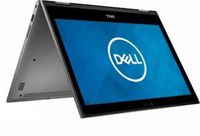
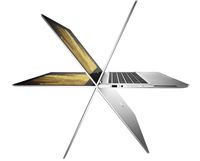
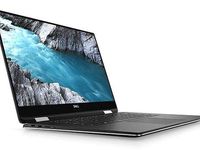
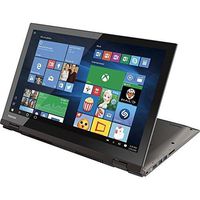
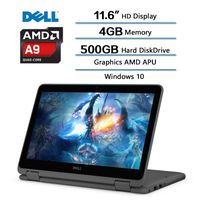
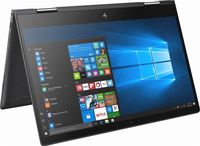
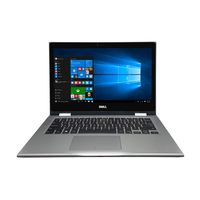
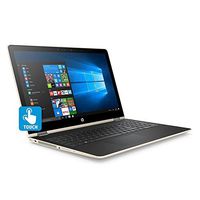
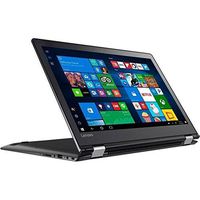
2019 Dell Inspiron 14 5000 2-in-1 14" Touchscreen Laptop Computer, 8th Gen Intel Core i3-8145U up to 3.9GHz, 16GB DDR4 RAM, 1TB HDD + 1TB SSD, 802.11ac WiFi, Bluetooth, HDMI, Windows 10 (Renewed)
Processor: 8th Generation Intel Core i3-8145U Processor (4MB Cache, up to 3.9 GHz)
Operating System: Windows 10 Home in S Mode 64bit English
Display: 14.0-inch HD (1366 x 768) LED-Backlit Touch Display
Graphics: Intel UHD Graphics 620 with shared graphics
RAM: 16GB DDR4 2666MHz SDRAM
Hard Drive: 1TB HDD + 1TB SSD
Wireless: 802.11ac 1x1 WiFi and Bluetooth
Audio and Speakers: Stereo Speaker with MaxxAudio Pro/ Headphone/Microphone combo jack
Ports & Slots: SD card | USB 3.1 Gen 1 | Security cable slot | Power | HDMI 1.4b | USB 3.1 Gen 1 | USB 3.1 Gen 1 | Universal audio jack
Dimensions & Weight: Height: 0.78" | Width: 9.17" | Depth: 12.91" | Weight: 3.88lb
Switching out of S mode in Windows 10
Windows 10 in S mode is designed for security and performance, exclusively running apps from the Microsoft Store. If you want to install an app that isn't available in the Microsoft Store,
you'll need to switch out of S mode. Switching out of S mode is one-way. If you make the switch, you won't be able to go back to Windows 10 in S mode. There's no charge to switch out of S mode.

- On your PC running Windows 10 in S mode, open Settings > Update & Security > Activation.
- In the Switch to Windows 10 Home or Switch to Windows 10 Pro section, select Go to the Store. (If you also see an "Upgrade your edition of Windows" section, be careful not to click the "Go to the Store" link that appears there.)
- On the Switch out of S mode (or similar) page that appears in the Microsoft Store, select the Get button. After you see a confirmation message on the page, you'll be able to install apps from outside of the Microsoft Store.
in next 2 weeks