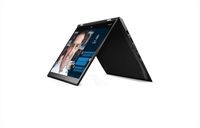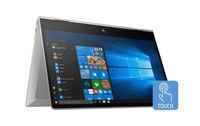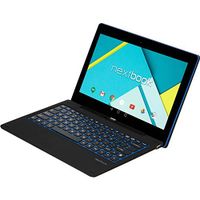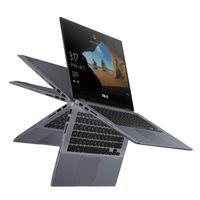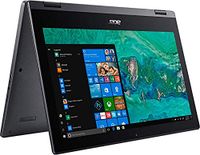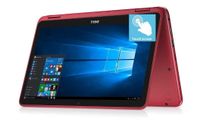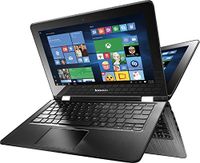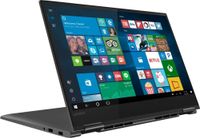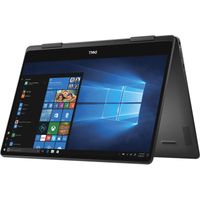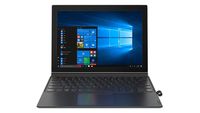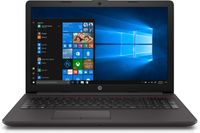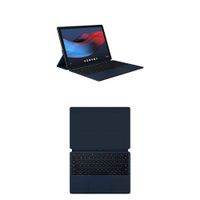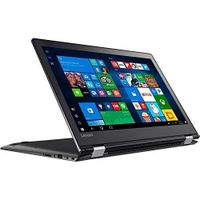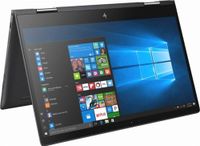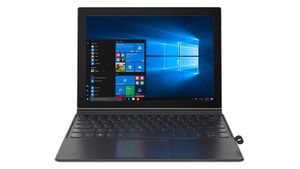
-12.3" FHD WUXGA+ touchscreen
Processor
-Qualcomm Snapdragon 835 (MSM8998)@ 2.21 GHz up to 2.45GHz
Memory
-4GB LPDDR4 1866 MHz
Hard drive
-128GB SSD
OS
-Windows 10 S
Optical drive
-None
Media drive
-4-in-1 card reader
Audio
-Dolby Atmos
Video
-Integrated Qualcomm Adreno 540
Ports
-1 USB Type-C (DisplayPort 1.2) Stereo headphone/mic jack combo
Battery
-3-cell 48 WHr lithium-polymer (up to 20 hours)
Camera
-5MP front, 13MP rear webcam
Wireless
-802.11ac + Bluetooth 4.1
Dimensions
-11.5 x 8.3 x 0.3"
Weight
-3 lbs With keyboard/ 1.7lbs Without keyboard
Color
-Iron Gray
Other
-Cortana Windows Hello Active pen support Backlit keyboard 3.2 mm keyboard travel 25ms response time
Switching out of S mode in Windows 10
- On your PC running Windows 10 in S mode, open Settings > Update & Security > Activation.
- In the Switch to Windows 10 Home or Switch to Windows 10 Pro section, select Go to the Store. (If you also see an "Upgrade your edition of Windows" section, be careful not to click the "Go to the Store" link that appears there.)
- On the Switch out of S mode (or similar) page that appears in the Microsoft Store, select the Get button. After you see a confirmation message on the page, you'll be able to install apps from outside of the Microsoft Store.
2019 Lenovo Miix 630 12.3" FHD Thin and Light Touchscreen 2-in-1 Tablet Computer| Qualcomm Snapdragon 835 Octa-Core Up to 2.45GHz| 4GB DDR4 RAM| 128GB SSD| 802.11ac WiFi| Active Pen| Windows 10 Home
-12.3" FHD WUXGA+ touchscreen
Processor
-Qualcomm Snapdragon 835 (MSM8998)@ 2.21 GHz up to 2.45GHz
Memory
-4GB LPDDR4 1866 MHz
Hard drive
-128GB SSD
OS
-Windows 10 S
Optical drive
-None
Media drive
-4-in-1 card reader
Audio
-Dolby Atmos
Video
-Integrated Qualcomm Adreno 540
Ports
-1 USB Type-C (DisplayPort 1.2) Stereo headphone/mic jack combo
Battery
-3-cell 48 WHr lithium-polymer (up to 20 hours)
Camera
-5MP front, 13MP rear webcam
Wireless
-802.11ac + Bluetooth 4.1
Dimensions
-11.5 x 8.3 x 0.3"
Weight
-3 lbs With keyboard/ 1.7lbs Without keyboard
Color
-Iron Gray
Other
-Cortana Windows Hello Active pen support Backlit keyboard 3.2 mm keyboard travel 25ms response time
Switching out of S mode in Windows 10
- On your PC running Windows 10 in S mode, open Settings > Update & Security > Activation.
- In the Switch to Windows 10 Home or Switch to Windows 10 Pro section, select Go to the Store. (If you also see an "Upgrade your edition of Windows" section, be careful not to click the "Go to the Store" link that appears there.)
- On the Switch out of S mode (or similar) page that appears in the Microsoft Store, select the Get button. After you see a confirmation message on the page, you'll be able to install apps from outside of the Microsoft Store.
in next 2 weeks