Description
The TV won’t turn on. •Make sure that the AC power cord is securely plugged in to the TV and the wall outlet. •Make sure that the wall outlet is working and the power indicator on the TV is lit and glowing a solid red. •Try pressing the Power button on the TV to make sure that the problem is not with the remote control. If the TV turns on, refer to “Remote control does not work” below. The remote control does not work. •Check if the power indicator on the TV blinks when you press the remote's Power button. If it does not, replace the remote control's batteries. •Make sure that the batteries are installed with their poles (+/–) in the correct direction. •Try pointing the remote directly at the TV from 5 ft. to 6 ft. (1.5~1.8 m) away. •If your TV came with a Samsung Smart Remote (Bluetooth Remote), make sure to pair the remote to the TV The cable or satellite box remote control doesn’t turn the TV on or off or adjust the volume. •Program the cable or satellite box remote control to operate the TV. Refer to the cable or satellite box user manual for the SAMSUNG TV code. The TV settings are lost after 5 minutes. •The TV is in the Retail Mode . Change the Usage Mode in the System Manager Menu to Home Mode (> Settings > General > System Manager > Usage Mode > Home Mode Video App problems (Youtube etc) •Change the DNS to 8.8.8.8. Select > Settings > General > Network > Network Status > IP Settings > DNS Setting > Enter manually > DNS Server > enter 8.8.8.8 > OK . • Reset by selecting > Settings > Support > Self Diagnosis > Reset Smart Hub The TV settings are lost after 5 minutes. • The TV is in the Retail Mode . Ch ange the Usage Mode in the System Manager Menu to Home Mode ( > Settings > General > System Manager > Usage Mode > Home Mode Video App problems (Youtube etc) • Change the DNS to 8.8.8.8. Select > Settings > General > Network > Network Status > IP Settings > DNS Setting > Enter manually > DNS Server > enter 8.8.8.8 > OK . • Res et by selecting > Settings > Suppor
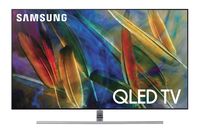
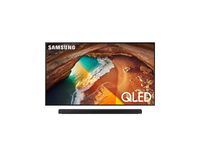
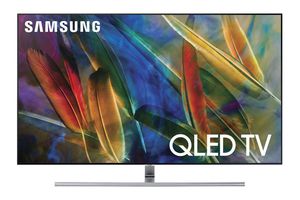
Samsung Electronics QN65Q7F 65-Inch 4K Ultra HD Smart QLED TV (2017 Model)
Current Price
$6 400
Average
$3 398.46
Min Price
$1 299
Max Price
$17 400
Price dynamics
47%
Description
The TV won’t turn on. •Make sure that the AC power cord is securely plugged in to the TV and the wall outlet. •Make sure that the wall outlet is working and the power indicator on the TV is lit and glowing a solid red. •Try pressing the Power button on the TV to make sure that the problem is not with the remote control. If the TV turns on, refer to “Remote control does not work” below. The remote control does not work. •Check if the power indicator on the TV blinks when you press the remote's Power button. If it does not, replace the remote control's batteries. •Make sure that the batteries are installed with their poles (+/–) in the correct direction. •Try pointing the remote directly at the TV from 5 ft. to 6 ft. (1.5~1.8 m) away. •If your TV came with a Samsung Smart Remote (Bluetooth Remote), make sure to pair the remote to the TV The cable or satellite box remote control doesn’t turn the TV on or off or adjust the volume. •Program the cable or satellite box remote control to operate the TV. Refer to the cable or satellite box user manual for the SAMSUNG TV code. The TV settings are lost after 5 minutes. •The TV is in the Retail Mode . Change the Usage Mode in the System Manager Menu to Home Mode (> Settings > General > System Manager > Usage Mode > Home Mode Video App problems (Youtube etc) •Change the DNS to 8.8.8.8. Select > Settings > General > Network > Network Status > IP Settings > DNS Setting > Enter manually > DNS Server > enter 8.8.8.8 > OK . • Reset by selecting > Settings > Support > Self Diagnosis > Reset Smart Hub The TV settings are lost after 5 minutes. • The TV is in the Retail Mode . Ch ange the Usage Mode in the System Manager Menu to Home Mode ( > Settings > General > System Manager > Usage Mode > Home Mode Video App problems (Youtube etc) • Change the DNS to 8.8.8.8. Select > Settings > General > Network > Network Status > IP Settings > DNS Setting > Enter manually > DNS Server > enter 8.8.8.8 > OK . • Res et by selecting > Settings > Suppor
Price will be lower
in next 2 weeks
in next 2 weeks
According to the data, price will be lower in next two weeks, so not waste your money and track better price!
Product review & video
I have a call with apt and this is the Samsung QN 65 q7f one of their brand new Q LED TVs for 2017 and so far they're on a roll this is another great set from Samsung and in this video we'll talk about why and in case you haven't seen it already we also have a video on the new q HD as well so make sure you check that one out too and don't forget if you like any of these TVs we do offer free shipping to the contiguous US and you can order them right from our website and don't forget you can always call in to the store to to see what kinds of deals we have going on for all of our products put the design of this one it's got that almost non-existent bezel that we've been getting on most all the new TVs which looks great you don't even notice it's there when you've got a picture up on the screen it's got the same pedestal as the q8c TV only it straight across instead of curved to match the


Similar products