How To Set Up The Camera
1. Download and Install the App
a. Make sure your mobile devices are connected to the network properly (Wi-Fi)
b.For Android phone users, download the free app by searching """"YCC365"""" in """"Google Play Store"""" or scanning the QR-Code on the camera package.
c. For iPhone or iPad users, download the free app by searching """"YCC365"""" in """"App Store"""" or scanning the QR-Code on the camera package.
2. Connect the Cloud IP Camera
a. Open your APP """"YCC365"""", register a new account or log in your old accoun
b. Add the camera device (You can choose four ways to add your camera)
c. When you add your camera, please put your camera in a place where the wifi signal is stable (Put your phone and camera closer)
Cannot Connect To WIFI Successfully?
1.Please make sure the WIFI Password is correct. (Our Camera Only Support 2.4Ghz Wifi)
2.If you have a dual-band router, be sure to segregate your wireless channels and connect the Camera to the 2.4ghz channel. make sure the router signal is stable (place IP Camera close to your router for Please connection is Recommended)first. The Camera will not work on a 5Ghz wireless standard at this time.
3.Please check that your wifi name and password do not have special symbols, our camera can only recognize English letters and numbers. Reset Check The IP Camera: please make sure the IP Camera send Waiting for connection message after the plug. If not, we need to reset the Camera.
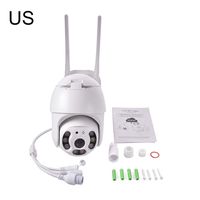
Package included:1xSmart Security Camera
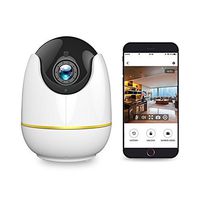
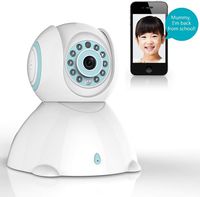
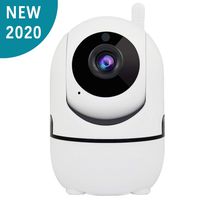
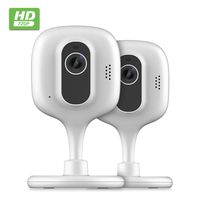
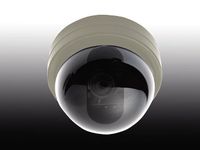
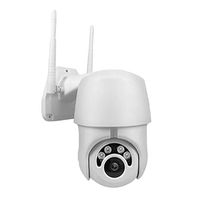
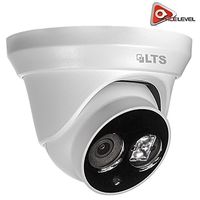
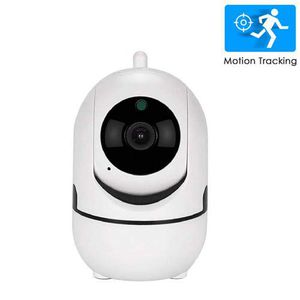
iCam Mega Smart Security Auto Track Camera,1080P IP Smart Dome Camera with Human Detection
How To Set Up The Camera
1. Download and Install the App
a. Make sure your mobile devices are connected to the network properly (Wi-Fi)
b.For Android phone users, download the free app by searching """"YCC365"""" in """"Google Play Store"""" or scanning the QR-Code on the camera package.
c. For iPhone or iPad users, download the free app by searching """"YCC365"""" in """"App Store"""" or scanning the QR-Code on the camera package.
2. Connect the Cloud IP Camera
a. Open your APP """"YCC365"""", register a new account or log in your old accoun
b. Add the camera device (You can choose four ways to add your camera)
c. When you add your camera, please put your camera in a place where the wifi signal is stable (Put your phone and camera closer)
Cannot Connect To WIFI Successfully?
1.Please make sure the WIFI Password is correct. (Our Camera Only Support 2.4Ghz Wifi)
2.If you have a dual-band router, be sure to segregate your wireless channels and connect the Camera to the 2.4ghz channel. make sure the router signal is stable (place IP Camera close to your router for Please connection is Recommended)first. The Camera will not work on a 5Ghz wireless standard at this time.
3.Please check that your wifi name and password do not have special symbols, our camera can only recognize English letters and numbers. Reset Check The IP Camera: please make sure the IP Camera send Waiting for connection message after the plug. If not, we need to reset the Camera.
Package included:1xSmart Security Camera
in next 2 weeks