Description
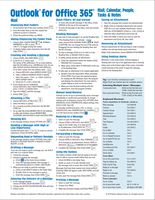
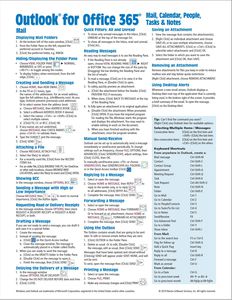
Four page laminated quick reference guide showing step-by-step instructions and shortcuts for how to use mail, calendar, people, tasks, and notes features of Microsoft Office Outlook 365 (Windows Version). Written with Beezix's trademark focus on clarity, accuracy, and the user's perspective, this guide will be a valuable resource to improve your proficiency in using Outlook 365. This guide is suitable as a training handout, or simply an easy to use reference guide, for any type of user.
The following topics are covered:
Mail: Displaying Mail Folders; Hiding/Displaying the Folder Pane; Creating and Sending a Message; Attaching a File to a Message; Showing BCC; Sending a Message with High or Low Importance; Requesting a Read or Delivery Receipt; Drafting a Message; Delaying the Delivery of a Message.
Quick Filters: All and Unread; Reading Messages; Manual Send/Receive.
Deleting Messages; Saving an Attachment; Removing an Attachment; Replying, Forwarding, Printing a Message.
Sorting Messages; Changing the Width of the List; Grouping Messages by Conversation; Ignoring a Conversation; Cleaning up Redundant Messages; Focused Inbox; Turning Grouping On/Off; Finding Mail Messages; Using Task Flags; Creating a Folder; Favorite Folders; Moving or Copying Messages; Using Quick Steps; Creating a Contact from a Message; Creating a Distribution List; Creating an E-Mail Signature; Manually Inserting Signatures; Using the Rules Wizard.
Using the Out of Office Assistant; Handling Junk Mail.
Calendar: Displaying the Calendar; Setting up Your Work Week; Viewing the Calendar; Creating Appointments; Creating, Scheduling and Editing Meetings; Repeating Appointments or Meetings; Responding to Meeting Requests; Changing Time or Date of Meeting/Appointment; Viewing Multiple Calendars; Creating a Calendar Group; Printing the Calendar; Using the Weather Panel.
People: Displaying People; Creating & Editing Contacts; Linking Con
The following topics are covered:
Mail: Displaying Mail Folders; Hiding/Displaying the Folder Pane; Creating and Sending a Message; Attaching a File to a Message; Showing BCC; Sending a Message with High or Low Importance; Requesting a Read or Delivery Receipt; Drafting a Message; Delaying the Delivery of a Message.
Quick Filters: All and Unread; Reading Messages; Manual Send/Receive.
Deleting Messages; Saving an Attachment; Removing an Attachment; Replying, Forwarding, Printing a Message.
Sorting Messages; Changing the Width of the List; Grouping Messages by Conversation; Ignoring a Conversation; Cleaning up Redundant Messages; Focused Inbox; Turning Grouping On/Off; Finding Mail Messages; Using Task Flags; Creating a Folder; Favorite Folders; Moving or Copying Messages; Using Quick Steps; Creating a Contact from a Message; Creating a Distribution List; Creating an E-Mail Signature; Manually Inserting Signatures; Using the Rules Wizard.
Using the Out of Office Assistant; Handling Junk Mail.
Calendar: Displaying the Calendar; Setting up Your Work Week; Viewing the Calendar; Creating Appointments; Creating, Scheduling and Editing Meetings; Repeating Appointments or Meetings; Responding to Meeting Requests; Changing Time or Date of Meeting/Appointment; Viewing Multiple Calendars; Creating a Calendar Group; Printing the Calendar; Using the Weather Panel.
People: Displaying People; Creating & Editing Contacts; Linking Con
Microsoft Outlook 365 Mail, Calendar, People, Tasks, Notes Quick Reference - Windows Version (Cheat Sheet of Instructions, Tips & Shortcuts - Laminated Guide)
Current Price
$7.57
Average
$7.55
Min Price
$7
Max Price
$7.6
Price dynamics
0%
Description
Four page laminated quick reference guide showing step-by-step instructions and shortcuts for how to use mail, calendar, people, tasks, and notes features of Microsoft Office Outlook 365 (Windows Version). Written with Beezix's trademark focus on clarity, accuracy, and the user's perspective, this guide will be a valuable resource to improve your proficiency in using Outlook 365. This guide is suitable as a training handout, or simply an easy to use reference guide, for any type of user.
The following topics are covered:
Mail: Displaying Mail Folders; Hiding/Displaying the Folder Pane; Creating and Sending a Message; Attaching a File to a Message; Showing BCC; Sending a Message with High or Low Importance; Requesting a Read or Delivery Receipt; Drafting a Message; Delaying the Delivery of a Message.
Quick Filters: All and Unread; Reading Messages; Manual Send/Receive.
Deleting Messages; Saving an Attachment; Removing an Attachment; Replying, Forwarding, Printing a Message.
Sorting Messages; Changing the Width of the List; Grouping Messages by Conversation; Ignoring a Conversation; Cleaning up Redundant Messages; Focused Inbox; Turning Grouping On/Off; Finding Mail Messages; Using Task Flags; Creating a Folder; Favorite Folders; Moving or Copying Messages; Using Quick Steps; Creating a Contact from a Message; Creating a Distribution List; Creating an E-Mail Signature; Manually Inserting Signatures; Using the Rules Wizard.
Using the Out of Office Assistant; Handling Junk Mail.
Calendar: Displaying the Calendar; Setting up Your Work Week; Viewing the Calendar; Creating Appointments; Creating, Scheduling and Editing Meetings; Repeating Appointments or Meetings; Responding to Meeting Requests; Changing Time or Date of Meeting/Appointment; Viewing Multiple Calendars; Creating a Calendar Group; Printing the Calendar; Using the Weather Panel.
People: Displaying People; Creating & Editing Contacts; Linking Con
The following topics are covered:
Mail: Displaying Mail Folders; Hiding/Displaying the Folder Pane; Creating and Sending a Message; Attaching a File to a Message; Showing BCC; Sending a Message with High or Low Importance; Requesting a Read or Delivery Receipt; Drafting a Message; Delaying the Delivery of a Message.
Quick Filters: All and Unread; Reading Messages; Manual Send/Receive.
Deleting Messages; Saving an Attachment; Removing an Attachment; Replying, Forwarding, Printing a Message.
Sorting Messages; Changing the Width of the List; Grouping Messages by Conversation; Ignoring a Conversation; Cleaning up Redundant Messages; Focused Inbox; Turning Grouping On/Off; Finding Mail Messages; Using Task Flags; Creating a Folder; Favorite Folders; Moving or Copying Messages; Using Quick Steps; Creating a Contact from a Message; Creating a Distribution List; Creating an E-Mail Signature; Manually Inserting Signatures; Using the Rules Wizard.
Using the Out of Office Assistant; Handling Junk Mail.
Calendar: Displaying the Calendar; Setting up Your Work Week; Viewing the Calendar; Creating Appointments; Creating, Scheduling and Editing Meetings; Repeating Appointments or Meetings; Responding to Meeting Requests; Changing Time or Date of Meeting/Appointment; Viewing Multiple Calendars; Creating a Calendar Group; Printing the Calendar; Using the Weather Panel.
People: Displaying People; Creating & Editing Contacts; Linking Con
Price will be lower
in next 2 weeks
in next 2 weeks
According to the data, price will be lower in next two weeks, so not waste your money and track better price!
Similar products