Description
You are the controller
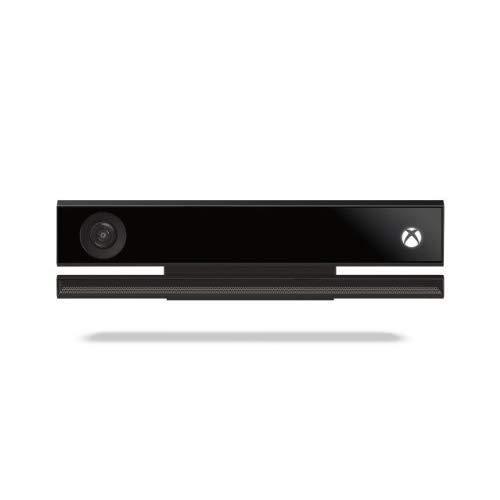
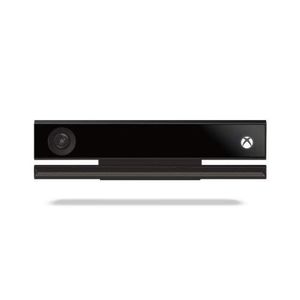
You don't have to have your hands full when you're gaming. With Kinect for Xbox One, you can control games using your just body, voice, and gestures. Forget the remote. Kinect lets you command your TV or even make Skype calls in HD. Be recognized and signed-in automatically, and use your voice to find your favorite entertainment, snap apps, switch instantly, and start recording game clips. You can even broadcast your gameplay live with picture-in-picture.
Troubleshooting steps: To verify that your sensor is turned on:
1. Scroll left from the Home screen to open the guide. 2. Select Settings. 3. Select All Settings 4. Select Kinect & devices.. 5. Select Kinect. 6. Verify that Kinect on is selected.
If the Kinect has been enabled in the Xbox One Menu, follow these steps to reset the Kinect sensor's connection:
1. Power off the Xbox One console by pressing the Xbox button on the front of the console for 10 seconds, until it shuts down completely. 2. Unplug the console's power cable. 3. Unplug the Kinect sensor from the console. 4. Plug the console power cable back in. 5. Press the Xbox button on your console to power up. 6. Scroll left from the Home screen to open the guide. 7. Select Settings. 8. Select All Settings. 9. Select Kinect & devices. 10.Select Kinect. Plug the Kinect sensor into the back of the console and wait 5 seconds for the console to recognize it.
You don't have to have your hands full when you're gaming. With Kinect for Xbox One, you can control games using your just body, voice, and gestures. Forget the remote. Kinect lets you command your TV or even make Skype calls in HD. Be recognized and signed-in automatically, and use your voice to find your favorite entertainment, snap apps, switch instantly, and start recording game clips. You can even broadcast your gameplay live with picture-in-picture.
Troubleshooting steps: To verify that your sensor is turned on:
1. Scroll left from the Home screen to open the guide. 2. Select Settings. 3. Select All Settings 4. Select Kinect & devices.. 5. Select Kinect. 6. Verify that Kinect on is selected.
If the Kinect has been enabled in the Xbox One Menu, follow these steps to reset the Kinect sensor's connection:
1. Power off the Xbox One console by pressing the Xbox button on the front of the console for 10 seconds, until it shuts down completely. 2. Unplug the console's power cable. 3. Unplug the Kinect sensor from the console. 4. Plug the console power cable back in. 5. Press the Xbox button on your console to power up. 6. Scroll left from the Home screen to open the guide. 7. Select Settings. 8. Select All Settings. 9. Select Kinect & devices. 10.Select Kinect. Plug the Kinect sensor into the back of the console and wait 5 seconds for the console to recognize it.
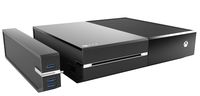
Microsoft Xbox One Kinect Sensor Bar [Xbox One](Renewed)
Current Price
$92.99
Average
$71.02
Min Price
$34.43
Max Price
$224.99
Price dynamics
24%
Description
You are the controller
You don't have to have your hands full when you're gaming. With Kinect for Xbox One, you can control games using your just body, voice, and gestures. Forget the remote. Kinect lets you command your TV or even make Skype calls in HD. Be recognized and signed-in automatically, and use your voice to find your favorite entertainment, snap apps, switch instantly, and start recording game clips. You can even broadcast your gameplay live with picture-in-picture.
Troubleshooting steps: To verify that your sensor is turned on:
1. Scroll left from the Home screen to open the guide. 2. Select Settings. 3. Select All Settings 4. Select Kinect & devices.. 5. Select Kinect. 6. Verify that Kinect on is selected.
If the Kinect has been enabled in the Xbox One Menu, follow these steps to reset the Kinect sensor's connection:
1. Power off the Xbox One console by pressing the Xbox button on the front of the console for 10 seconds, until it shuts down completely. 2. Unplug the console's power cable. 3. Unplug the Kinect sensor from the console. 4. Plug the console power cable back in. 5. Press the Xbox button on your console to power up. 6. Scroll left from the Home screen to open the guide. 7. Select Settings. 8. Select All Settings. 9. Select Kinect & devices. 10.Select Kinect. Plug the Kinect sensor into the back of the console and wait 5 seconds for the console to recognize it.
You don't have to have your hands full when you're gaming. With Kinect for Xbox One, you can control games using your just body, voice, and gestures. Forget the remote. Kinect lets you command your TV or even make Skype calls in HD. Be recognized and signed-in automatically, and use your voice to find your favorite entertainment, snap apps, switch instantly, and start recording game clips. You can even broadcast your gameplay live with picture-in-picture.
Troubleshooting steps: To verify that your sensor is turned on:
1. Scroll left from the Home screen to open the guide. 2. Select Settings. 3. Select All Settings 4. Select Kinect & devices.. 5. Select Kinect. 6. Verify that Kinect on is selected.
If the Kinect has been enabled in the Xbox One Menu, follow these steps to reset the Kinect sensor's connection:
1. Power off the Xbox One console by pressing the Xbox button on the front of the console for 10 seconds, until it shuts down completely. 2. Unplug the console's power cable. 3. Unplug the Kinect sensor from the console. 4. Plug the console power cable back in. 5. Press the Xbox button on your console to power up. 6. Scroll left from the Home screen to open the guide. 7. Select Settings. 8. Select All Settings. 9. Select Kinect & devices. 10.Select Kinect. Plug the Kinect sensor into the back of the console and wait 5 seconds for the console to recognize it.
Price will be lower
in next 2 weeks
in next 2 weeks
According to the data, price will be lower in next two weeks, so not waste your money and track better price!
Similar products