Description
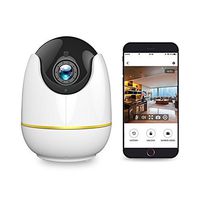
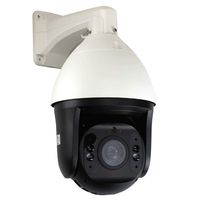
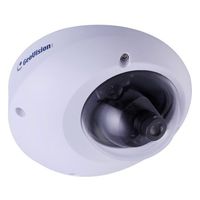
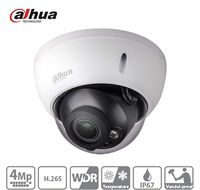
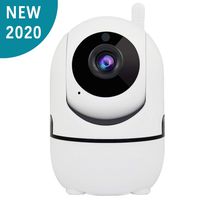
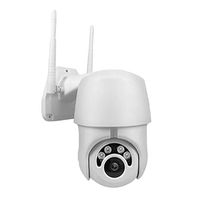
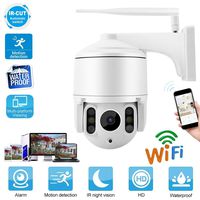
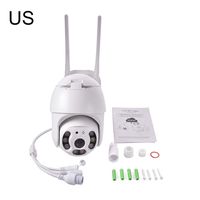
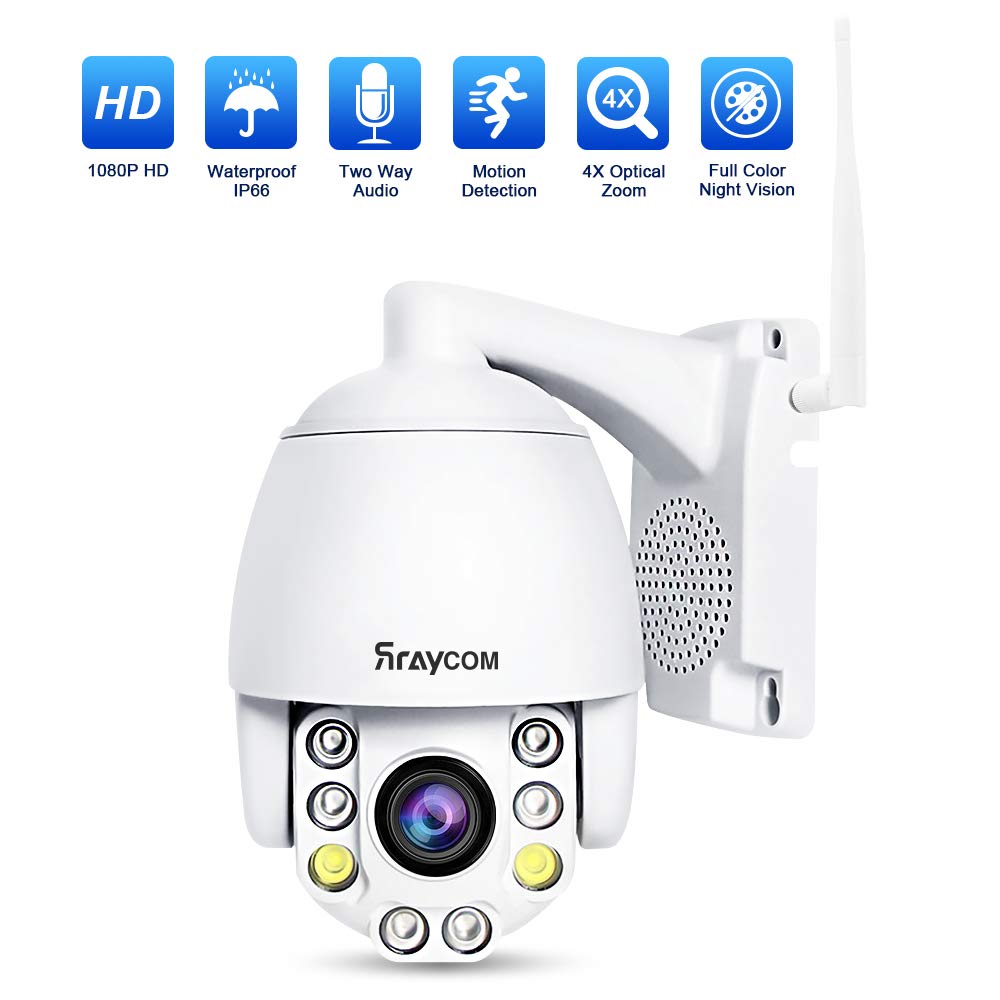
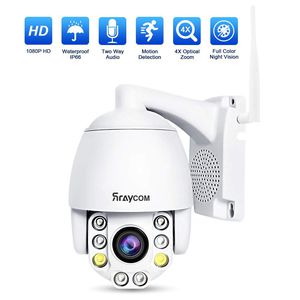
Rraycom 4X PTZ WiFi Camera is a security solution for your home and business. You can checking the things you care about from anywhere, anytime. Easy to install, multi-application, suitable for residential areas, shops, parking lots and other places. Take you enjoy your connected home.
Main Features:
1. 2.0 Megapixel high definition resolution 1920x1080
2.Pan, Tilt, Zoom, 4X optical zoom auto focus lens
3.7 preset points, supports cruise function
4.Built-in microphone and speaker, Support 2-way audio
5.Support Max 64GB TF card
6.Support for Internet Explorer login
7.Equiped with 6 powerful IR-LEDs
8.Motion detection alert notification and APP push
9.Wireless and Wired Cable Connection
10.Support ONVIF Protocol
What's in the box:
1 X PTZ WiFi Camera
1 X Wifi Antenna
1 X Power Adapter
1 X CD
1 X Waterproof Connector
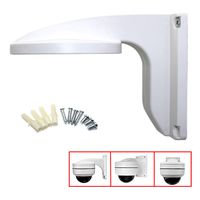
1 X Bracket
4 X Screws
3 X Rubber Stopper
1 X User Manual
App using guide:
1. Rraycom camera connected to the power and connect the network cabel, then download CamHi APP
2. Open the installed CamHi APP, click Add Camera; click on the LAN to search for UID, and then click on the searched device.
3. Click the ID of the searched camera, enter the default password of the camera admin; click Finish; return to the list of software devices, click on the added device to see the image.
4. Click on the camera name; enter the camera settings and click the wifi settings.
5. Enter the management wifi network; Find your home's wifi name and enter password to connect; the pilot lamp behind the wireless network shows that it is connected to the wireless.
6. Tips: After wifi is connected, you can unplug thenetwork cable and realize wifi wireless connection.
7.There is another connection method, you can refer to the Instruction Manual.
Main Features:
1. 2.0 Megapixel high definition resolution 1920x1080
2.Pan, Tilt, Zoom, 4X optical zoom auto focus lens
3.7 preset points, supports cruise function
4.Built-in microphone and speaker, Support 2-way audio
5.Support Max 64GB TF card
6.Support for Internet Explorer login
7.Equiped with 6 powerful IR-LEDs
8.Motion detection alert notification and APP push
9.Wireless and Wired Cable Connection
10.Support ONVIF Protocol
What's in the box:
1 X PTZ WiFi Camera
1 X Wifi Antenna
1 X Power Adapter
1 X CD
1 X Waterproof Connector
1 X Bracket
4 X Screws
3 X Rubber Stopper
1 X User Manual
App using guide:
1. Rraycom camera connected to the power and connect the network cabel, then download CamHi APP
2. Open the installed CamHi APP, click Add Camera; click on the LAN to search for UID, and then click on the searched device.
3. Click the ID of the searched camera, enter the default password of the camera admin; click Finish; return to the list of software devices, click on the added device to see the image.
4. Click on the camera name; enter the camera settings and click the wifi settings.
5. Enter the management wifi network; Find your home's wifi name and enter password to connect; the pilot lamp behind the wireless network shows that it is connected to the wireless.
6. Tips: After wifi is connected, you can unplug thenetwork cable and realize wifi wireless connection.
7.There is another connection method, you can refer to the Instruction Manual.
Rraycom PTZ WiFi Camera Outdoor,HD 1080P Wireless Security IP Camera,Pan/Tilt 4X Optical Zoom,2-Way Audio,Waterproof Surveillance Dome Cam,Motion Detection Alarm,Full Color Night Vision&Remote Access
Price is below average
Current Price
$89.99
Average
$102.49
Min Price
$89.99
Max Price
$119.99
Price dynamics
12%
Description
Rraycom 4X PTZ WiFi Camera is a security solution for your home and business. You can checking the things you care about from anywhere, anytime. Easy to install, multi-application, suitable for residential areas, shops, parking lots and other places. Take you enjoy your connected home.
Main Features:
1. 2.0 Megapixel high definition resolution 1920x1080
2.Pan, Tilt, Zoom, 4X optical zoom auto focus lens
3.7 preset points, supports cruise function
4.Built-in microphone and speaker, Support 2-way audio
5.Support Max 64GB TF card
6.Support for Internet Explorer login
7.Equiped with 6 powerful IR-LEDs
8.Motion detection alert notification and APP push
9.Wireless and Wired Cable Connection
10.Support ONVIF Protocol
What's in the box:
1 X PTZ WiFi Camera
1 X Wifi Antenna
1 X Power Adapter
1 X CD
1 X Waterproof Connector
1 X Bracket
4 X Screws
3 X Rubber Stopper
1 X User Manual
App using guide:
1. Rraycom camera connected to the power and connect the network cabel, then download CamHi APP
2. Open the installed CamHi APP, click Add Camera; click on the LAN to search for UID, and then click on the searched device.
3. Click the ID of the searched camera, enter the default password of the camera admin; click Finish; return to the list of software devices, click on the added device to see the image.
4. Click on the camera name; enter the camera settings and click the wifi settings.
5. Enter the management wifi network; Find your home's wifi name and enter password to connect; the pilot lamp behind the wireless network shows that it is connected to the wireless.
6. Tips: After wifi is connected, you can unplug thenetwork cable and realize wifi wireless connection.
7.There is another connection method, you can refer to the Instruction Manual.
Main Features:
1. 2.0 Megapixel high definition resolution 1920x1080
2.Pan, Tilt, Zoom, 4X optical zoom auto focus lens
3.7 preset points, supports cruise function
4.Built-in microphone and speaker, Support 2-way audio
5.Support Max 64GB TF card
6.Support for Internet Explorer login
7.Equiped with 6 powerful IR-LEDs
8.Motion detection alert notification and APP push
9.Wireless and Wired Cable Connection
10.Support ONVIF Protocol
What's in the box:
1 X PTZ WiFi Camera
1 X Wifi Antenna
1 X Power Adapter
1 X CD
1 X Waterproof Connector
1 X Bracket
4 X Screws
3 X Rubber Stopper
1 X User Manual
App using guide:
1. Rraycom camera connected to the power and connect the network cabel, then download CamHi APP
2. Open the installed CamHi APP, click Add Camera; click on the LAN to search for UID, and then click on the searched device.
3. Click the ID of the searched camera, enter the default password of the camera admin; click Finish; return to the list of software devices, click on the added device to see the image.
4. Click on the camera name; enter the camera settings and click the wifi settings.
5. Enter the management wifi network; Find your home's wifi name and enter password to connect; the pilot lamp behind the wireless network shows that it is connected to the wireless.
6. Tips: After wifi is connected, you can unplug thenetwork cable and realize wifi wireless connection.
7.There is another connection method, you can refer to the Instruction Manual.
Price will be lower
in next 2 weeks
in next 2 weeks
According to the data, price will be lower in next two weeks, so not waste your money and track better price!

Similar products