Description
AirPlay Mirroring for iOS (iPhone/iPad)
Please follow below steps to setup MiraScreen:
Step 1: Connect WiFi cable (micro USB head) to MiraScreen dongle.
Step 2: Plug the MiraScreen dongle into the HDMI port of your TV and switch to the right input source.
Step 3: Plug USB cable into an external USB power adapter.
Step 4: Display MiraScreen Main Page.
AirPlay Mirroring for iOS (iPhone/iPad)
Step 1: Switch to Airplay mode by pressing button
Step 2: Get SSID and password on screen
Step 3: Establish WiFi connection between iOS device and MiraScreen.
Step 4: Turn on Airplay and select MiraScreen's SSID.
Then start mirroring.
MiraCast Mirroring for Android:
Step 1: Switch to Miracast mode by pressing button
Step 2: Miracast mode ready
Step 3: Find the Miracast function on your Android device (such as screen mirroring/Miracast/smart view).
Step 4: Establish Miracast connection between Android device and MiraScreen.
Setting and Firmware Upgrade
After connected with MiraScreen, an IP address will be shown on setup screen. Please use browser on your devices (iOS/Androd/Mac/Windows etc.) and then enter the IP address accordingly (ex: 192.168.203.1)
Internet: Setup the router connection for your MiraScreen. (Note: The connection between MiraScreen and your device may be disconnected when you switch to router connection)
Language/Password(Change the password of MiraScreen)/ Default Mode/Resolution/
Upgrade: upgrade the firmware of MiraScreen. (Required in Internet connection) IMPORTANT! Please upgrade to the latest version in order to compatible with up-to-date devices.
Specification
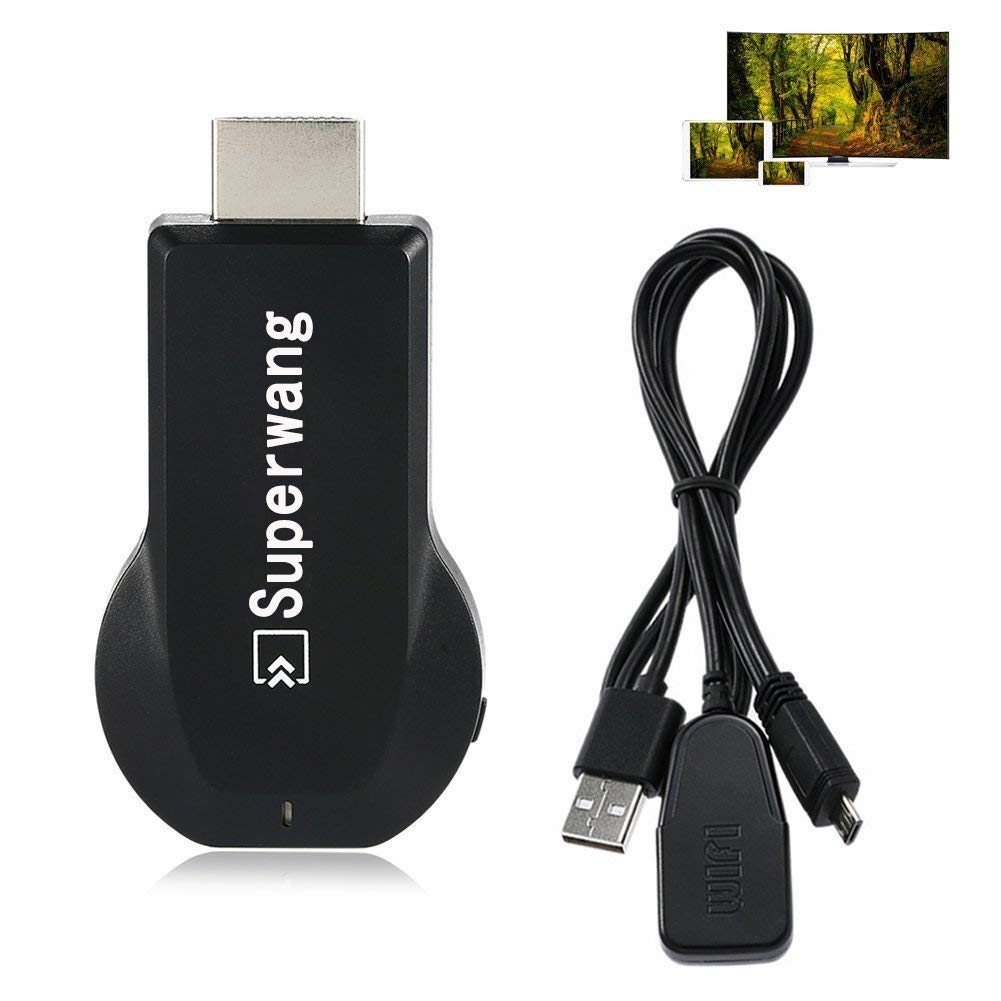
What's in the package:
1 x MiraScreen dongle
1 x WiFi antenna
1 x Manual User
Please follow below steps to setup MiraScreen:
Step 1: Connect WiFi cable (micro USB head) to MiraScreen dongle.
Step 2: Plug the MiraScreen dongle into the HDMI port of your TV and switch to the right input source.
Step 3: Plug USB cable into an external USB power adapter.
Step 4: Display MiraScreen Main Page.
AirPlay Mirroring for iOS (iPhone/iPad)
Step 1: Switch to Airplay mode by pressing button
Step 2: Get SSID and password on screen
Step 3: Establish WiFi connection between iOS device and MiraScreen.
Step 4: Turn on Airplay and select MiraScreen's SSID.
Then start mirroring.
MiraCast Mirroring for Android:
Step 1: Switch to Miracast mode by pressing button
Step 2: Miracast mode ready
Step 3: Find the Miracast function on your Android device (such as screen mirroring/Miracast/smart view).
Step 4: Establish Miracast connection between Android device and MiraScreen.
Setting and Firmware Upgrade
After connected with MiraScreen, an IP address will be shown on setup screen. Please use browser on your devices (iOS/Androd/Mac/Windows etc.) and then enter the IP address accordingly (ex: 192.168.203.1)
Internet: Setup the router connection for your MiraScreen. (Note: The connection between MiraScreen and your device may be disconnected when you switch to router connection)
Language/Password(Change the password of MiraScreen)/ Default Mode/Resolution/
Upgrade: upgrade the firmware of MiraScreen. (Required in Internet connection) IMPORTANT! Please upgrade to the latest version in order to compatible with up-to-date devices.
Specification
What's in the package:
1 x MiraScreen dongle
1 x WiFi antenna
1 x Manual User
Superwang MiraScreen Dongle 1080P HDMI AV Adapter Cable for Connect Samsung Galaxy S6 S7 S8 Plus Note 8/5/4/3 iOS Apple iPhone iPad Tablet PC to HD TV
Current Price
$19.89
Average
$18.65
Min Price
$11.99
Max Price
$19.99
Price dynamics
6%
Description
AirPlay Mirroring for iOS (iPhone/iPad)
Please follow below steps to setup MiraScreen:
Step 1: Connect WiFi cable (micro USB head) to MiraScreen dongle.
Step 2: Plug the MiraScreen dongle into the HDMI port of your TV and switch to the right input source.
Step 3: Plug USB cable into an external USB power adapter.
Step 4: Display MiraScreen Main Page.
AirPlay Mirroring for iOS (iPhone/iPad)
Step 1: Switch to Airplay mode by pressing button
Step 2: Get SSID and password on screen
Step 3: Establish WiFi connection between iOS device and MiraScreen.
Step 4: Turn on Airplay and select MiraScreen's SSID.
Then start mirroring.
MiraCast Mirroring for Android:
Step 1: Switch to Miracast mode by pressing button
Step 2: Miracast mode ready
Step 3: Find the Miracast function on your Android device (such as screen mirroring/Miracast/smart view).
Step 4: Establish Miracast connection between Android device and MiraScreen.
Setting and Firmware Upgrade
After connected with MiraScreen, an IP address will be shown on setup screen. Please use browser on your devices (iOS/Androd/Mac/Windows etc.) and then enter the IP address accordingly (ex: 192.168.203.1)
Internet: Setup the router connection for your MiraScreen. (Note: The connection between MiraScreen and your device may be disconnected when you switch to router connection)
Language/Password(Change the password of MiraScreen)/ Default Mode/Resolution/
Upgrade: upgrade the firmware of MiraScreen. (Required in Internet connection) IMPORTANT! Please upgrade to the latest version in order to compatible with up-to-date devices.
Specification
What's in the package:
1 x MiraScreen dongle
1 x WiFi antenna
1 x Manual User
Please follow below steps to setup MiraScreen:
Step 1: Connect WiFi cable (micro USB head) to MiraScreen dongle.
Step 2: Plug the MiraScreen dongle into the HDMI port of your TV and switch to the right input source.
Step 3: Plug USB cable into an external USB power adapter.
Step 4: Display MiraScreen Main Page.
AirPlay Mirroring for iOS (iPhone/iPad)
Step 1: Switch to Airplay mode by pressing button
Step 2: Get SSID and password on screen
Step 3: Establish WiFi connection between iOS device and MiraScreen.
Step 4: Turn on Airplay and select MiraScreen's SSID.
Then start mirroring.
MiraCast Mirroring for Android:
Step 1: Switch to Miracast mode by pressing button
Step 2: Miracast mode ready
Step 3: Find the Miracast function on your Android device (such as screen mirroring/Miracast/smart view).
Step 4: Establish Miracast connection between Android device and MiraScreen.
Setting and Firmware Upgrade
After connected with MiraScreen, an IP address will be shown on setup screen. Please use browser on your devices (iOS/Androd/Mac/Windows etc.) and then enter the IP address accordingly (ex: 192.168.203.1)
Internet: Setup the router connection for your MiraScreen. (Note: The connection between MiraScreen and your device may be disconnected when you switch to router connection)
Language/Password(Change the password of MiraScreen)/ Default Mode/Resolution/
Upgrade: upgrade the firmware of MiraScreen. (Required in Internet connection) IMPORTANT! Please upgrade to the latest version in order to compatible with up-to-date devices.
Specification
What's in the package:
1 x MiraScreen dongle
1 x WiFi antenna
1 x Manual User
Price will be lower
in next 2 weeks
in next 2 weeks
According to the data, price will be lower in next two weeks, so not waste your money and track better price!
Product review & video
[Music] yo what's up guys welcome back to another video in today I just want to show like a simple that that's kind of like it's gonna be solution to most of the things that some of you have been complaining about as to how do you get ones going to display on the next screen or how do you get you for two-spirit TV or do you get your photo display on there on a projector so that's being quite so quite a challenge for a couple of years now but there's being solutions but they were not actually catering for everyone so most assertion that we have a book there is software based and then you had to have like Internet connectivity have that but in a place where you don't have internet so what do you do do you you have to take it to fit to someone with this internet or well this product that I happy it's called a mirror screen so I'm going to do a quick review on it as to how you can use it to


Similar products