Description
The Xbox controllers were originally made to work on their consoles. You can pair with Android phones, but thanks to recent software updates, now you can also pair them more easily with your iOS 13 device via Bluetooth.
Set up an Xbox One S controller with your iPhone:
- Make sure your iPhone is update to iOS 13
- Put your controller in pairing mode: Press the Xbox button on the controller to turn it on. Press the Connect button for 3 seconds and the Xbox button will start flashing.
- Open Settings and tap Bluetooth on your iPhone. Select your controller in the device list.
- Once it’s paired, the light on your Xbox button should stop flashing and stay lit.
Set up an Xbox One S controller with your Android phone:
- Put your controller in pairing mode: Press the Xbox button on the controller to turn it on. Press the Connect button for 3 seconds and the Xbox button will start flashing.
- On Android 10, open Settings > Connected Devices > Select Pair new device > Select your controller
- On older Android System: Scroll down into a Bluetooth sub-menu from the Connected Devices setting to pair a controller.
- Once it’s paired, the light on your Xbox button should stop flashing and stay lit.
NOTE: The steps may vary depending on the device that you use.
Set up an Xbox One S controller with your iPhone:
- Make sure your iPhone is update to iOS 13
- Put your controller in pairing mode: Press the Xbox button on the controller to turn it on. Press the Connect button for 3 seconds and the Xbox button will start flashing.
- Open Settings and tap Bluetooth on your iPhone. Select your controller in the device list.
- Once it’s paired, the light on your Xbox button should stop flashing and stay lit.
Set up an Xbox One S controller with your Android phone:
- Put your controller in pairing mode: Press the Xbox button on the controller to turn it on. Press the Connect button for 3 seconds and the Xbox button will start flashing.
- On Android 10, open Settings > Connected Devices > Select Pair new device > Select your controller
- On older Android System: Scroll down into a Bluetooth sub-menu from the Connected Devices setting to pair a controller.
- Once it’s paired, the light on your Xbox button should stop flashing and stay lit.
NOTE: The steps may vary depending on the device that you use.
Specification:
- Phone Holder Color: Black
- Material: ABS
- Compatible with: Xbox One S Wireless Controller
- PLEASE NOTE: iOS 13 currently doesn't support the Xbox Elite Wireless Controller 2.
- Please make sure your Xbox controller works with smartphone pairing before purchase.
Package Content:
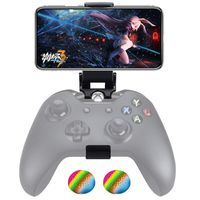
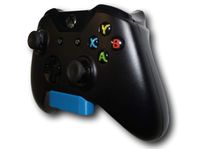
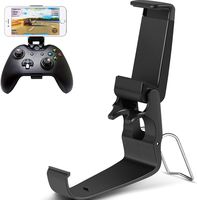
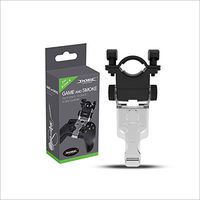
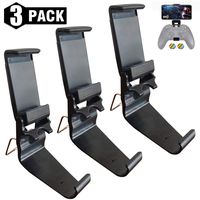
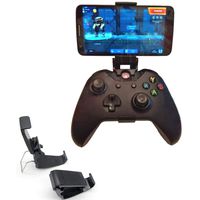
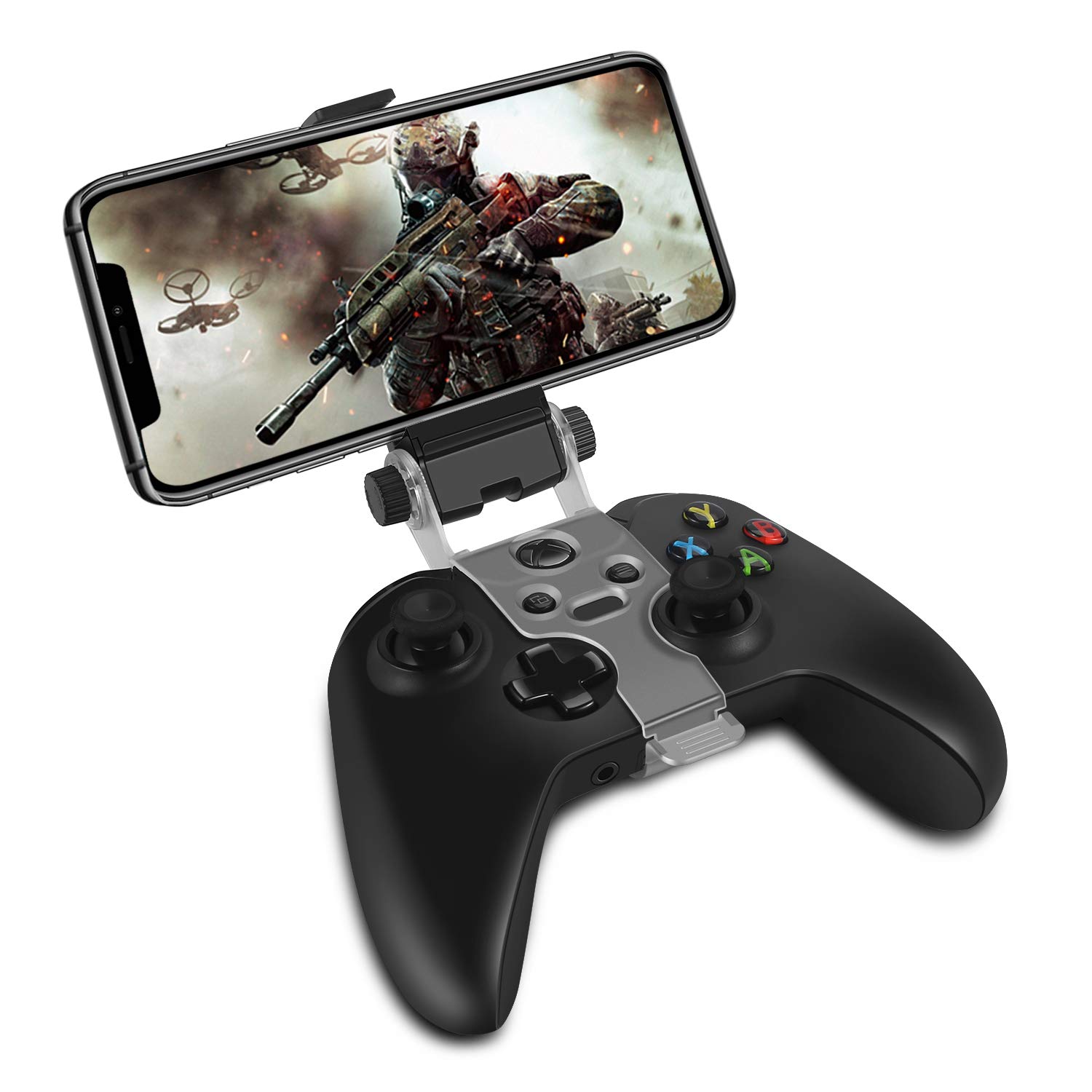
- 1x Phone Clip Holder Compatible with Xbox One S X Wireless Controller, Foldable Clamp Mount for iPhone 11 Pro Max, 11 Pro, 11, Xs Max, Xs, X, 8 Plus, 7, Android Phone Samsung LG [Xbox Accessories]
TNP Phone Clip Holder Compatible with Xbox One S X Wireless Controller, Foldable Clamp Mount for iPhone 11 Pro Max, 11 Pro, 11, Xs Max, Xs, X, 8 Plus, 7, Android Phone Samsung LG [Xbox Accessories]
Price is below average
Current Price
$7.99
Average
$8.32
Min Price
$7.99
Max Price
$8.99
Price dynamics
4%
Description
The Xbox controllers were originally made to work on their consoles. You can pair with Android phones, but thanks to recent software updates, now you can also pair them more easily with your iOS 13 device via Bluetooth.
Set up an Xbox One S controller with your iPhone:
- Make sure your iPhone is update to iOS 13
- Put your controller in pairing mode: Press the Xbox button on the controller to turn it on. Press the Connect button for 3 seconds and the Xbox button will start flashing.
- Open Settings and tap Bluetooth on your iPhone. Select your controller in the device list.
- Once it’s paired, the light on your Xbox button should stop flashing and stay lit.
Set up an Xbox One S controller with your Android phone:
- Put your controller in pairing mode: Press the Xbox button on the controller to turn it on. Press the Connect button for 3 seconds and the Xbox button will start flashing.
- On Android 10, open Settings > Connected Devices > Select Pair new device > Select your controller
- On older Android System: Scroll down into a Bluetooth sub-menu from the Connected Devices setting to pair a controller.
- Once it’s paired, the light on your Xbox button should stop flashing and stay lit.
NOTE: The steps may vary depending on the device that you use.
Set up an Xbox One S controller with your iPhone:
- Make sure your iPhone is update to iOS 13
- Put your controller in pairing mode: Press the Xbox button on the controller to turn it on. Press the Connect button for 3 seconds and the Xbox button will start flashing.
- Open Settings and tap Bluetooth on your iPhone. Select your controller in the device list.
- Once it’s paired, the light on your Xbox button should stop flashing and stay lit.
Set up an Xbox One S controller with your Android phone:
- Put your controller in pairing mode: Press the Xbox button on the controller to turn it on. Press the Connect button for 3 seconds and the Xbox button will start flashing.
- On Android 10, open Settings > Connected Devices > Select Pair new device > Select your controller
- On older Android System: Scroll down into a Bluetooth sub-menu from the Connected Devices setting to pair a controller.
- Once it’s paired, the light on your Xbox button should stop flashing and stay lit.
NOTE: The steps may vary depending on the device that you use.
Specification:
- Phone Holder Color: Black
- Material: ABS
- Compatible with: Xbox One S Wireless Controller
- PLEASE NOTE: iOS 13 currently doesn't support the Xbox Elite Wireless Controller 2.
- Please make sure your Xbox controller works with smartphone pairing before purchase.
Package Content:
- 1x Phone Clip Holder Compatible with Xbox One S X Wireless Controller, Foldable Clamp Mount for iPhone 11 Pro Max, 11 Pro, 11, Xs Max, Xs, X, 8 Plus, 7, Android Phone Samsung LG [Xbox Accessories]
Price will be lower
in next 2 weeks
in next 2 weeks
According to the data, price will be lower in next two weeks, so not waste your money and track better price!
Similar products