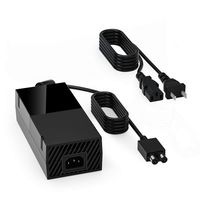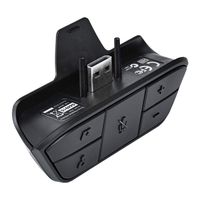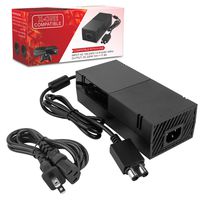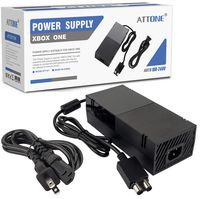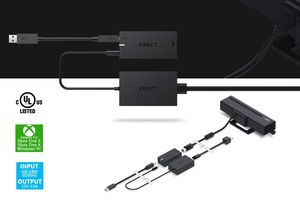
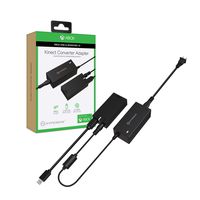
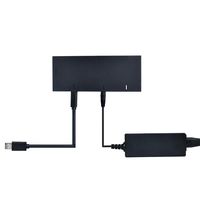
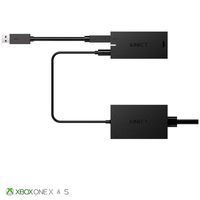
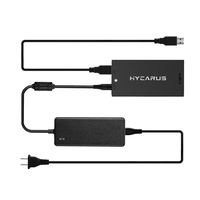
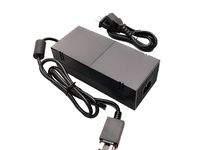
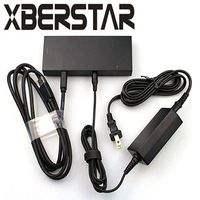
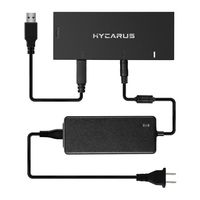
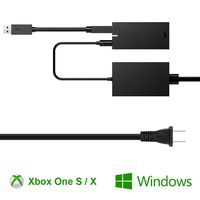
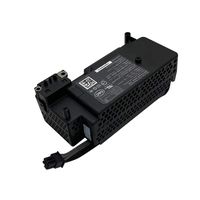
Xbox One Kinect Adapter, PerfectPromise Xbox One games Adapter, Kinect 2.0 Power Supply Compatible with Xbox One S/X, Windows 10 PC
Price is below average
Current Price
$25.99
Average
$34.29
Min Price
$25.99
Max Price
$50.99
Price dynamics
24%
Price will be lower
in next 2 weeks
in next 2 weeks
According to the data, price will be lower in next two weeks, so not waste your money and track better price!

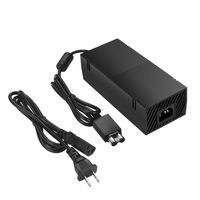
![GOGOLL Xbox One Power Supply Brick with Cable, [Advanced Quiet Version] Power Supply Charger Cord Replacement for Xbox One](https://use4coins.com/thumbs/unsafe/fit-in/200x200/https://images-na.ssl-images-amazon.com/images/I/71pk5wFAfvL.jpg)
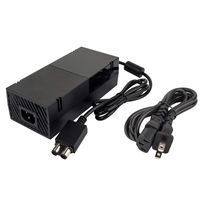
![Xbox One Power Supply Brick, [Enhanced Version] CTPOWER AC Adapter Power Supply Charger Cord Replacement for Xbox One 100-240V, Black](https://use4coins.com/thumbs/unsafe/fit-in/200x200/https://images-na.ssl-images-amazon.com/images/I/61U-ieFxUIL.jpg)
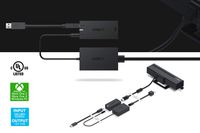
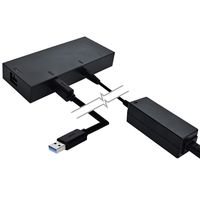
![OUTWAY Xbox One Power Supply Brick, [Advanced Version] AC Adapter Power Supply Charger Cord Replacement for Xbox One 100-240V, Black](https://use4coins.com/thumbs/unsafe/fit-in/200x200/https://images-na.ssl-images-amazon.com/images/I/71UXYGlz6xL.jpg)
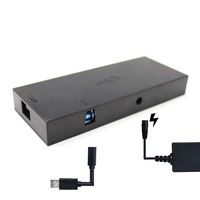
![Kinect Adapter for Xbox One, Xbox One S, Xbox One X and Windows 8/8.1/10 PC, USB 3.0 [Upgrade]](https://use4coins.com/thumbs/unsafe/fit-in/200x200/https://images-na.ssl-images-amazon.com/images/I/51vC36uwEpL.jpg)
![Xbox One Power Supply,[Advanced Quiet Edition]AC Adapter Power Supply Charger Cord with 100-240V AC Power Wall Cord for Xbox One,Black](https://use4coins.com/thumbs/unsafe/fit-in/200x200/https://images-na.ssl-images-amazon.com/images/I/61E2VsQafbL.jpg)
![[Newest Version] IFYOO KMAX1 Keyboard and Mouse Adapter Converter for PS4 / Xbox One/Switch / PS3 - Compatible with Fortnitee, PUBG, H1Z1 and Other Shooting Games - [Included 1x USB Sync Cable]](https://use4coins.com/thumbs/unsafe/fit-in/200x200/https://images-na.ssl-images-amazon.com/images/I/615K5-XvI0L.jpg)