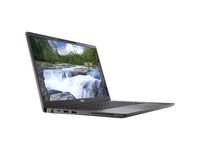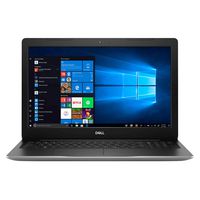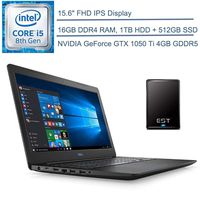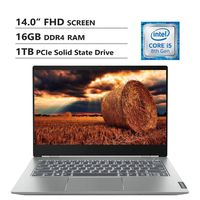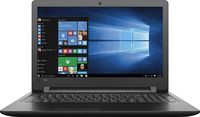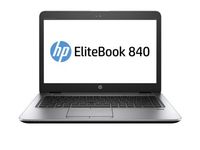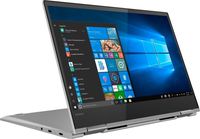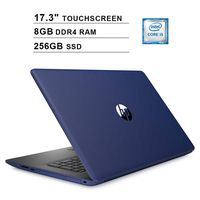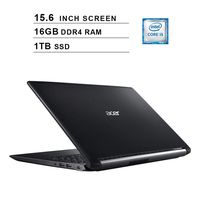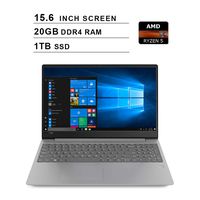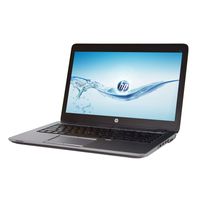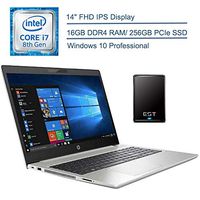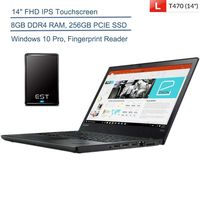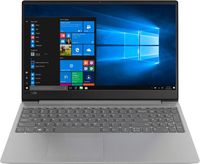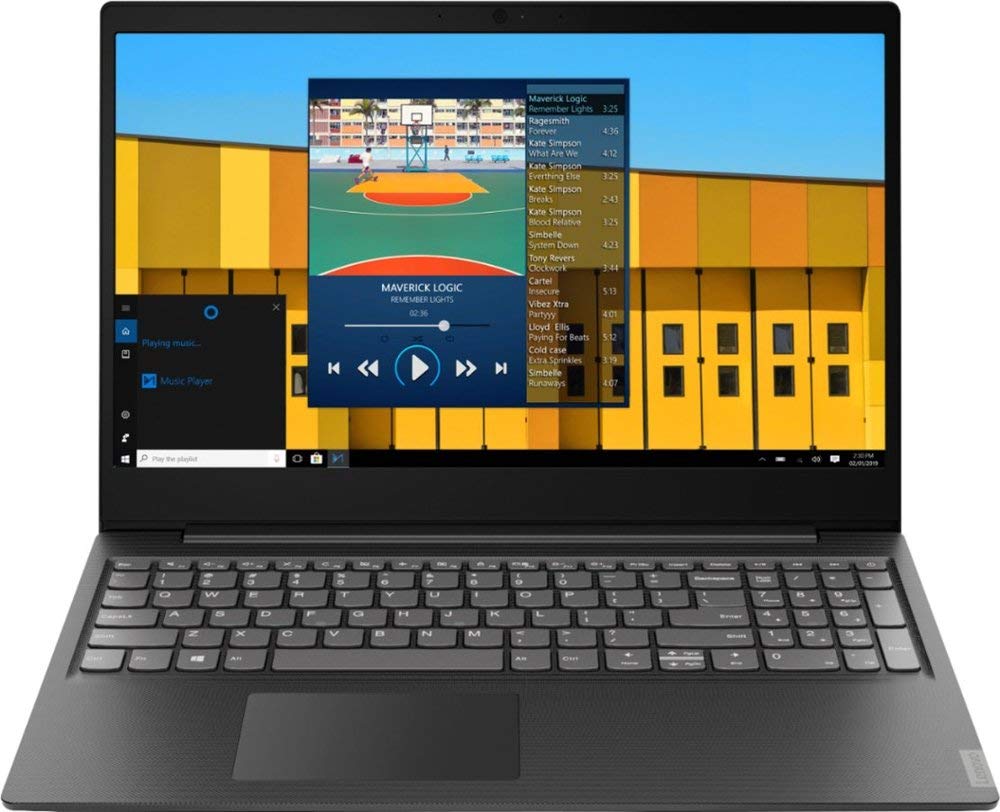
2019 Lenovo S145 Laptop Computer, Intel Pentium Gold 5405U 2.3GHz, 16GB DDR4 RAM, 500GB HDD, 15.6" Screen, AC WiFi, Bluetooth, USB 3.1, HDMI, Granite Black Texture, Windows 10 Home
Price is below average
Current Price
$386.8
Average
$393.82
Min Price
$386.8
Max Price
$509
Price dynamics
2%
Price will be lower
in next 2 weeks
in next 2 weeks
According to the data, price will be lower in next two weeks, so not waste your money and track better price!
Product review & video
hello everybody welcome back another day like this of Jace tutorials today we have a special unboxing we are unboxing our Lenovo s14 t5 laptop so this is gonna be our replacement from the 320 S which is awesome I really like that laptop but I'm giving it to someone who needs it and this is gonna be our upgrade so this is definitely huh the Stefan has more firepower 320s and it's a lot bigger to crowd what it was like to have a big so yeah less portability I'm expecting less battery life out of this as well just because of the size and the amount of ports and ran but we'll get to the bottom of that so let's get to the unboxing we got a few manuals here we got our charger which is pretty much the same as the three 20s so that's nice and then we have our USB transfer right oh that's very helpful it's good to know and then we have our safety and warranty guide definite keeping that we have