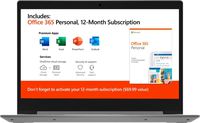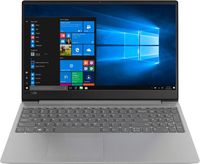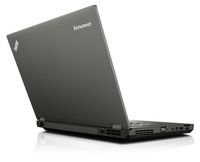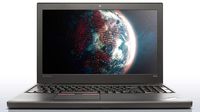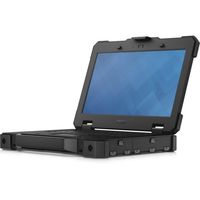
Processor: Intel Celeron N3060 1.60 GHz up to 2.48 GHz
Memory: 4GB DDR3L 1600 MHz
Hard drive size: 64GB SSD
Operating system: Windows 10 Home in S mode
PC type: Laptop
Optical drive: None
Media drive: Multi-format digital media card reader
Audio: DTS Studio Sound
Video: Intel UHD Graphics 600
Ports: 2 USB 3.1 Gen 1 1 USB 2.0 HDMI 1.4 Headphone output/mic input combo jack
Battery: 41WHr 3-cell lithium-ion prismatic (14 hour battery life*)
Camera: Webcam with integrated digital microphone
Wireless: 802.11b/g/n/ac
Bluetooth: Bluetooth 4.2
Dimensions: 13.27 x 8.90 x 0.70 in (337.05 x 226.06 x 17.78 mm)
Weight: 3.17 lbs (1.43 kg)
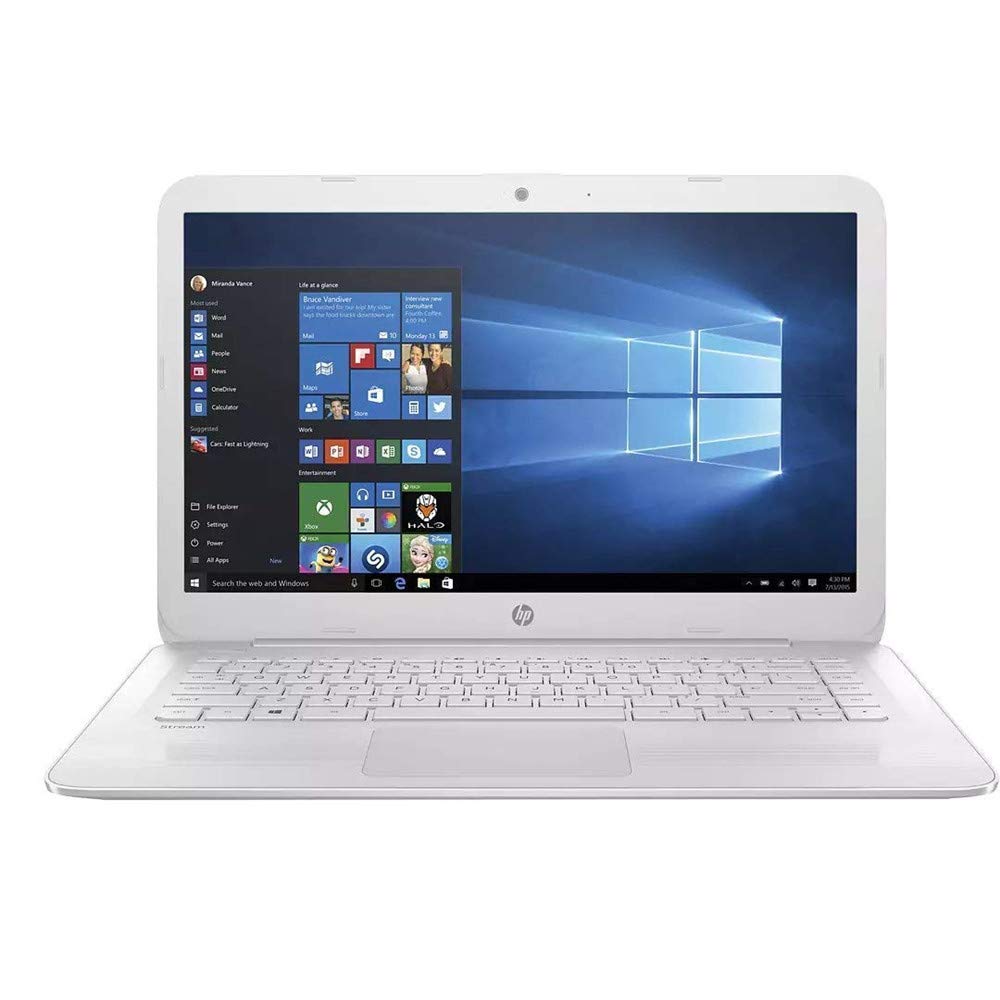
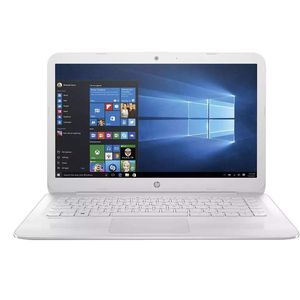
Color: White
Switching out of S mode in Windows 10
- On your PC running Windows 10 in S mode, open Settings > Update & Security > Activation.
- In the Switch to Windows 10 Home or Switch to Windows 10 Pro section, select Go to the Store. (If you also see an "Upgrade your edition of Windows" section, be careful not to click the "Go to the Store" link that appears there.)
- On the Switch out of S mode (or similar) page that appears in the Microsoft Store, select the Get button. After you see a confirmation message on the page, you'll be able to install apps from outside of the Microsoft Store.
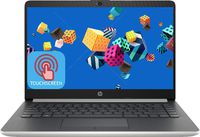
2019 HP Stream 14 Laptop Computer, 14" FHD IPS, Intel Celeron N3060 up to 2.48GHz, 4GB RAM, 64GB eMMC, Bluetooth 4.2, 802.11AC WiFi, USB 3.1, HDMI, Windows 10 Home
Processor: Intel Celeron N3060 1.60 GHz up to 2.48 GHz
Memory: 4GB DDR3L 1600 MHz
Hard drive size: 64GB SSD
Operating system: Windows 10 Home in S mode
PC type: Laptop
Optical drive: None
Media drive: Multi-format digital media card reader
Audio: DTS Studio Sound
Video: Intel UHD Graphics 600
Ports: 2 USB 3.1 Gen 1 1 USB 2.0 HDMI 1.4 Headphone output/mic input combo jack
Battery: 41WHr 3-cell lithium-ion prismatic (14 hour battery life*)
Camera: Webcam with integrated digital microphone
Wireless: 802.11b/g/n/ac
Bluetooth: Bluetooth 4.2
Dimensions: 13.27 x 8.90 x 0.70 in (337.05 x 226.06 x 17.78 mm)
Weight: 3.17 lbs (1.43 kg)
Color: White
Switching out of S mode in Windows 10
- On your PC running Windows 10 in S mode, open Settings > Update & Security > Activation.
- In the Switch to Windows 10 Home or Switch to Windows 10 Pro section, select Go to the Store. (If you also see an "Upgrade your edition of Windows" section, be careful not to click the "Go to the Store" link that appears there.)
- On the Switch out of S mode (or similar) page that appears in the Microsoft Store, select the Get button. After you see a confirmation message on the page, you'll be able to install apps from outside of the Microsoft Store.
in next 2 weeks